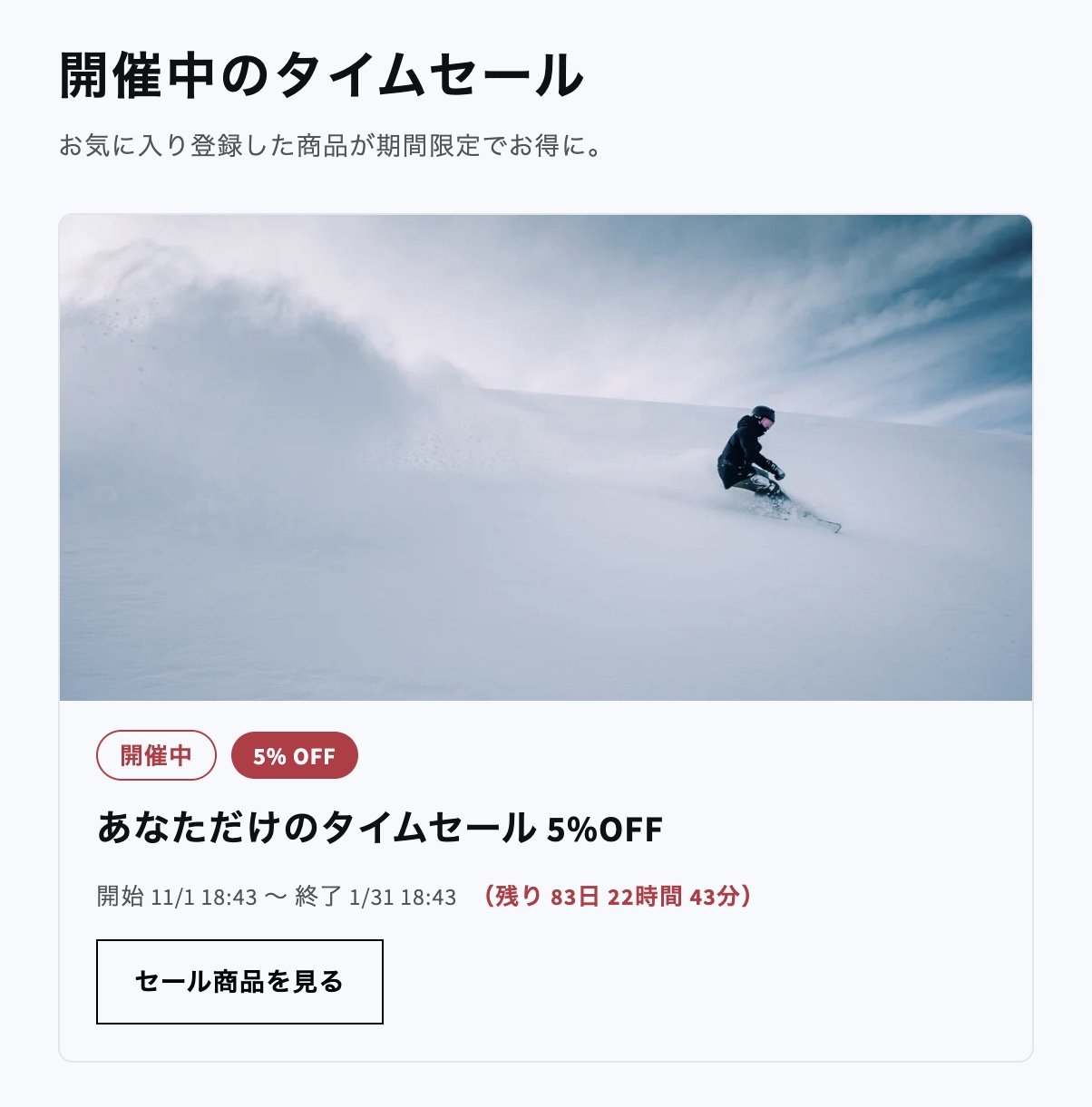
The screenshots on this page show the theme editor in Japanese. In an English theme editor, the blocks and settings appear with the English names used on this page.
Two blocks you can show
Placing both on the same page lets you announce the sale to everyone while showing logged-in customers the products picked just for them. You can also put Favorite Sale Campaigns on your home page as an entry point to the sale.
Create the sale page
1
Create a page template
In your Shopify admin, go to Online Store > Themes and click Customize. In the page selector at the top, choose Pages > Create template, enter a template name (for example,
favorite-sale), and create it.2
Add the blocks
Under Template on the left, click Add section, open the Apps tab, and add Favorite Time-limited Sale and Favorite Sale Campaigns.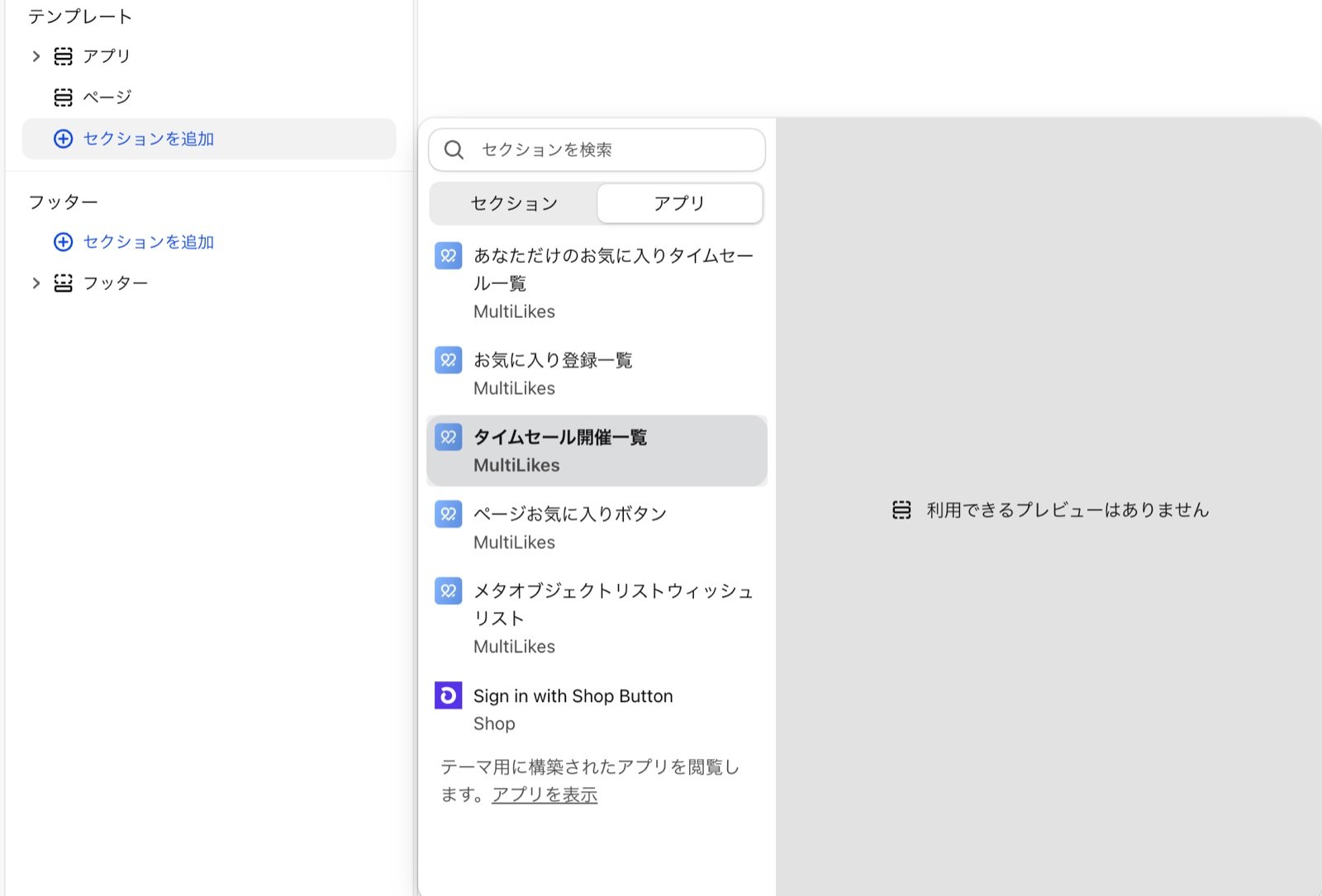
3
Adjust the block settings and save
Select a block to see its settings on the right. Adjust the headings and text, then click Save. See the tables below for the settings.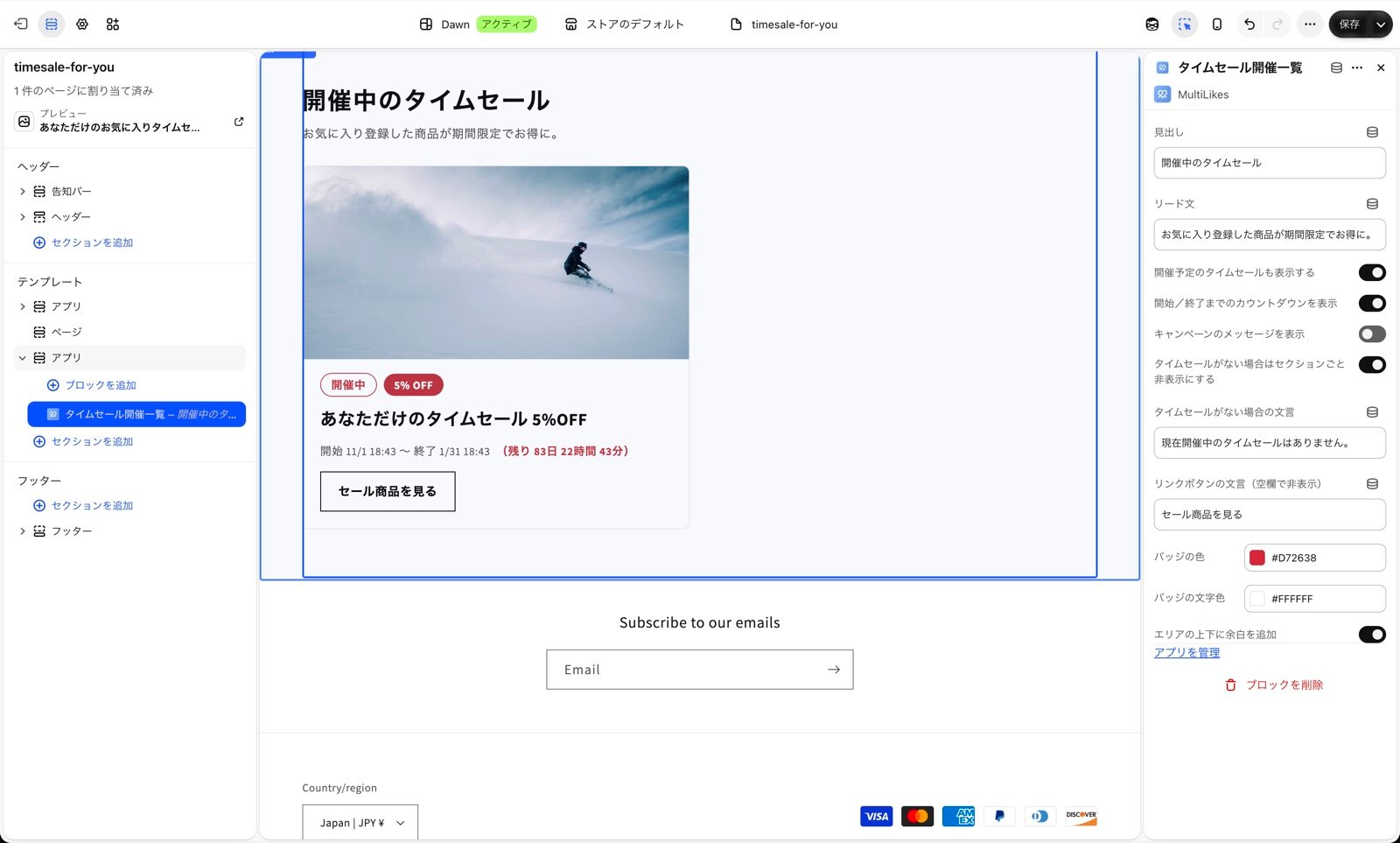
4
Create a page and choose the template
In your Shopify admin, go to Online Store > Pages, create a new page, and enter a title (for example, Sale). Choose the template from step 1, set the page URL to
/pages/favorite-sale, and save. You can change the URL by editing Search engine listing on the page editor.The campaign’s 「通知に載せるタイムセールページのURL」 (Sale page URL for notifications) is
/pages/favorite-sale when you create a campaign. If you use a different URL for the page, change the campaign setting to match. It is used for links in notification emails and on the cards in Favorite Sale Campaigns.Favorite Time-limited Sale
Logged-in customers see, for each running campaign, the eligible products they have favorited. Each product has a discount badge, and the discounted amount is shown at checkout. Customers who aren’t logged in see a login prompt and a login button.
Favorite Sale Campaigns
Running campaigns are listed first, followed by upcoming campaigns. Campaigns with 「ストアフロントのタイムセール一覧に表示する」 (Show in the storefront sale list) turned on appear here.