

About this app
Customers who want to send gifts to several people usually have to place a separate order for each recipient. MultiGifts adds a Ship to multiple addresses button to your cart page, so customers can split one order across up to 20 shipping addresses. Customers choose the recipients, assign items and quantities to each one, set the delivery date and time, noshi (Japanese gift wrapping), message card and gift bag, and pay once. After payment, an order for each address (a child order) is created automatically, so you can ship from those orders as usual.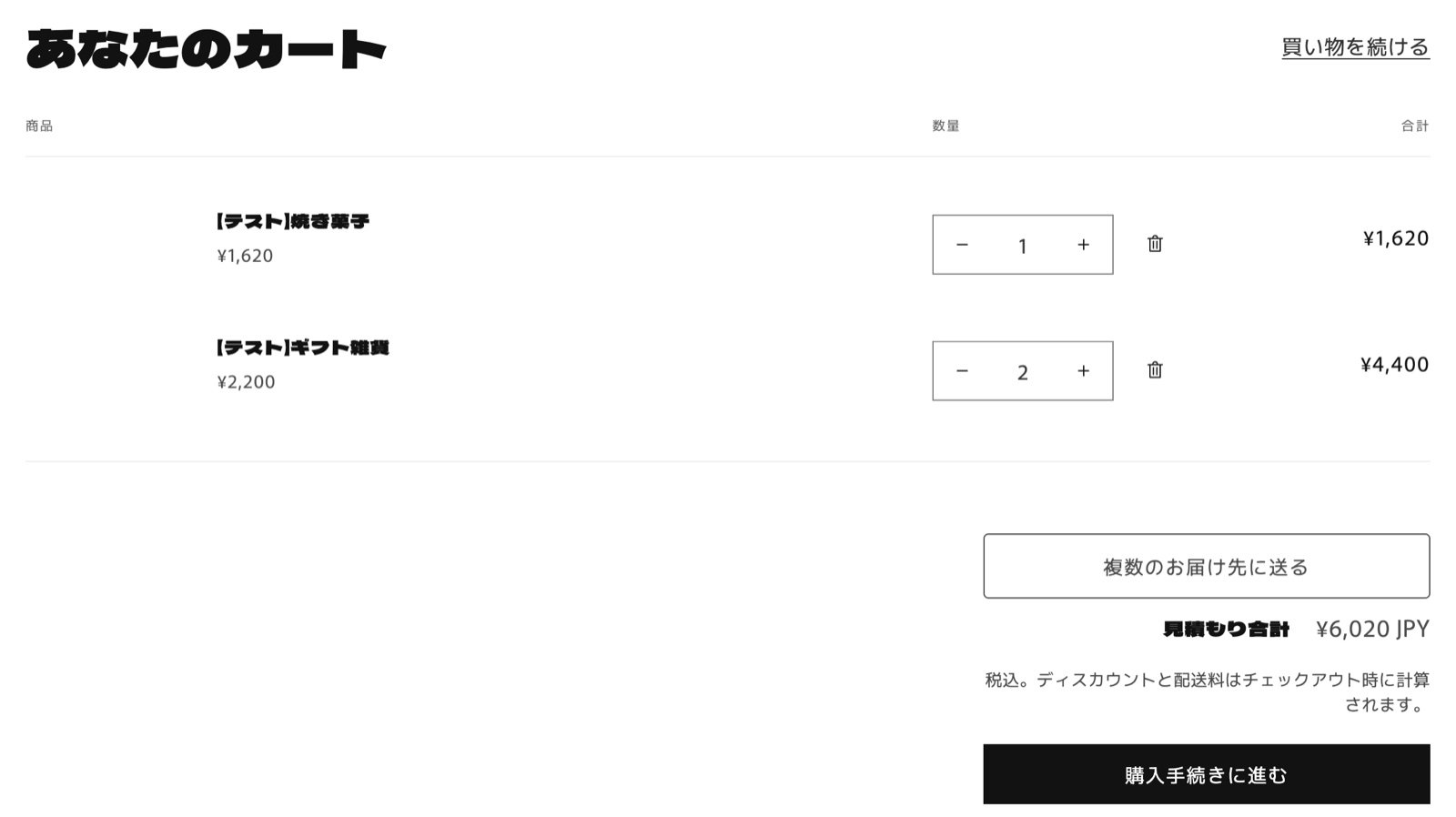
What you can do with the app
- Split one cart across up to 20 addresses: Customers assign items and quantities to each address and pay only once.
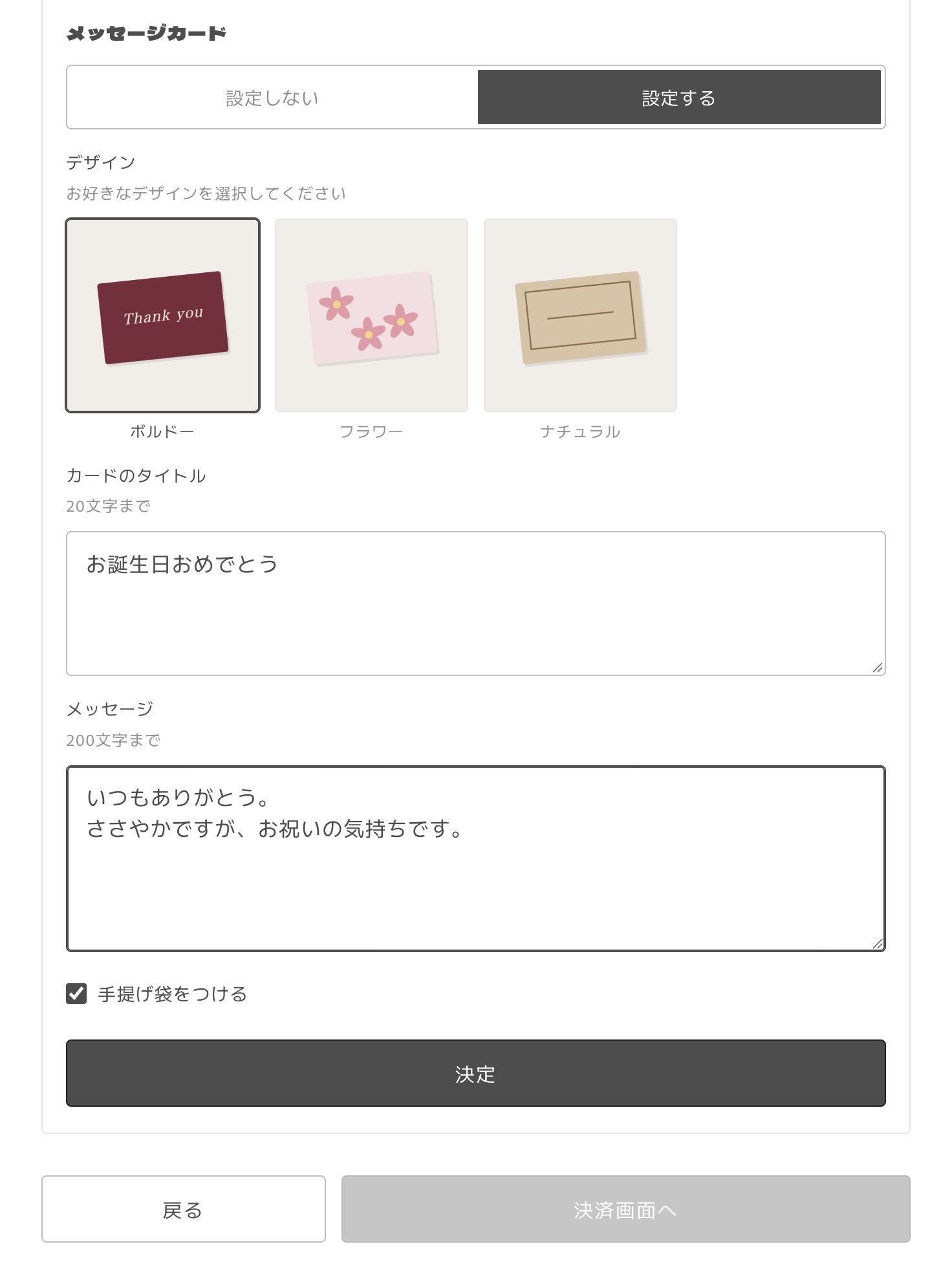
- Gift options for each recipient: Delivery date, time slot, noshi (type, style and name), message card (design, title and message) and gift bag can be set for everyone at once or for each recipient.
- Shipping calculated per address: Shipping is calculated for each address from your store’s shipping rates and added to the order.
- An order for each address, created automatically: After payment, a child order is created for each address. Delivery dates, noshi, cards and other options are added to the child order’s notes and additional details, so your fulfillment staff can read them directly.
- Address book: Logged-in customers can choose recipients from the address book in their customer account. New addresses are saved to the address book for next time.
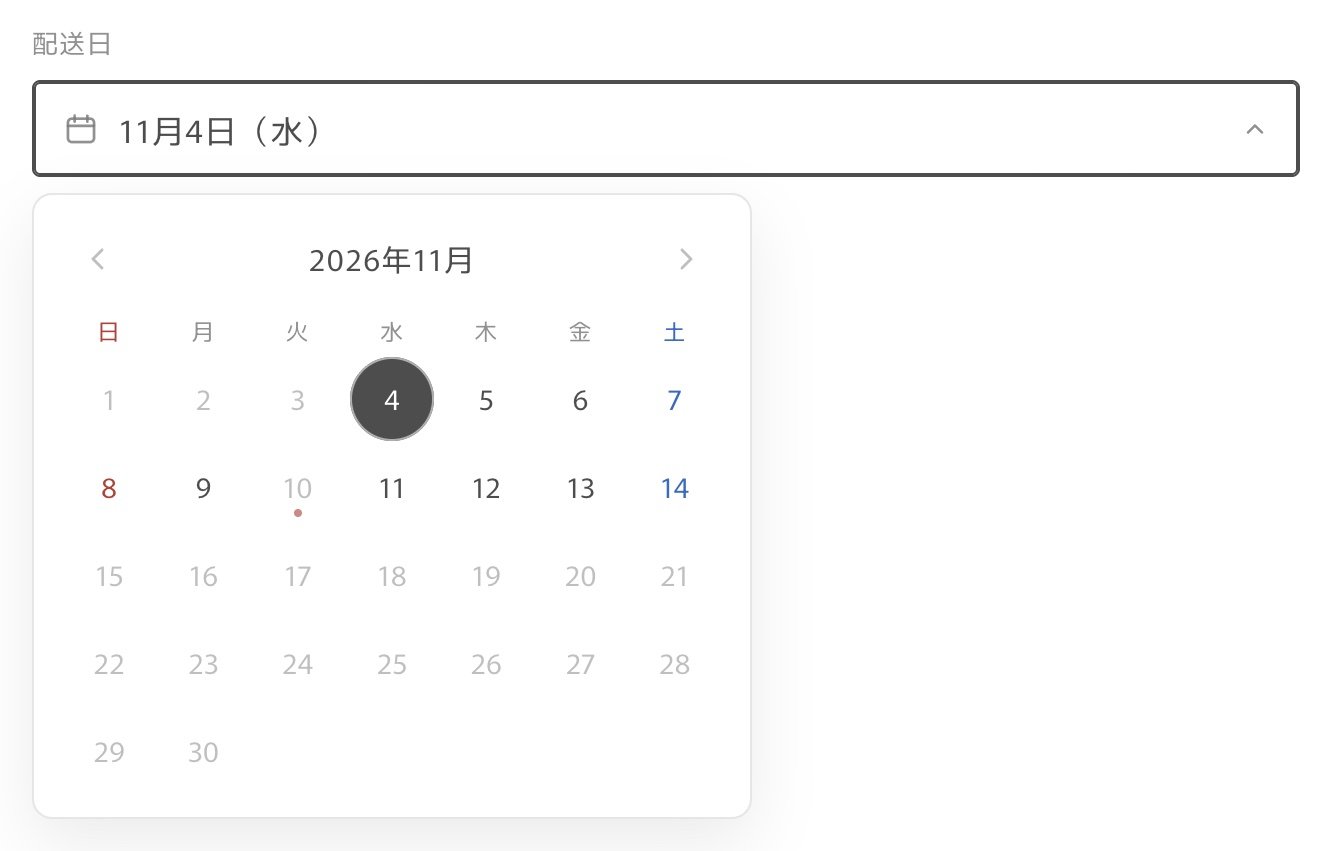
- Detailed delivery date settings: Set the preparation time, order cutoff time, holidays, Japanese national holidays, delivery time slots, products that can’t have a delivery date, and products that can’t ship together, all from the app’s admin.
- Matches your theme: Add it to the cart page as an app block, and it uses your theme’s colors and fonts. You can change the colors and the button text in the theme editor.
What customers see
Customers open the allocation screen from the Ship to multiple addresses button in the cart and go through three steps. The screenshots below show the Japanese screens.1
Choose addresses
Customers pick addresses from their address book or add a new recipient.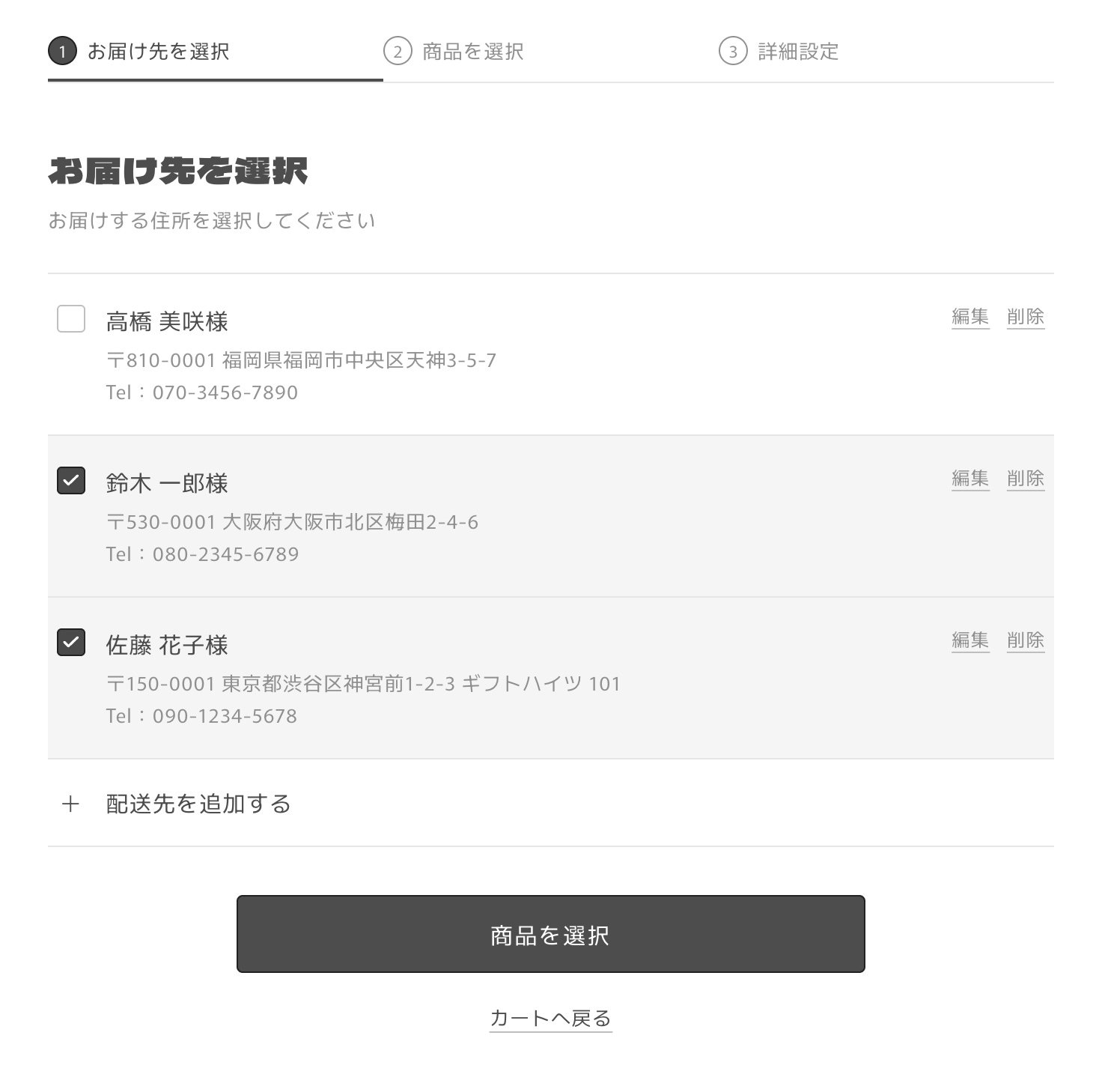
2
Choose items
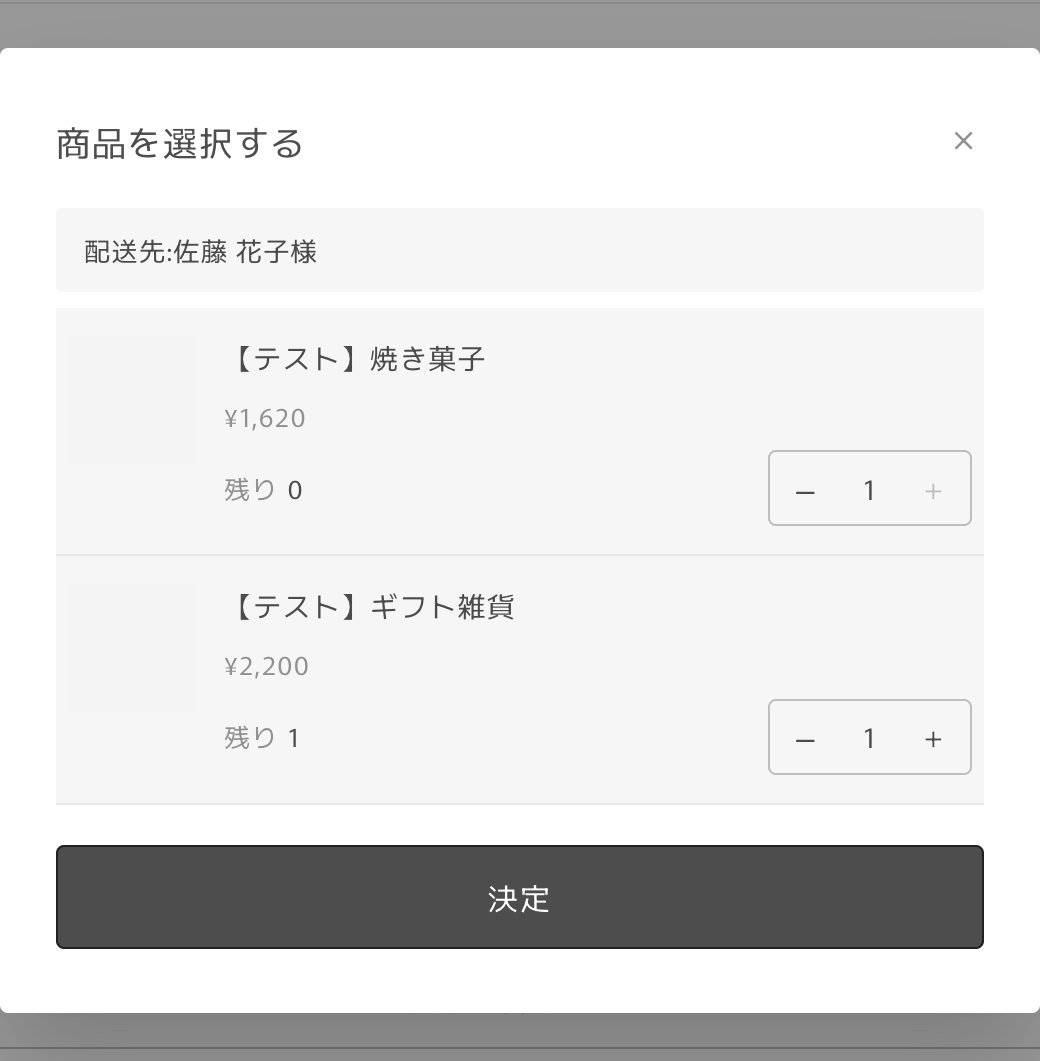
For each address, customers choose the items and quantities to send. Once every item in the cart is assigned, they can move on.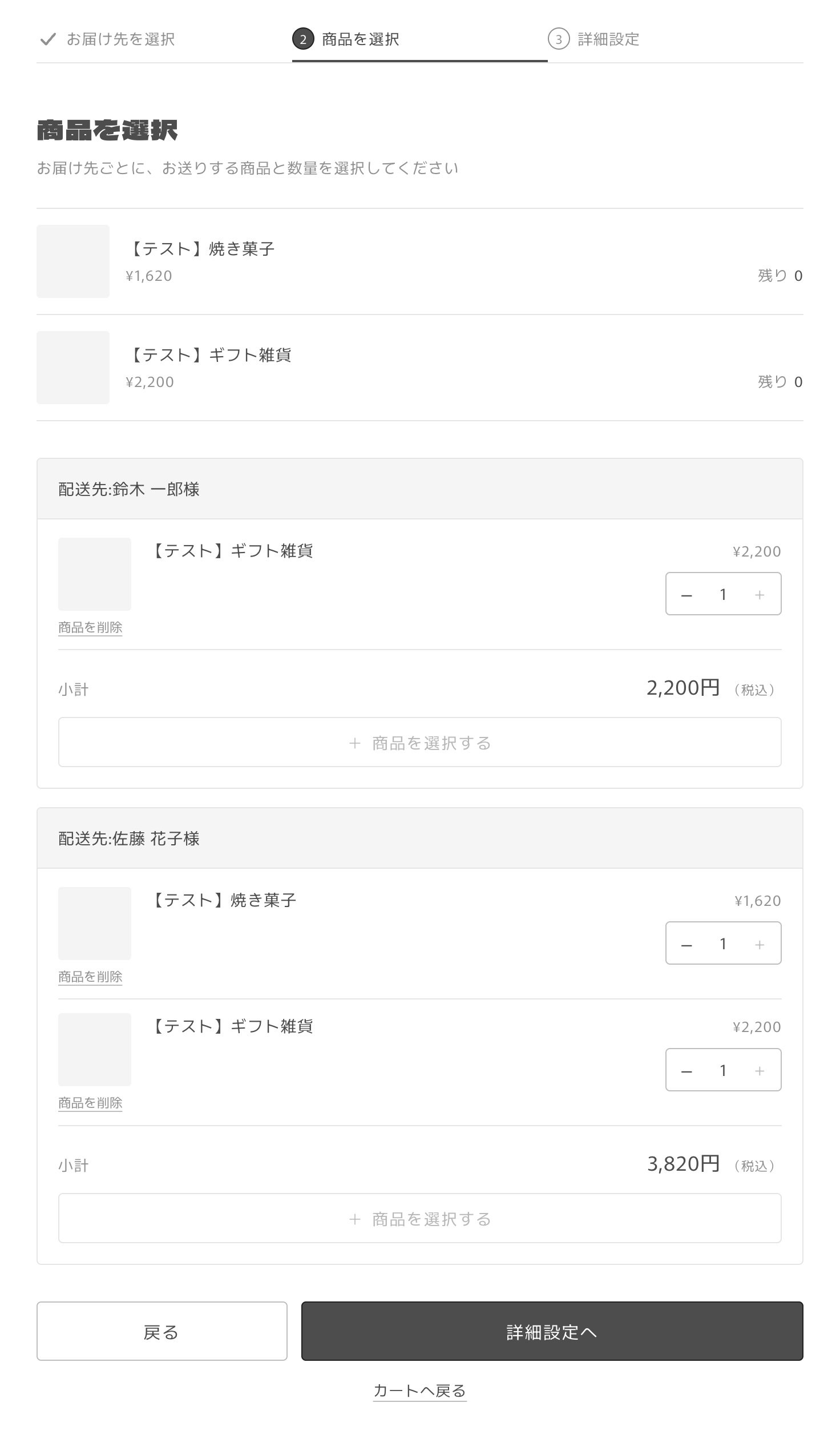
3
Details
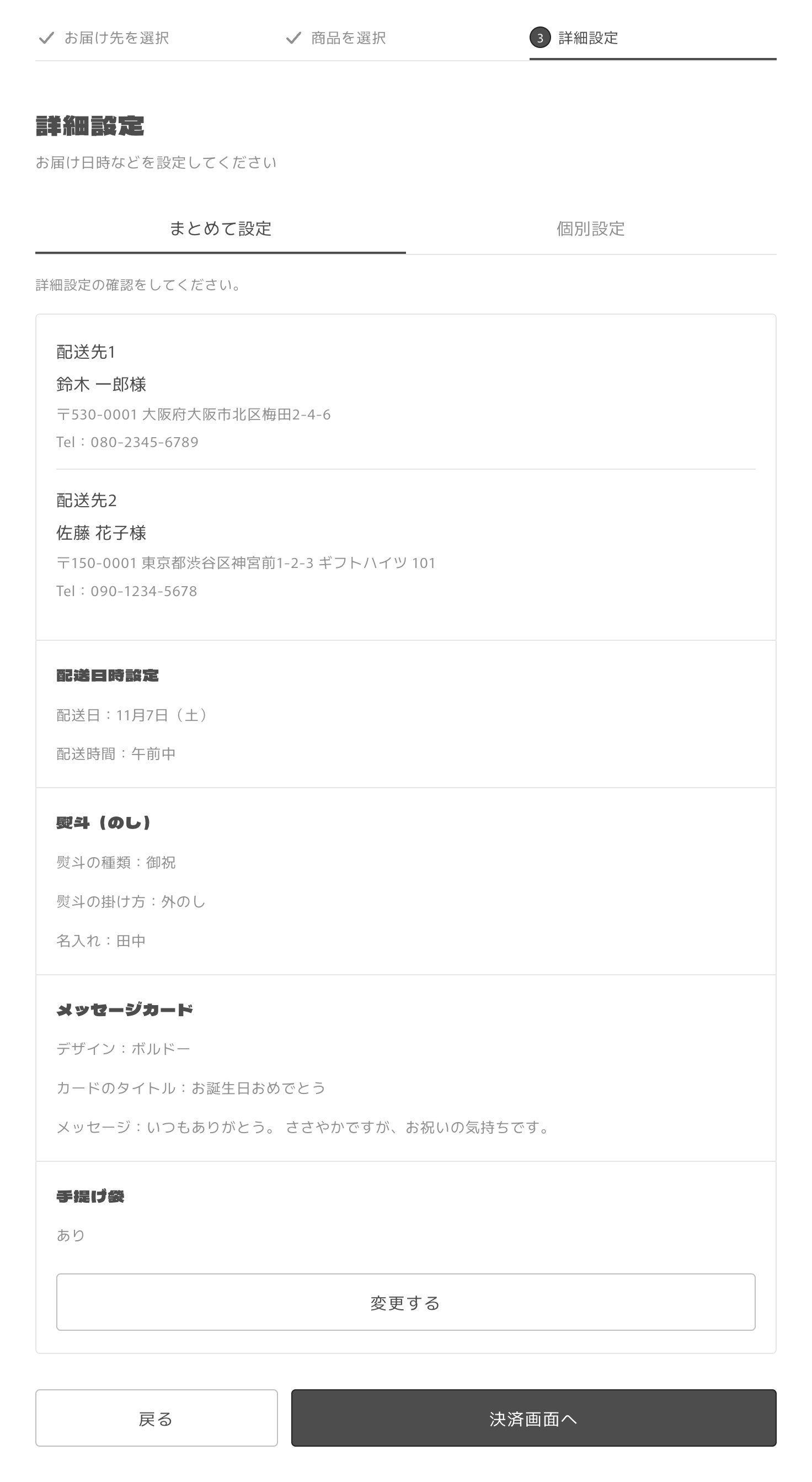
Customers set the delivery date and time, noshi, message card and gift bag, either for everyone or for each address, confirm, and go to checkout.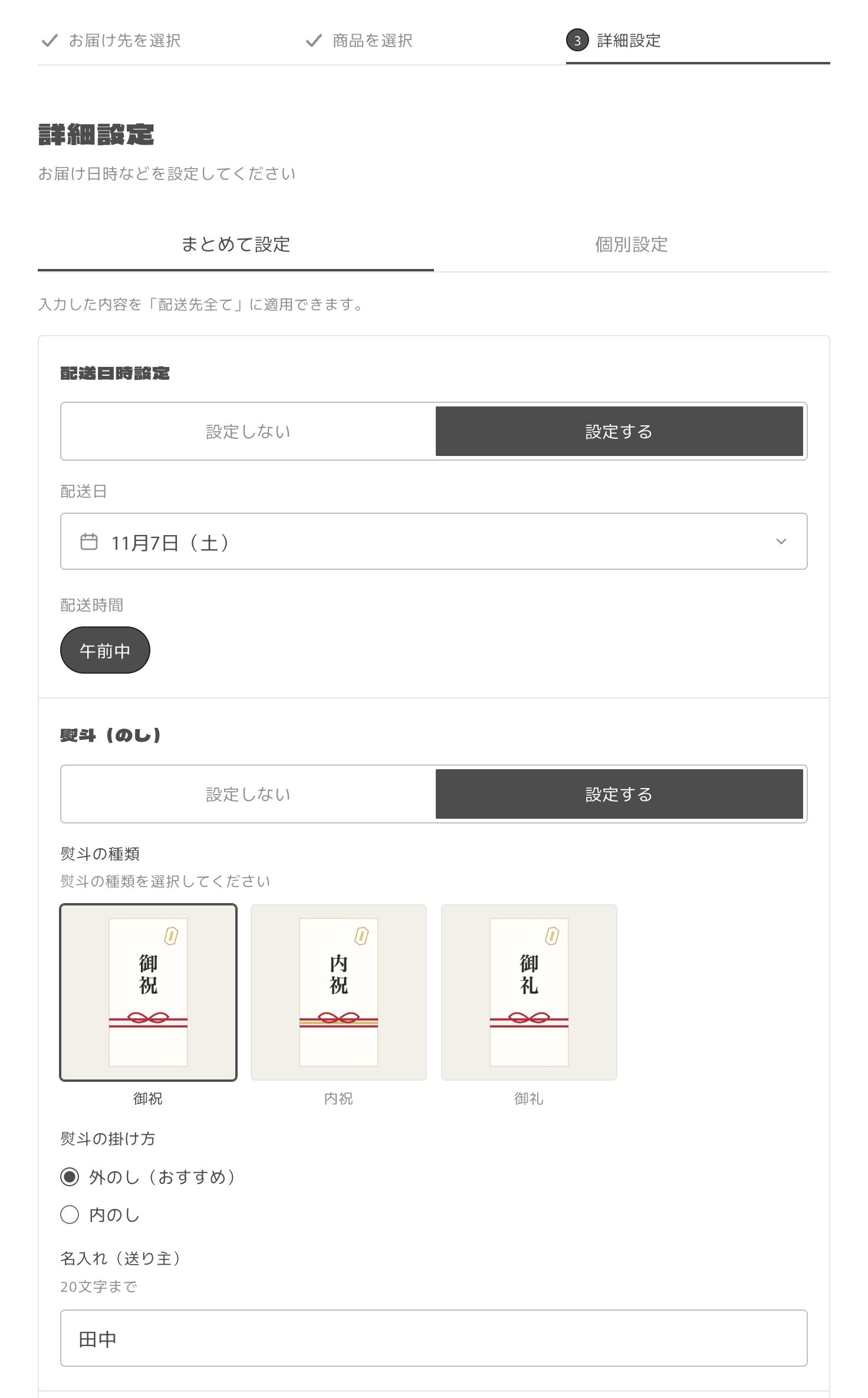
Monthly app pricing
There are three plans matched to your store’s Shopify plan (a monthly fee plus a fee per child order), and a flat-rate Enterprise plan. All plans except Enterprise come with a 5-day free trial. PricingGetting started
For the steps after installing, see From installation to first use. Once you add the button to your cart and check your shipping zone and rates for Japan, customers can start using it.Why we built it
With Japanese gift-giving such as ochugen, oseibo and uchiiwai, one customer often sends gifts to many people. Placing a separate order for each recipient takes time for customers, and for stores, receiving a list of addresses, creating a draft order for each one in the Shopify admin and asking the customer to pay has been a heavy workload that grows with every recipient. We built MultiGifts so that customers can set multiple addresses, with a delivery date and noshi for each, in a single order, and so that stores can ship those orders the same way as any other order.Other apps from Bouquet
Discount Deck
Shows customers the coupons they hold, on the account page and at checkout.
MultiLikes
Adds favorites for products, collections, brands, stores, and articles.
User Tag Plus
Applies a customer tag from a single button on your storefront. Useful for tracking event attendance and survey responses.
LLMs.txt Generator
Generates llms.txt in one click so AI tools read your store correctly.
AI MCP ChatBot
Puts an AI chat on your storefront using Storefront MCP, all the way through to purchase.