

What collection favorites do
Customers can save the collections they care about, such as categories and features. When new products arrive in a favorite collection, you can let them know with Shopify Flow. Available on the Pro and Enterprise plans.Place the favorite button on collection pages
1
Open the template in the theme editor
In the app’s Settings, open the Installation guide and press Open theme editor for Add the favorite button to collection pages. The theme editor opens with Collection Wishlist Button already added to the template.To add it from the theme editor yourself, press Add section in the template (or Add block in a section), and choose Collection Wishlist Button from the Apps tab.
2
Adjust the settings and save
Select the block to see its settings on the right. Adjust the button text and alignment, then press Save.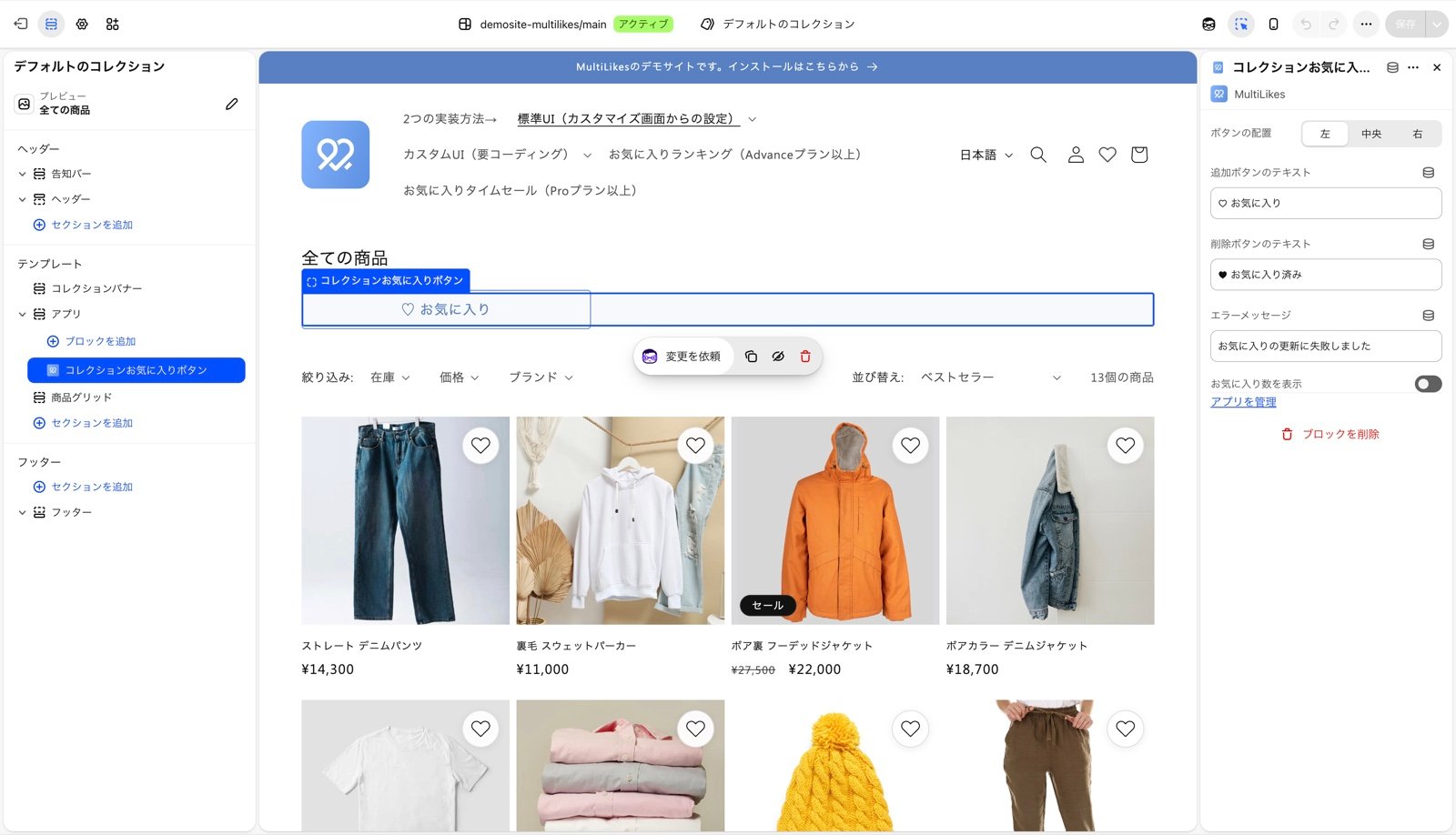
3
Check your store
Open collection pages in your store and check that the favorite button appears. Add the favorite button to collection pages is also marked Added in the app’s Installation guide.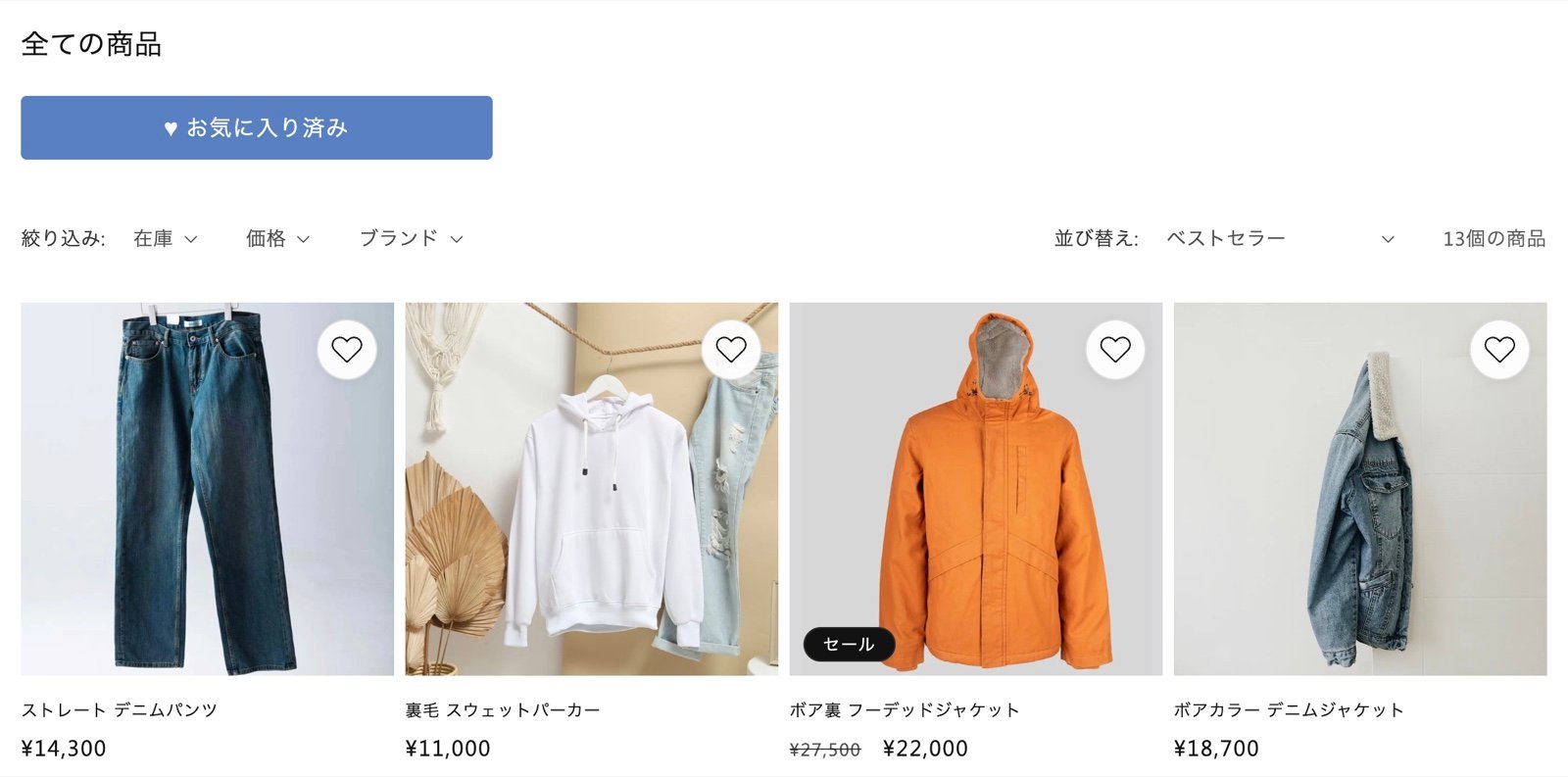
Settings
Optional: Set up Shopify Flow
You can run a Shopify Flow workflow when a customer adds a collection to their favorites or removes one. For example, tag customers based on the collections they favorited, and you can let only the interested customers know when new products arrive in that collection or when it goes on sale. If you don’t plan to use it, no setup is needed.1. In Shopify Flow, create a workflow and choose the trigger “Collection Wishlist - [コレクションお気に入り] お気に入りボタン押下”
2. Build your conditions and actions with the values the trigger passes
3. Turn the workflow on
The trigger runs only when the favorite status changes. Adding a collection that is already in the customer’s favorites does not run it.