

About this page
This page is for stores that had a development agency (a build partner) set up MultiLikes and will now run it themselves. The setup steps themselves are in Setup. Open MultiLikes from Apps in the left menu of your Shopify admin. The app has six menu items: Home, Favorites, Analytics, Flash sales, Plan, and Settings.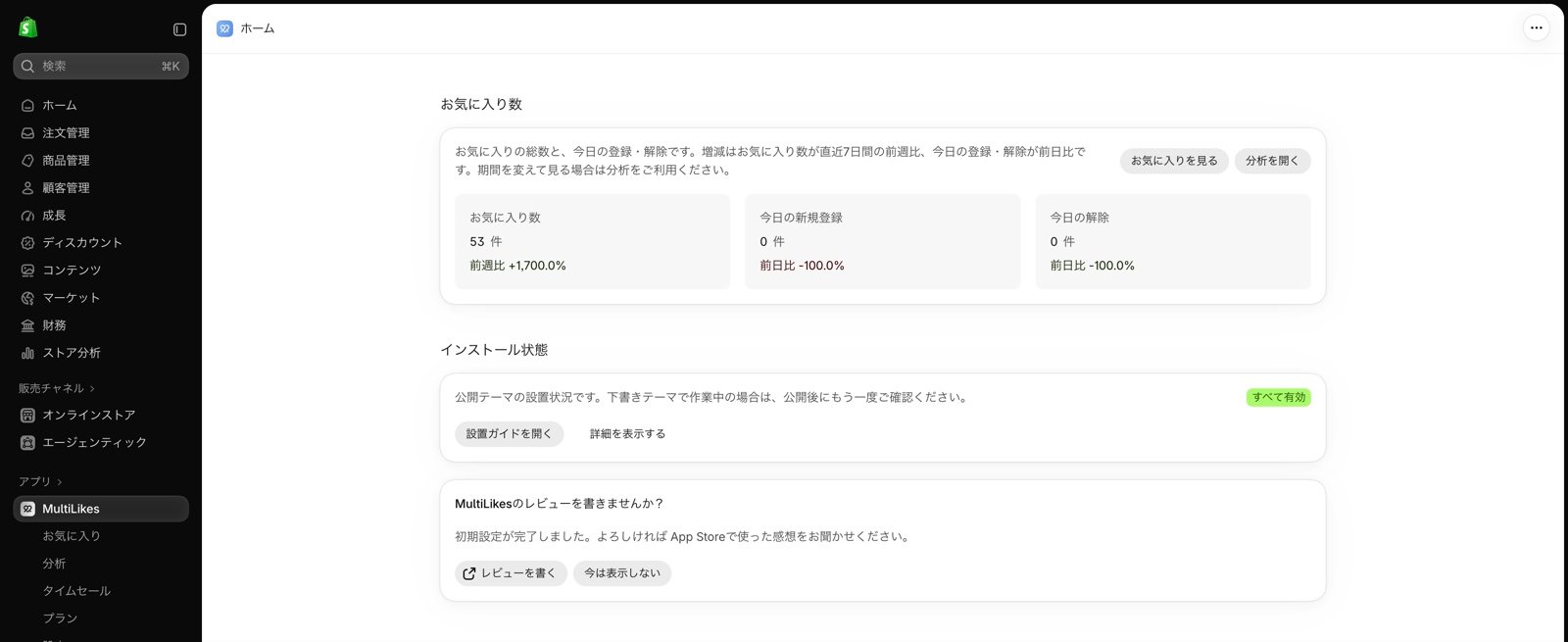
Reading the admin screens
Home
Shows the total number of favorites and the number added and removed today. The total also shows the week-over-week change for the last 7 days, and today’s adds and removals show the day-over-day change. Installation status below shows whether the app is active in your live theme. If counting favorites stops or the app embed in your theme is turned off, a notice appears at the top of Home. Its button takes you to the screen where you can fix it.Favorites
Lists your customers’ favorites in tabs for products, brands and stores, collections, articles, and pages. You can sort by number of favorites and search by product name or SKU. Products are listed by SKU (size, color, and so on), so you can see at a glance which variants are popular.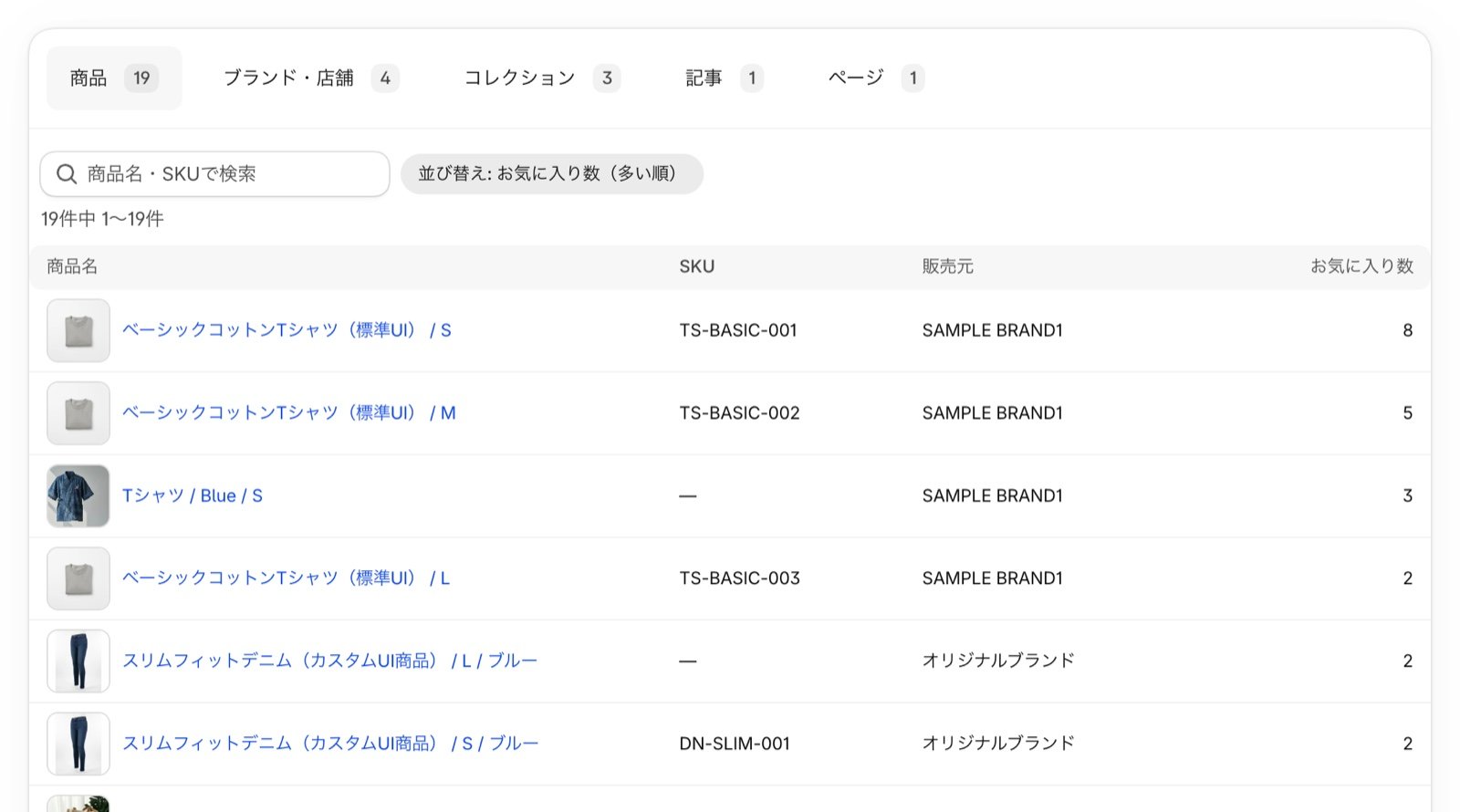
Analytics
Choose a period to see the trend of favorites added and removed and the breakdown by category. Select a tab and press Export CSV to export favorites data as a CSV file. For details, see Reading the Favorites analytics screen.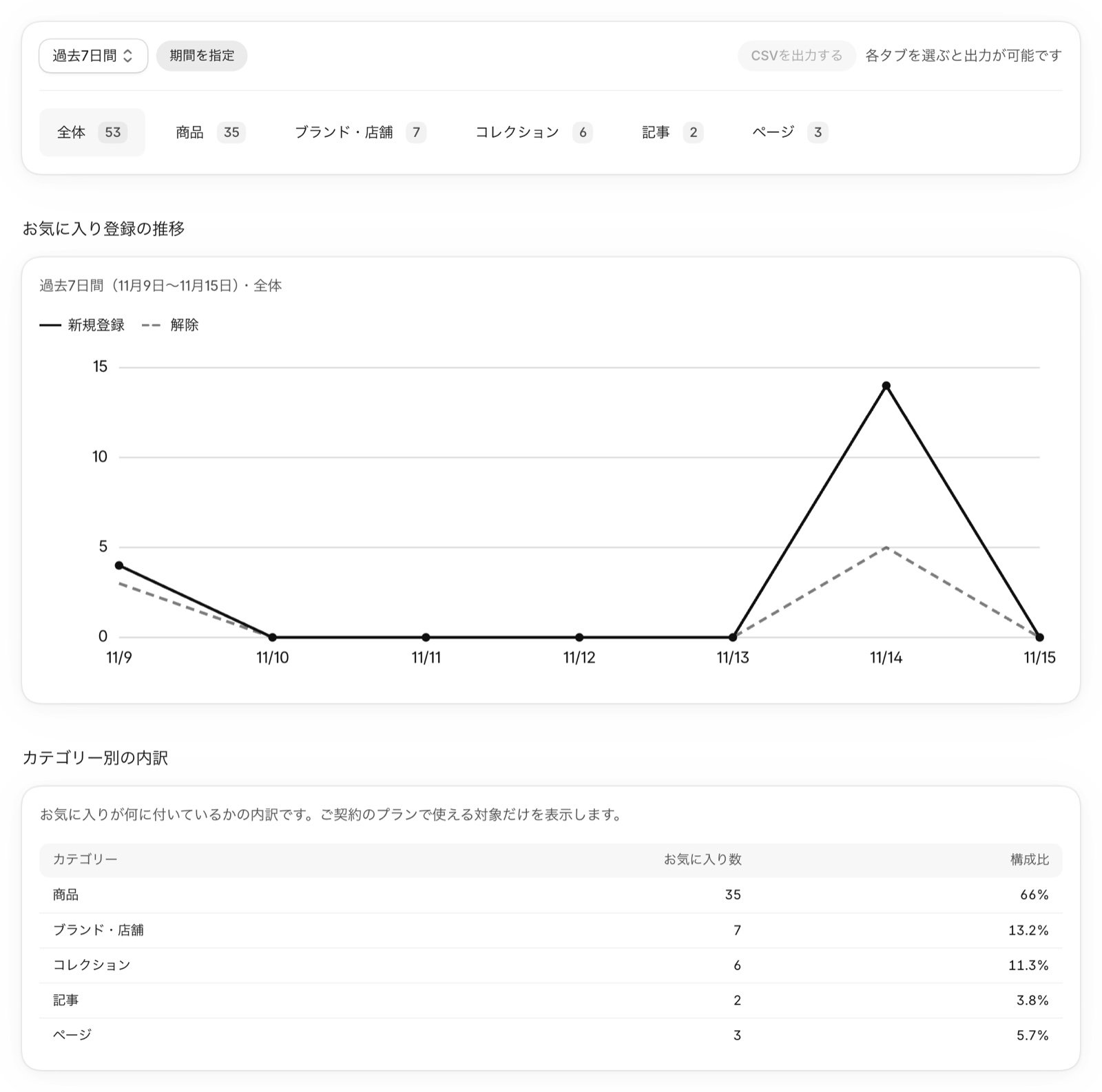
Flash sales
Create and manage favorite time-limited sales, which give a limited-time discount on favorited products to the customers who saved them (Pro and Enterprise plans). To learn how, see Favorite time-limited sales.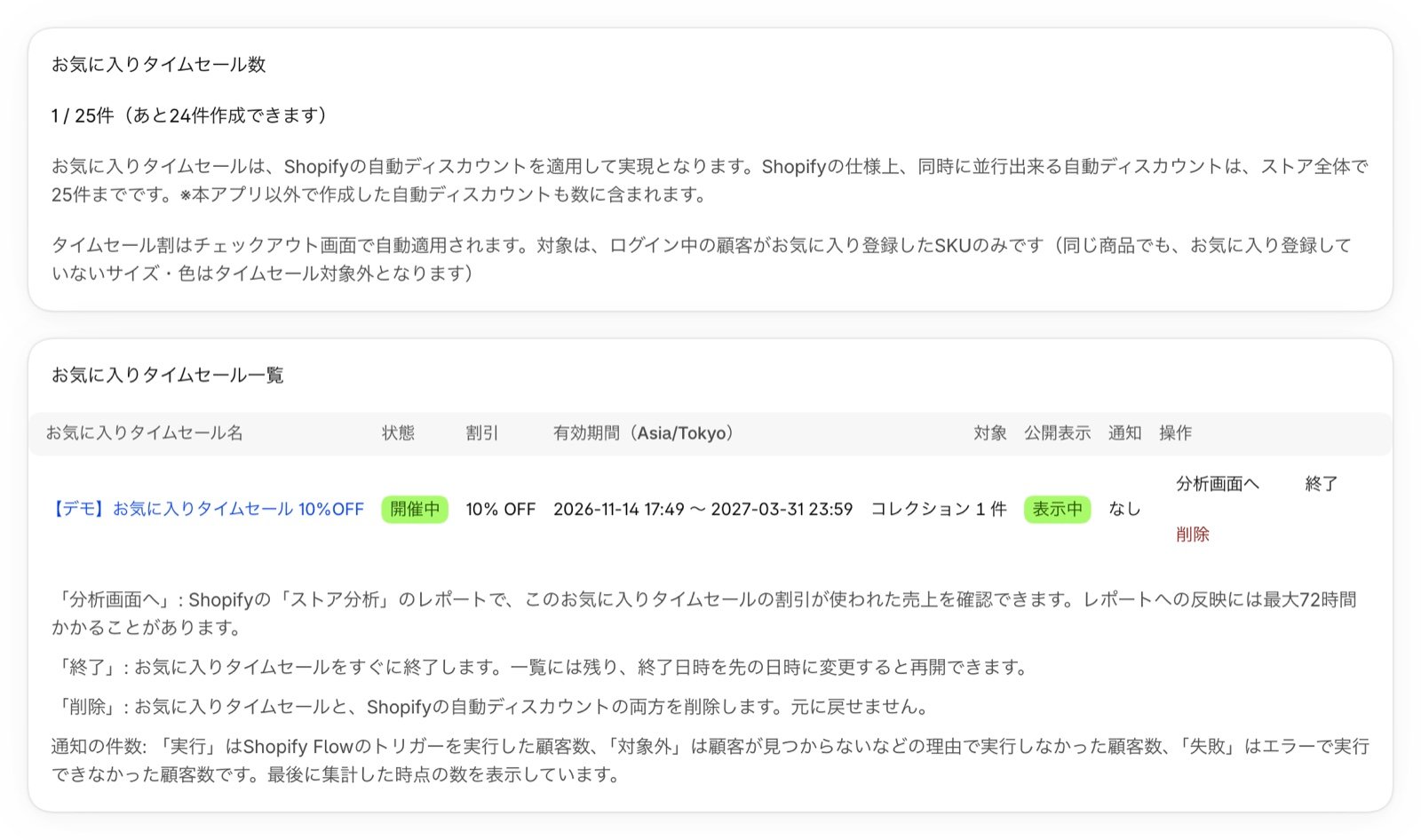
Plan
Shows your plan and the features it includes. Compare plans shows how the plans differ. You can change your plan at any time with Change plan.Settings
The entry point for notification settings, rerunning the data sync, the installation guide, and support (FAQ, contact, and reviews).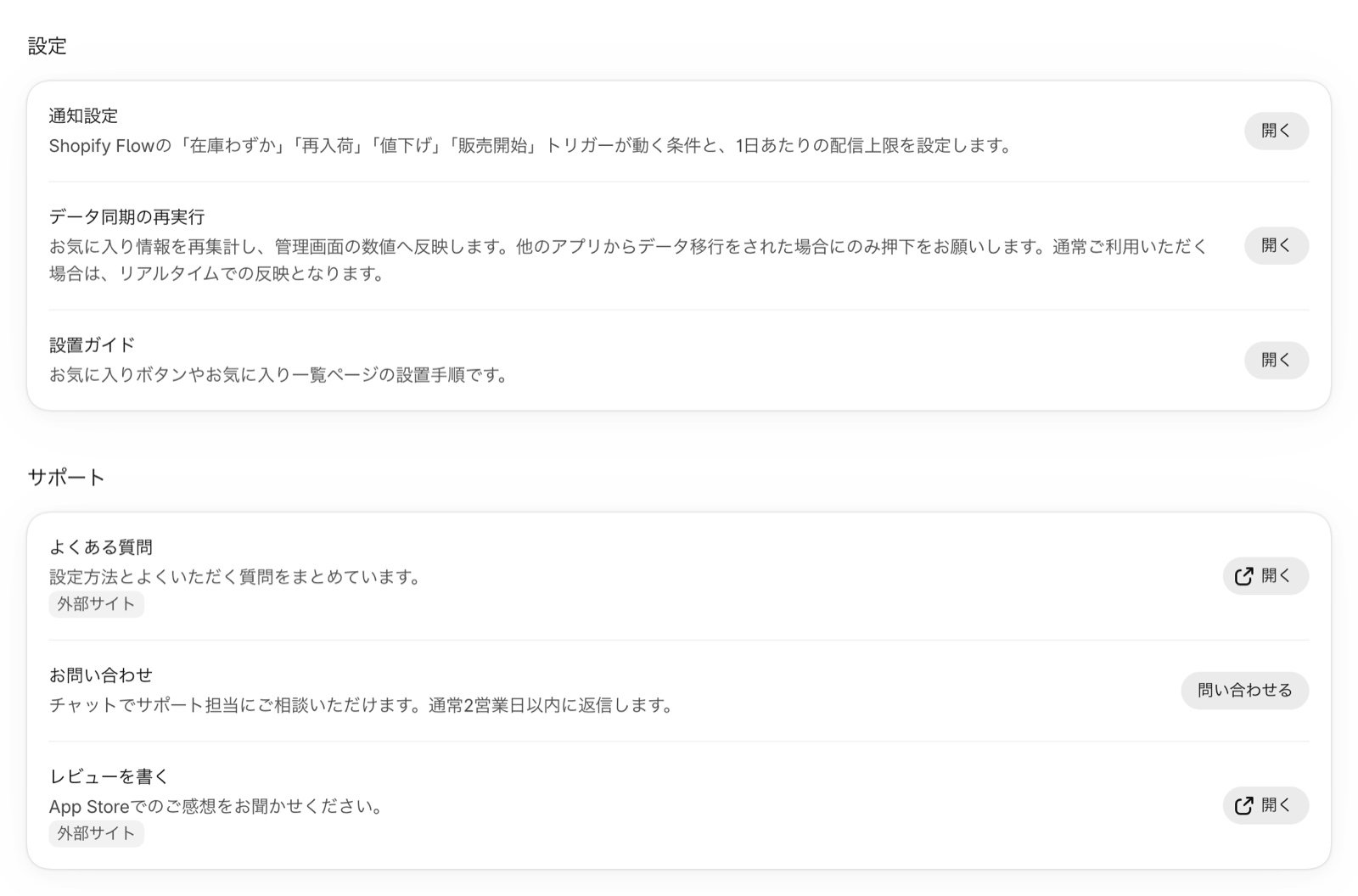
Day-to-day operations
Watch how favorites move
Checking Home and Analytics once a week shows how your customers’ wants are shifting.- Products with many favorites are candidates for deeper stock, features, and banners
- Products with many favorites but weak sales are a cue to review the price or how the product page presents them
- You can also list your most-favorited products on your store with the favorite ranking (Advance, Pro, and Enterprise plans)
Turn favorites into notifications
With Shopify Flow, you can tell customers when products they favorited are back in stock, running low, reduced in price, or going on sale. In Notification settings under Settings, set the stock thresholds that trigger notifications and the daily limit per customer.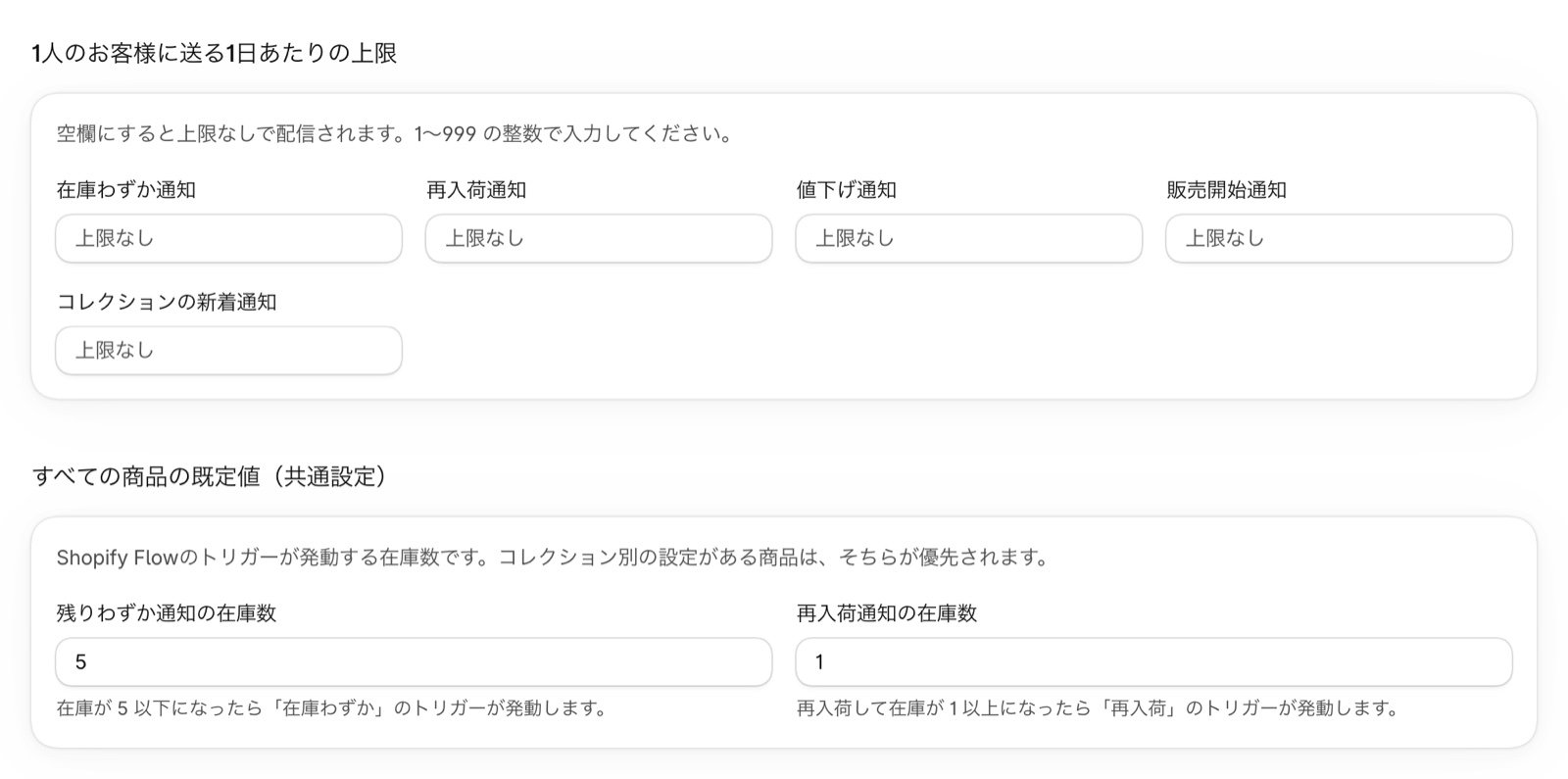
Encourage purchases with favorite time-limited sales
You can offer a limited-time discount on products that customers favorited but haven’t bought yet (Pro and Enterprise plans). Shopify Flow can send notices when a sale starts and before it ends, turning “buy later” into purchases.When you change or redesign your theme
The app embeds and favorite buttons are set per theme. When you switch to a new theme, set them up in the new theme before you publish it.- In the new theme’s editor, turn on Enable Wishlist and Enable Product Wishlist Button in App embeds
- Place the MultiLikes blocks again in each template, such as the product page and the favorites list page
- After publishing the theme, check that everything shows Added in Installation status on Home and in the Installation guide in the app’s Settings
Changing or canceling your plan
Press Change plan on the app’s Plan screen to go to Shopify’s plan selection screen. Moving to a higher plan adds more features. For pricing, see Pricing. If you want to stop using the app, uninstall it from your Shopify admin. Once it’s uninstalled, you won’t be billed going forward.If something goes wrong
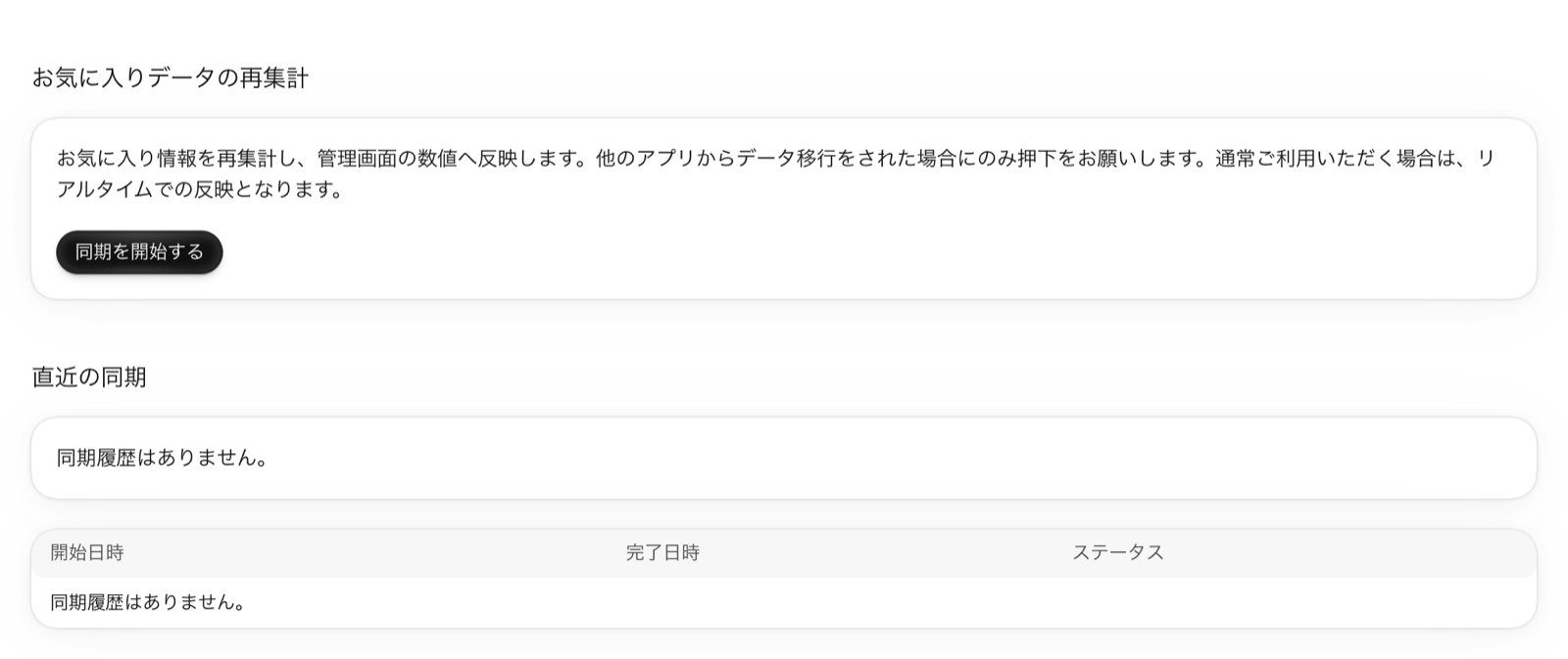
- If Home shows “Couldn’t calculate favorites data”: press Resync data in the notice to go to Rerun data sync, then press Start sync
- After you move favorites data from another app: press Start sync in Rerun data sync under Settings to reflect the data in the admin numbers. Everyday adds and removals are reflected in real time, so you don’t need to do this otherwise
- To learn how to use the app: see the MultiLikes FAQ
- To ask us something: chat with our support team from Contact us in the app’s Settings. We usually reply within 2 business days