

Purpose
When the sale start date and time of a favorited product (SKU) arrives, this Shopify Flow sends the customer an alert such as “A product you favorited is now on sale.” Time it to new arrivals, preorder launches, or restocks of popular items, and turn the customers who were waiting into purchases right after the sale starts.How it works
MultiLikes reads the sale start date and time from a product metafield of the “Date and time” type. At that time, MultiLikes runs the Shopify Flow trigger “Product Wishlist Sale Start - [商品お気に入り] 販売開始”. The trigger runs once for each pair of a customer who has the product in their favorites and a product variant they favorited. Your workflow can use the following values.Set it up
1
Prepare a metafield for the sale start date and time
In your Shopify admin, go to Settings > Metafields and metaobjects > Products, click Add definition, and create a metafield definition of the “Date and time” type. Give it a clear name, such as “Sale start”. If you already store sale start dates in a metafield, you can use that definition.Then enter the sale start date and time in the metafield field on each product’s page.For how to create a definition, see Creating custom metafield definitions in the Shopify Help Center.
2
Turn on sale start notifications in MultiLikes
In MultiLikes, open settings and support > 通知を設定する (“Set up notifications”). On the 通知設定 (“Notification settings”) screen, under 販売開始通知 (“Sale start notification”), choose the definition from step 1 in 販売開始日時メタフィールド (“Sale start metafield”), then click 販売開始通知を保存 (“Save sale start notification”).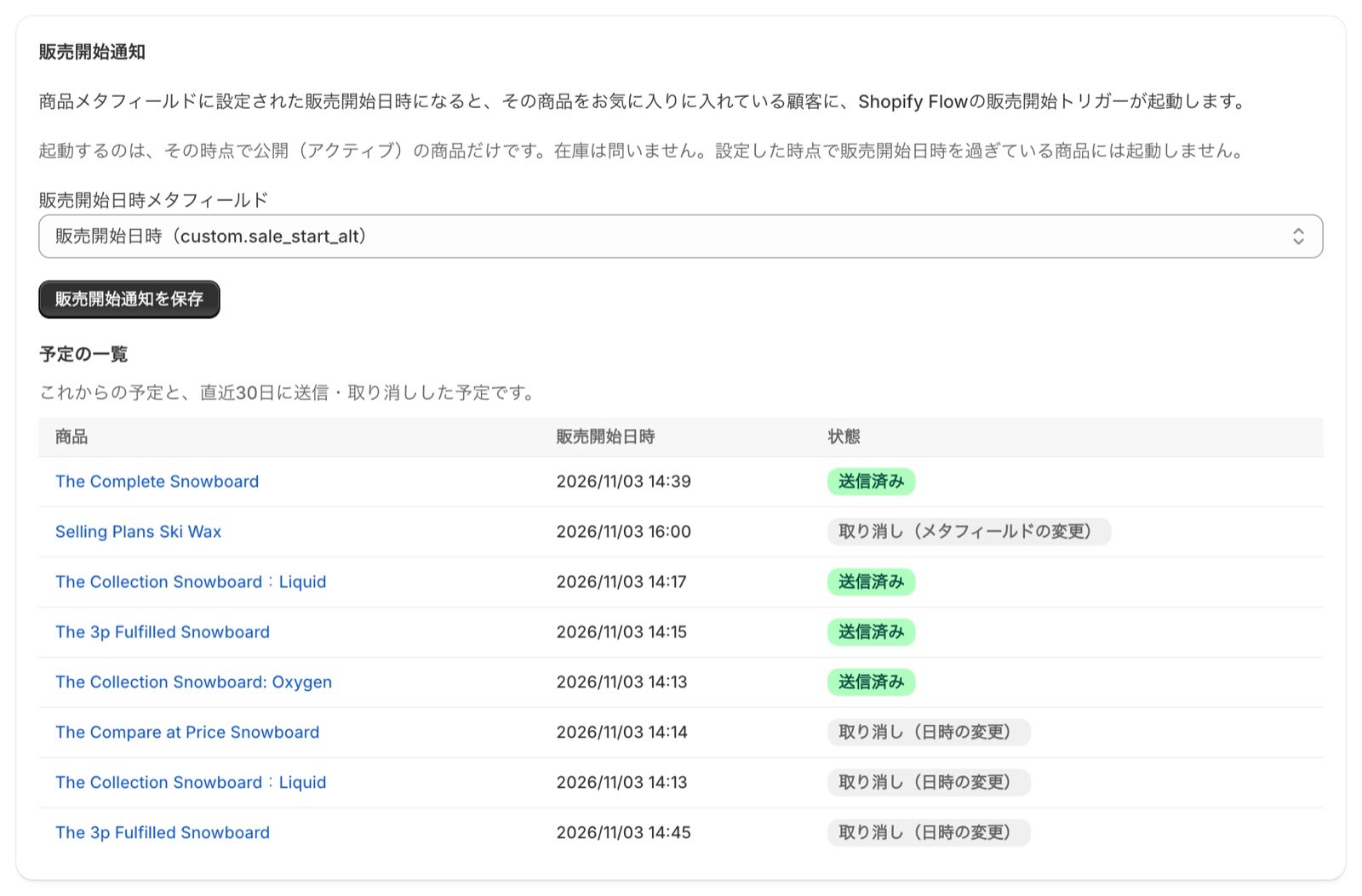
3
Import the template into Shopify Flow and turn it on
Download the template, then bring it in with Import in Shopify Flow. Check the email content, then turn the workflow on.
[MultiLikes] Notify when a favorited product goes on sale [product favorites].flow
Download (1.1 KB)
The template in step 3 sends the email through Shopify’s own Messaging app.If you use a different email tool, replace it with that tool’s action.To send alerts via LINE, use the template in CRM PLUS on LINE integration.
Limit how many a customer gets in a day (optional)
If a customer has several variants of the same product in their favorites (different colors or sizes, for example), the trigger runs once per variant. To avoid sending the same customer several alerts, enter a per-customer daily cap (a whole number from 1 to 999) for 販売開始通知 (“Sale start notification”) under 1日の配信上限 (“Daily delivery limit”) on the 通知設定 (“Notification settings”) screen, then click 1日の配信上限を保存 (“Save daily delivery limit”). Enter 1 for one alert per day. Leave it blank for no limit.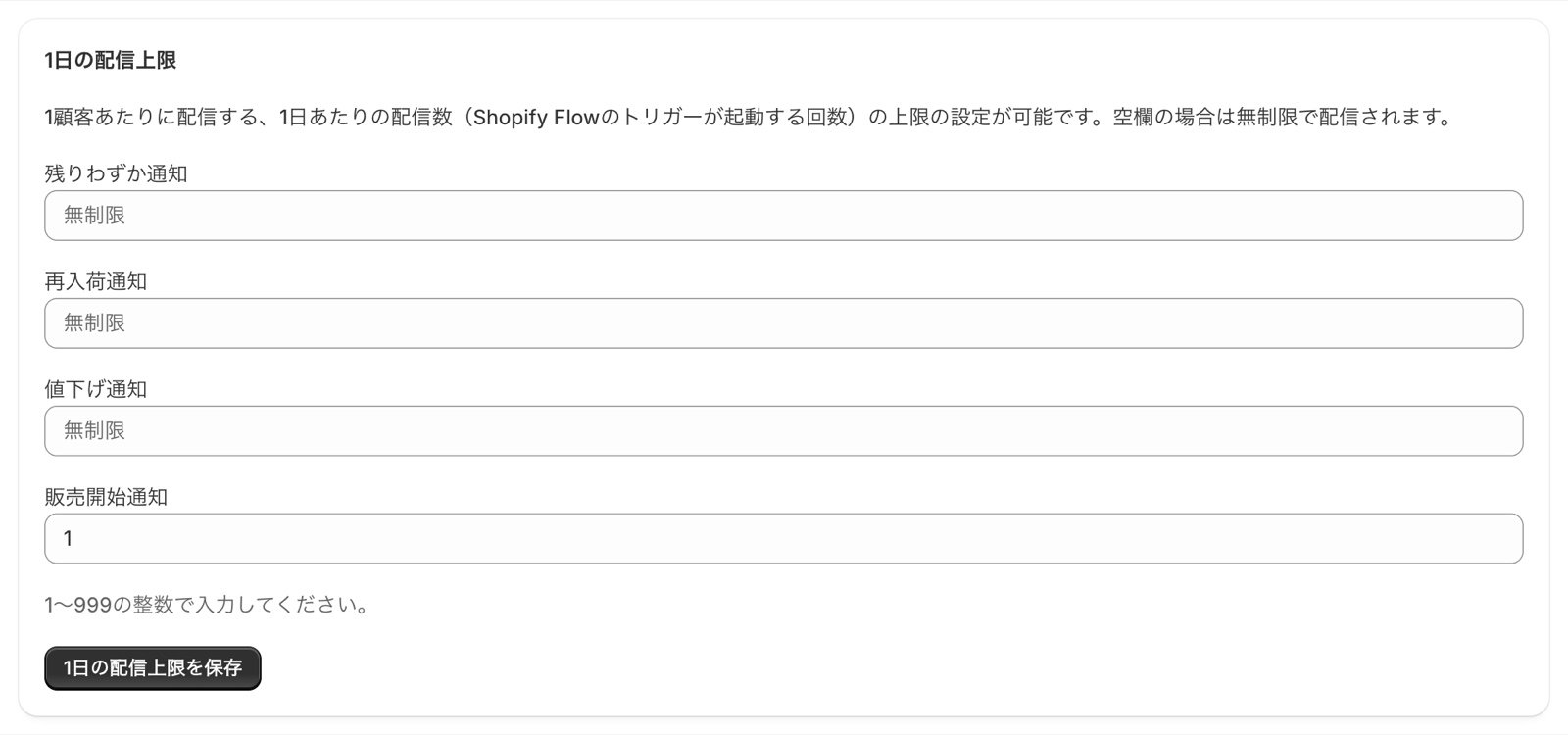
Reading the schedule
予定の一覧 (“Schedule”) lists upcoming notifications and those sent or canceled in the last 30 days.Please note
- The trigger runs only for products that are active at the sale start time. Inventory does not matter. Publishing a product after its sale start time does not run the trigger
- If you enter a sale start date and time that has already passed, the trigger does not run
- If you change the sale start date and time, the trigger runs at the new time. If you clear the value, it does not run
- The
saleStartsAtandtriggeredAtvalues passed by the trigger are in UTC. Keep this in mind if you put the date and time in the email body