

What automatic coupon display does
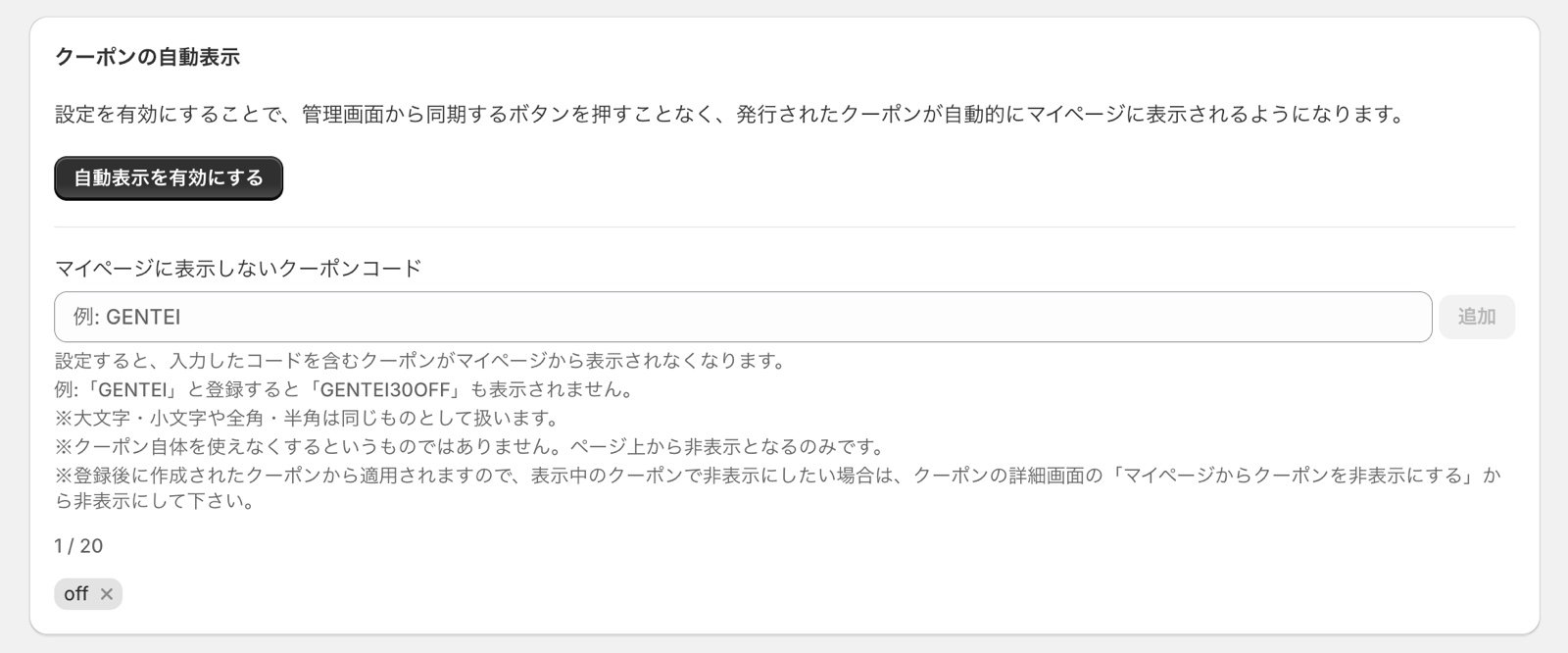
When “Automatic Coupon Display” is on, a discount code you create in Shopify appears on the account page right away, without pressing the sync button in the coupon list. Turn it on under Settings・Support > Automatic Coupon Display with “Enable Automatic display”. With automatic display on, every coupon you create appears on the account page. If some coupons should be created but not shown there, such as coupons for secret sales or employee discounts, use “Coupon codes not shown on the account page” as described below.This is not available on the Free plan.
How to set it up
1
Open the Settings・Support page
Open “Settings・Support” from the app’s left menu, and find the “Coupon codes not shown on the account page” field in the “Automatic Coupon Display” card.
2
Add keywords
Enter a word contained in the coupon codes you want to exclude (for example
GENTEI) and press “Add”. You can also press Enter. Added keywords are listed below the field, and you can remove each one with its ”×”.3
Save
Press “Save” in the save bar at the top of the screen. The setting does not take effect until you save.
Which coupons are excluded
You cannot register the same keyword twice. Keywords that differ only in uppercase/lowercase or full-width/half-width count as the same keyword.
What happens after you register a keyword
- Coupons created after you register the keyword: coupons whose code contains the keyword are not displayed automatically.
- Coupons already on the account page before you registered the keyword: they stay visible even if they match. Exclusion is not applied retroactively. To hide them, see “Hide a coupon that is already displayed” below.
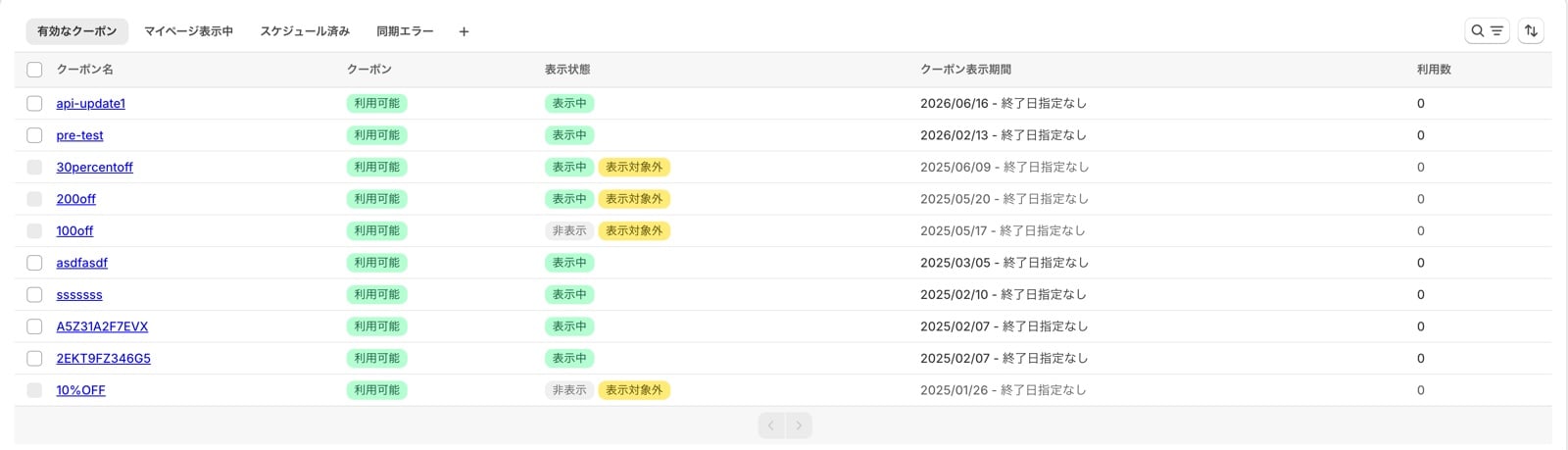
- Manual display: coupons that match a keyword, including ones created before you registered it, can no longer be shown on the account page manually. You cannot select them in the coupon list, and “Display coupons on the account page” on the coupon detail page is disabled.
- Using the coupon: the coupon is only hidden from the account page. It still works, and customers who know the code can use it at checkout as usual.
- Coupon List: they carry an “Excluded from display” label and their checkbox cannot be selected. If the label sits next to a “Displayed” label, the coupon was already on the account page before you registered the keyword. You can still click the coupon name to open its detail page.
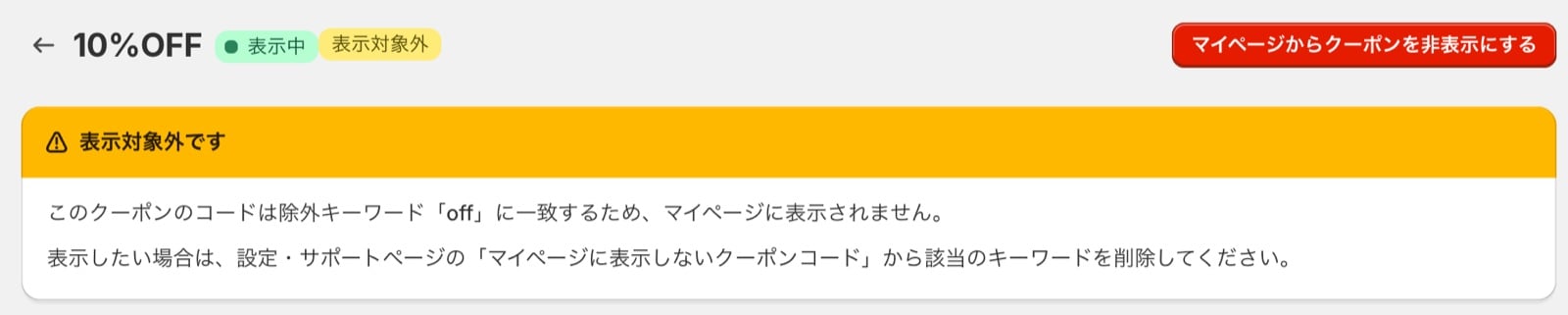
- Coupon detail page: an “Excluded from display” message is shown along with the keyword it matched.
Hide a coupon that is already displayed
Coupons that were already on the account page before you registered the keyword need to be hidden one by one.1
Open the coupon from the coupon list
In the app’s “Coupon List”, click the name of the coupon you want to hide to open its detail page. Excluded coupons cannot be selected with the checkbox in the list, so use the detail page instead of “Hide from Account Page”.
2
Hide it from the account page
Press “Hide coupons on the account page” in the top right, then press “Hide” in the confirmation dialog.
FAQ
I registered a keyword, but the coupon is still on the account page
I registered a keyword, but the coupon is still on the account page
Coupons that were already on the account page before you registered the keyword stay visible. Hide them one by one using “Hide a coupon that is already displayed” above.If a coupon created after you registered the keyword is showing, check that you pressed “Save” in the save bar. Coupons created before you saved are displayed automatically.
I want to show an excluded coupon on the account page just this once
I want to show an excluded coupon on the account page just this once
While a coupon matches a keyword, it cannot be shown manually either. Remove the keyword on the Settings・Support page, save, and then display the coupon from the coupon list. Removing a keyword does not automatically display coupons that were excluded while it was registered.
Some coupons in the coupon list cannot be selected
Some coupons in the coupon list cannot be selected
Coupons labeled “Excluded from display” match one of your keywords, so they cannot be selected. Click the coupon name to see which keyword it matched on the detail page.
Can I exclude a coupon by putting the keyword in its name?
Can I exclude a coupon by putting the keyword in its name?
No. Only the coupon code is checked. Create the coupon with the keyword in its code.
Do keywords still apply when automatic display is off?
Do keywords still apply when automatic display is off?
When automatic display is off, only coupons you display manually appear on the account page. Even then, coupons that match a keyword cannot be displayed manually.