

What the new customer accounts are
This is Shopify’s account page introduced in 2023. Instead of signing in with an email address and password, customers sign in through email verification, so no password is needed.Choose one of two display styles
There are two ways to show the coupon list. Decide which one you want before you start.The names in the editor are in Japanese. Shopify does not translate extension names, so they appear the same way in every language. The text your customers see is available in English and Japanese.
We built two layouts so you can pick the one that suits your store. Enable one of them, not both. We recommend the dedicated page.
Setup steps
Step 1: Check metafield permissions
The app sets customer account API access to “Read” for you. The coupon list works as it is, so there is normally nothing to change. This also applies to stores that have used the app for a while: when you open the app in the Shopify admin, it checks this setting and changes “No access” to “Read”. If it is set to “Read and write”, the app leaves it as it is. If it still shows “No access” after you open the app, change it manually. Go to Settings > Metafields and metaobjects > Customers (bottom left), open the metafield below, and set “Customer account API access” under Options to “Read”.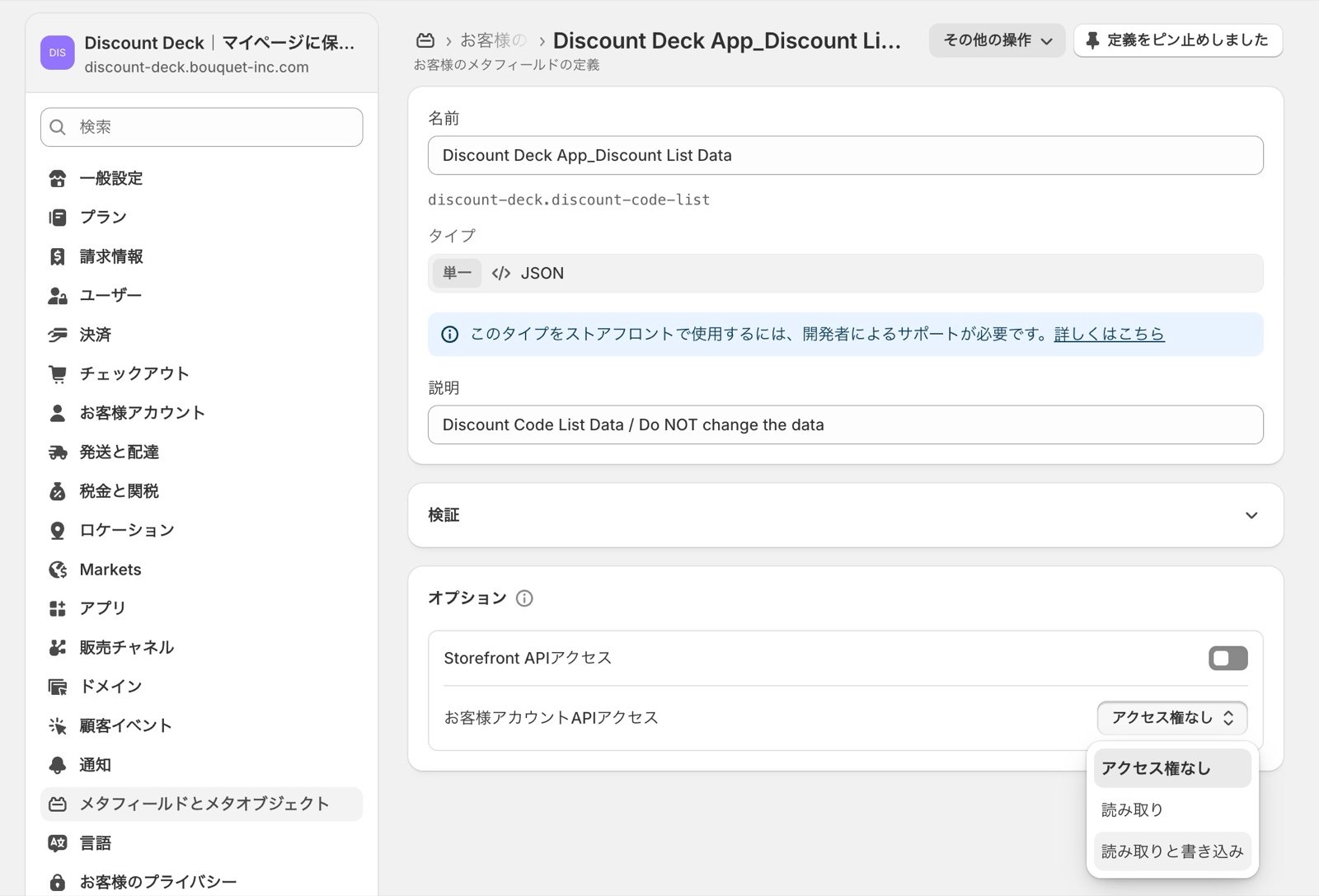
If coupons do not appear on the account page, first open Discount Deck in your Shopify admin, then check “Customer account API access” on the screen above.
Step 2: Add the coupon list
Go to Settings > Checkout > Customize (bottom left), open customer accounts, and open the editor.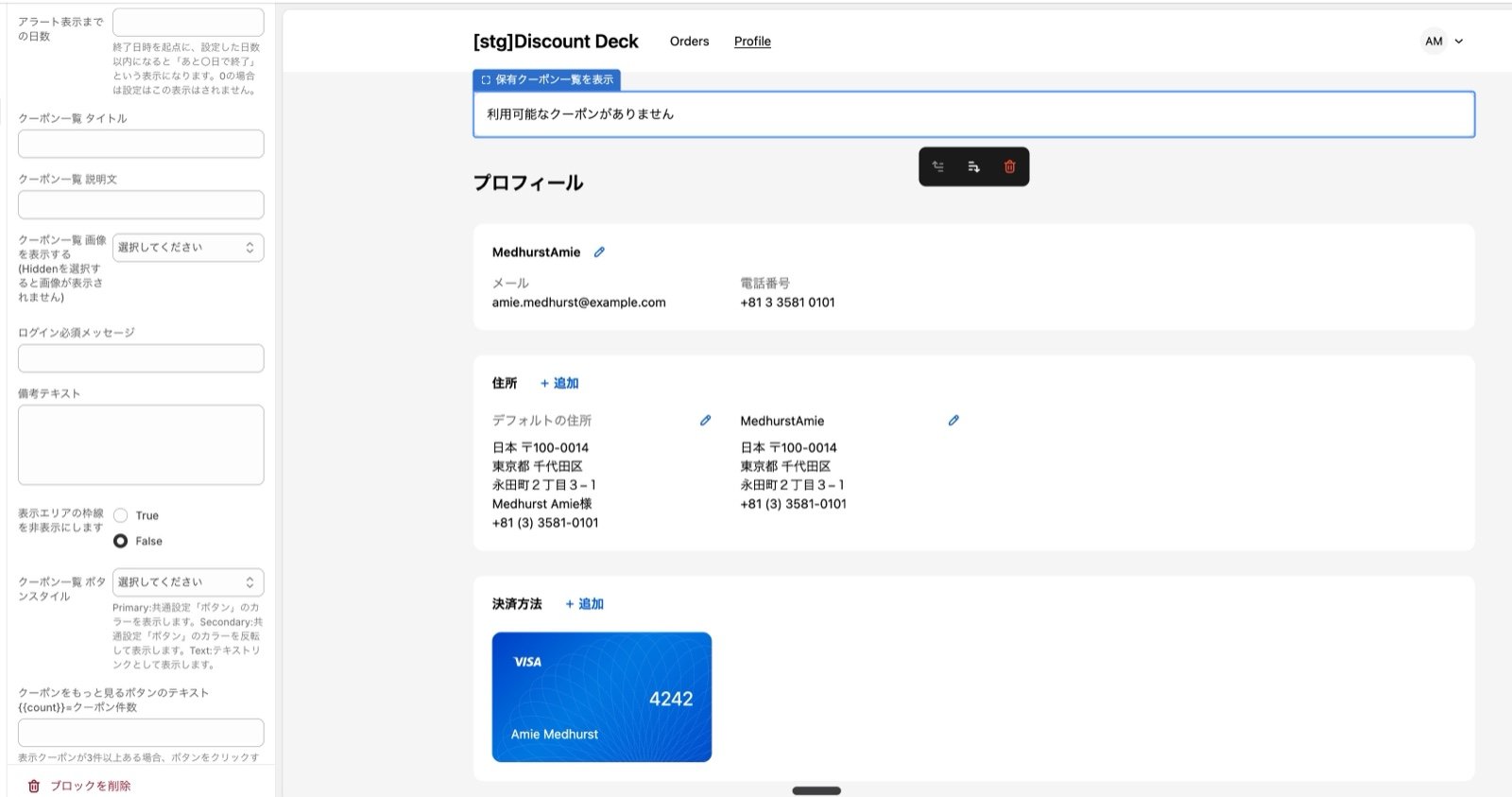
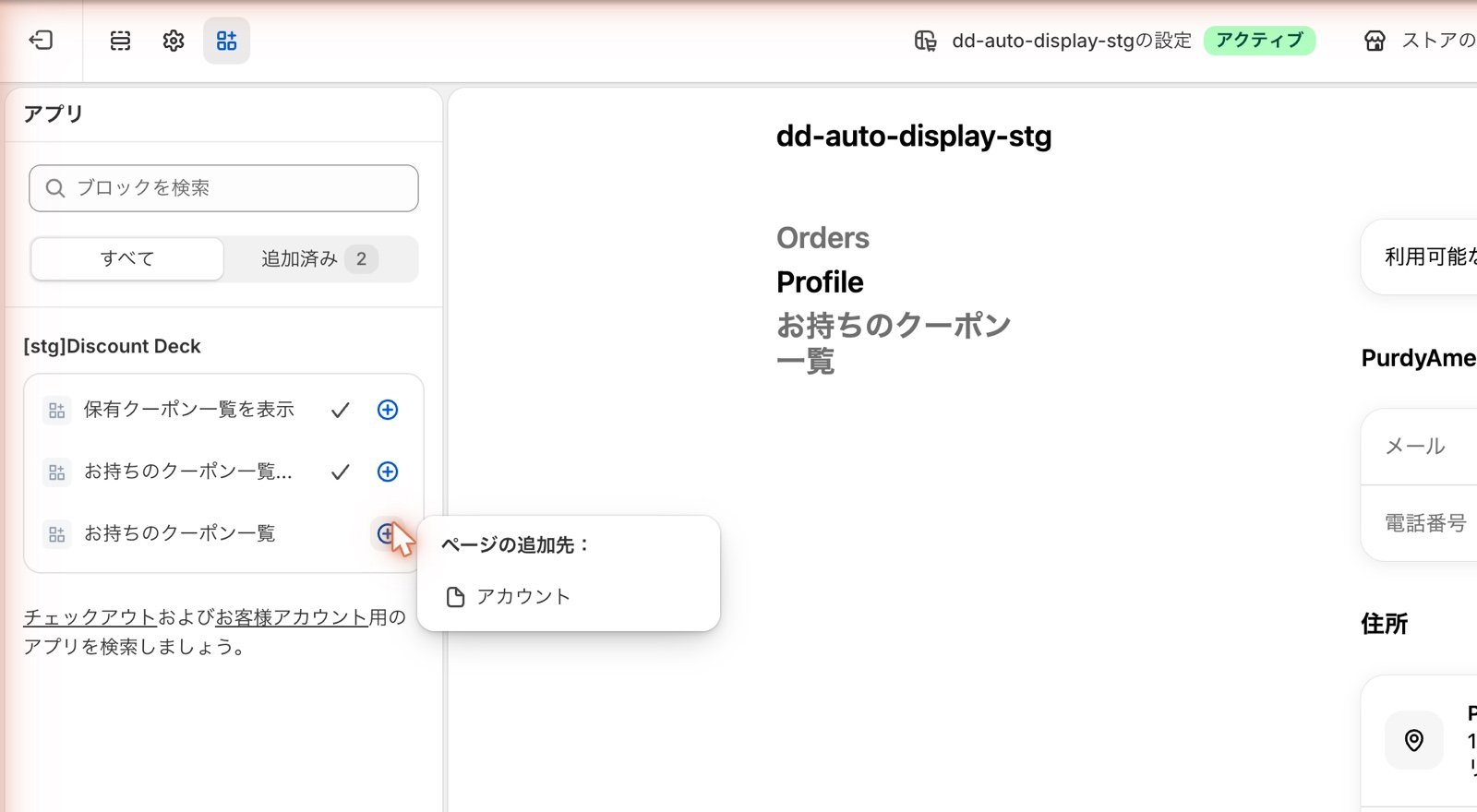
保有クーポン一覧を表示 in the same list is a separate feature for the checkout page. It is not added to customer accounts.
- Open the profile page or the order history page first.
- In the apps list, press the plus button next to お持ちのクーポン一覧を表示.
- Drag the block that appears to the position you want.
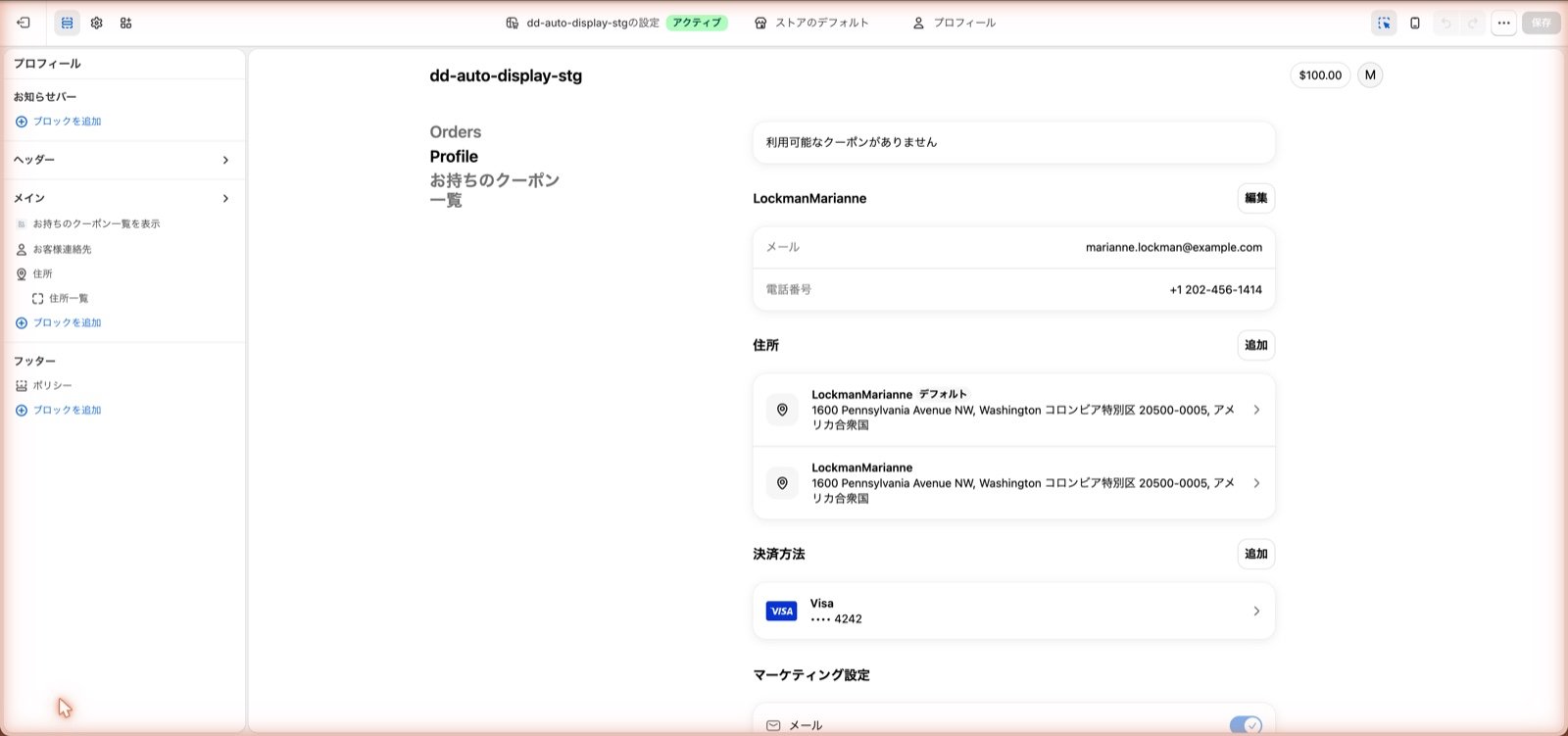
- In the apps list, press the plus button next to お持ちのクーポン一覧.
- When “ページの追加先” appears, choose アカウント.
- The item is added to the header menu.
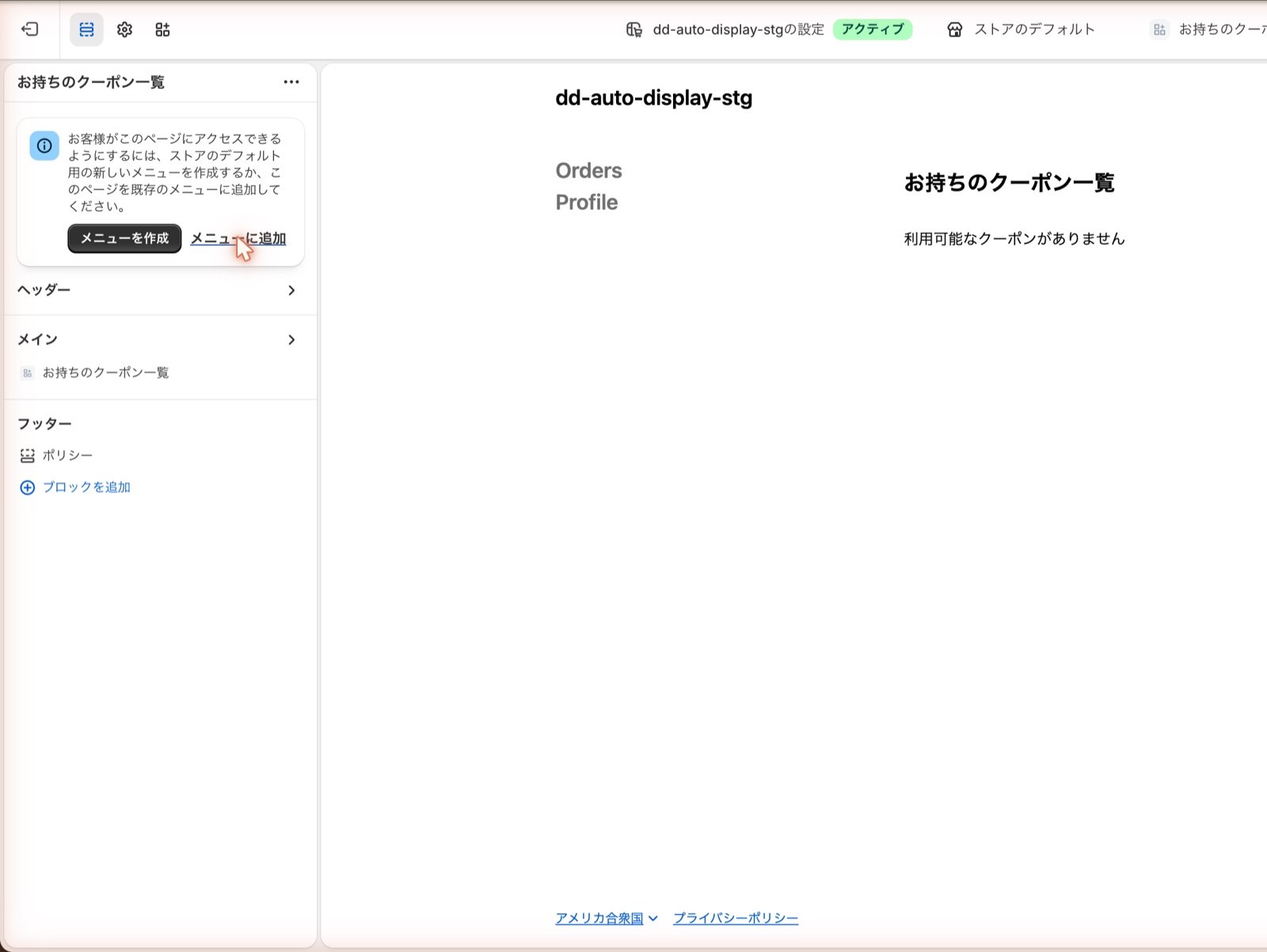
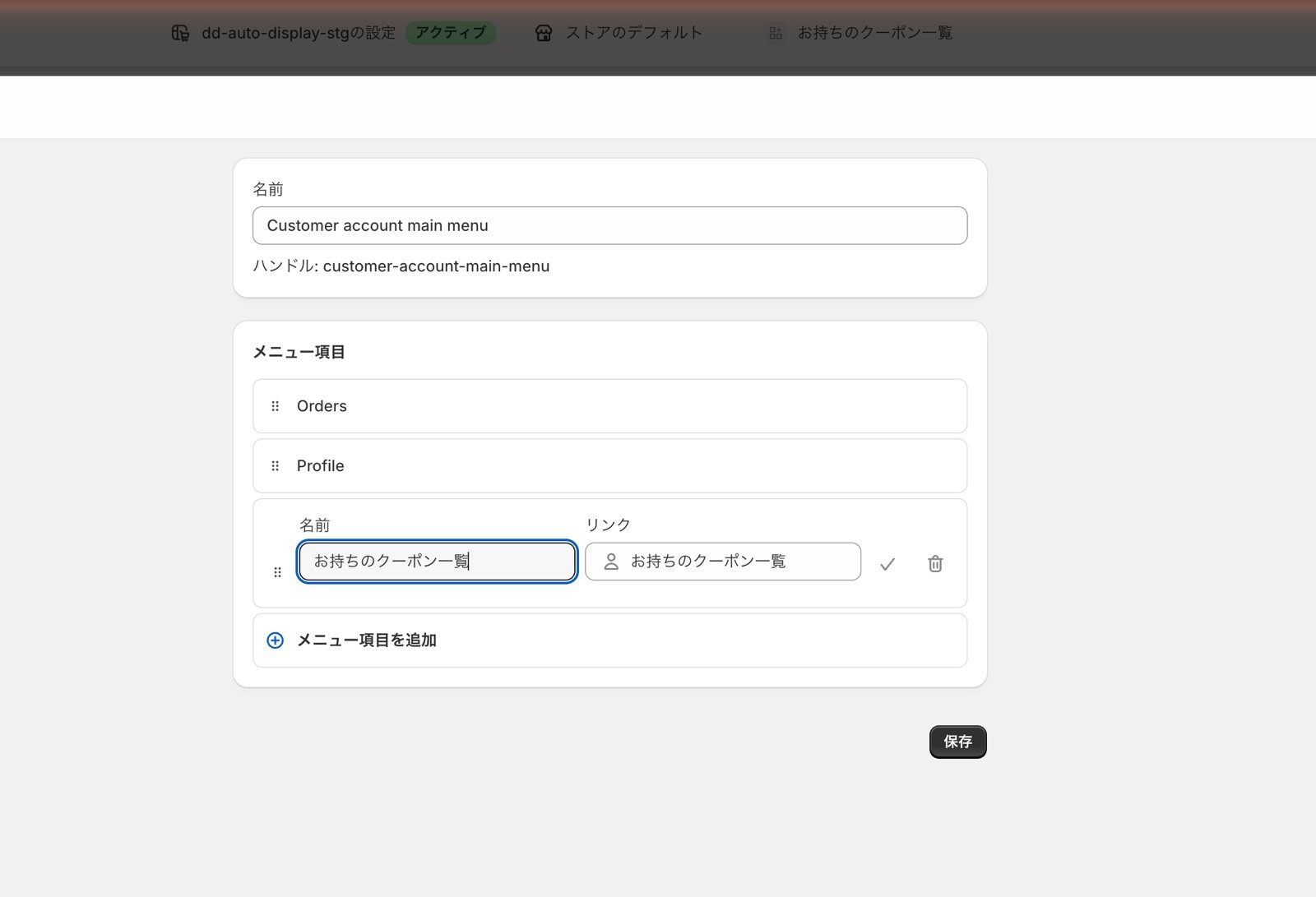
The 名前 you enter here is the label shown in the menu. The ページタイトル setting is the heading inside the page, so the two are set separately.
To change the settings later, use the page switcher at the top of the editor and choose お持ちのクーポン一覧 under the customer accounts section.
The width of the dedicated page is fixed to match Shopify’s own pages, such as order history. There is no setting for it.
Step 3: Adjust the display settings
Select the block or the page you added, and the settings appear in the panel on the right. Anything you leave blank falls back to the value in the last column below. The same setting is labelled セクション (section) for the block and ページ (page) for the dedicated page. The settings panel for the block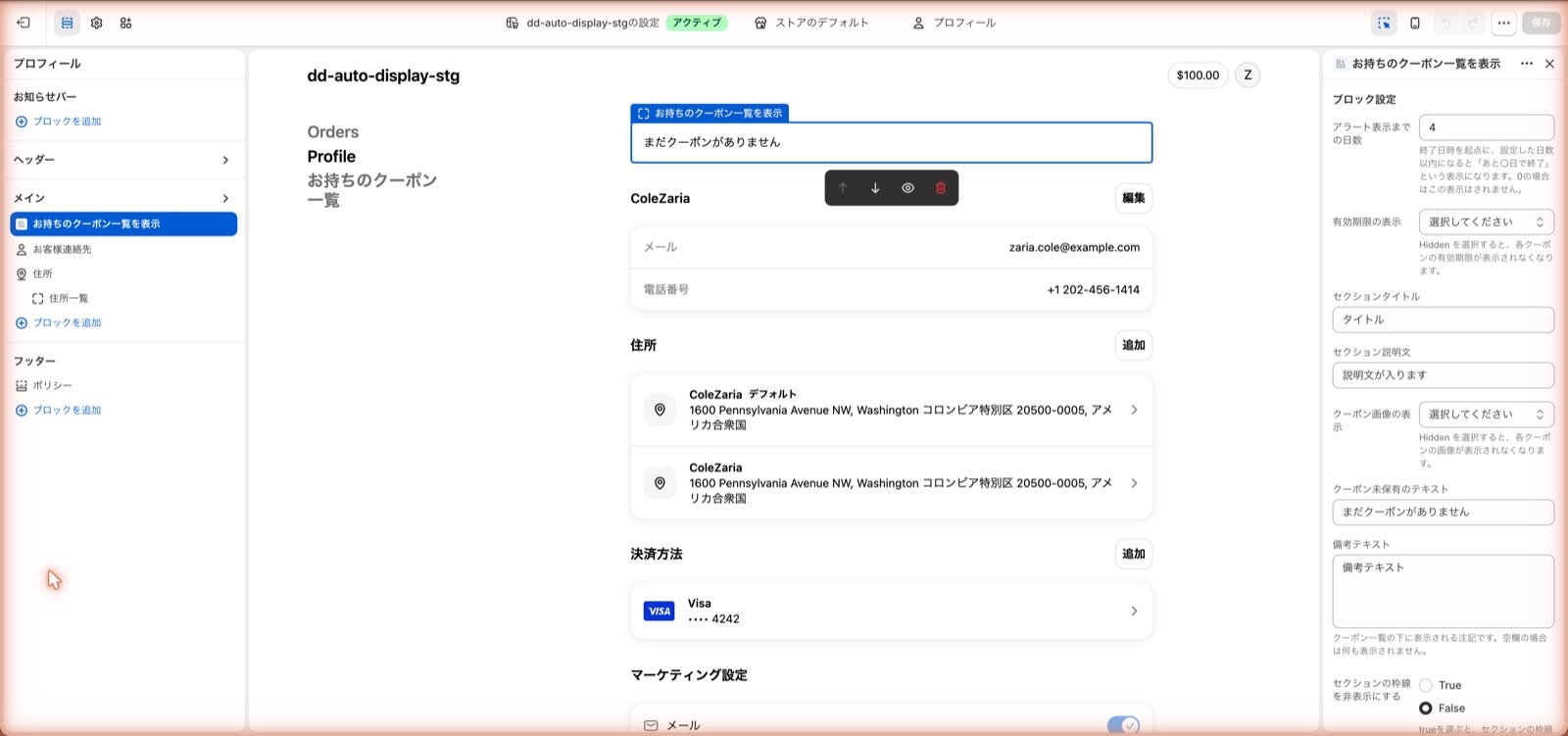
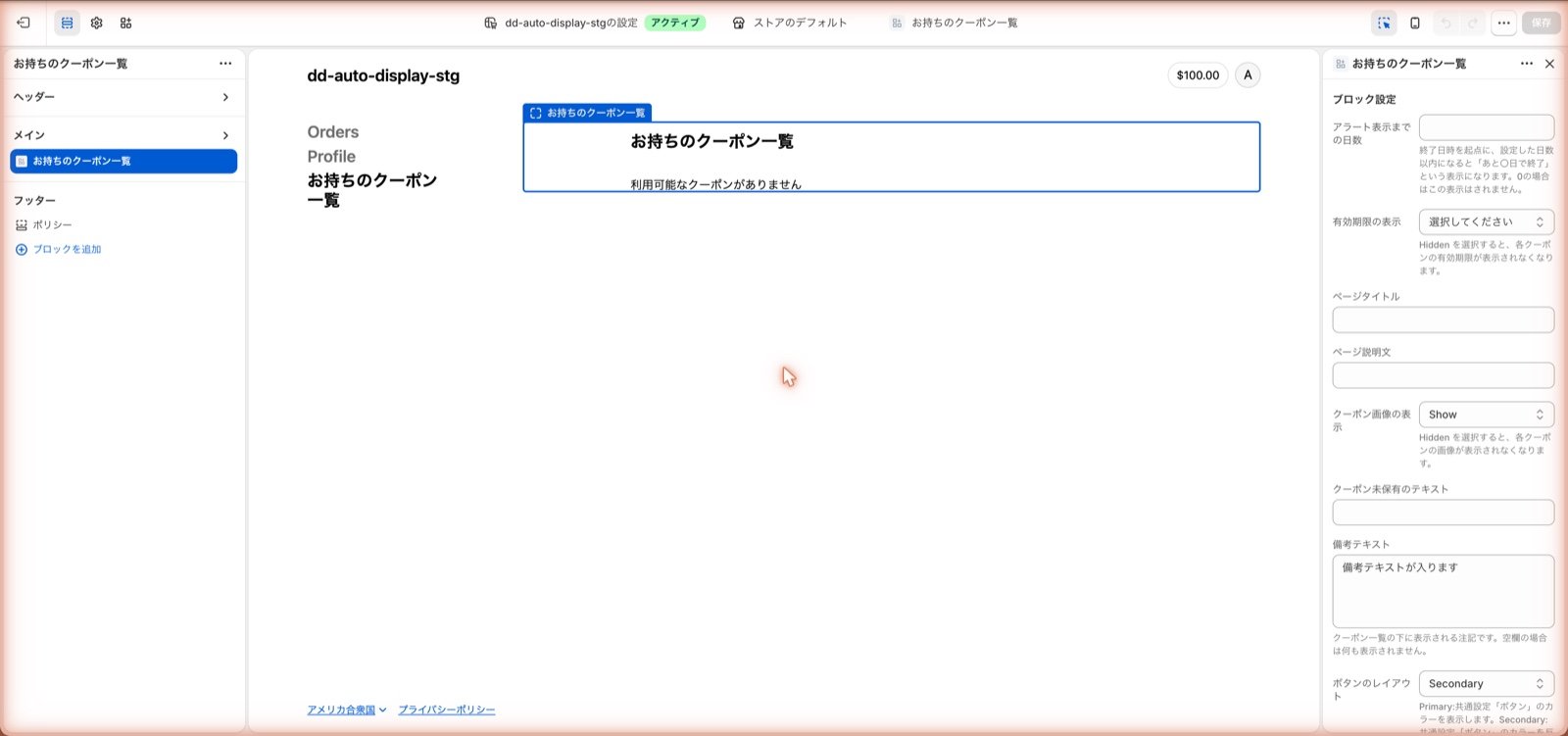
When you are done, click Save in the top right.
How the list behaves
These are fixed behaviors, not settings.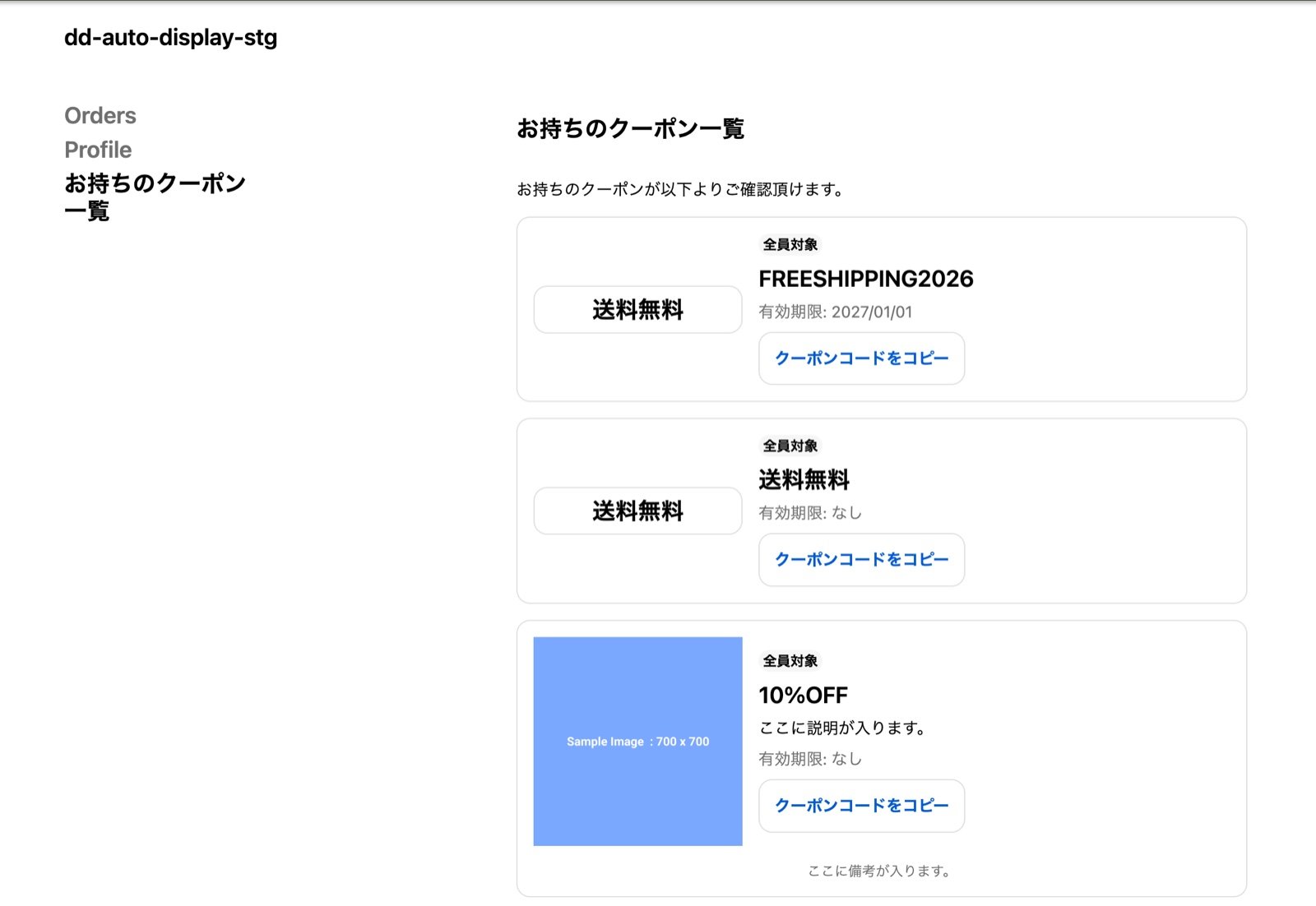
- Which coupons appear: the coupons the customer can use right now.
- Order: sorted by the closest expiration date first. Coupons with no expiration date come last.
- What each coupon shows: the discount (OFF, free shipping, and so on), the coupon code, a copy button, the expiration date, and the image and note you set in the app admin.
- Labels: coupons available to everyone show “Available to everyone”, and coupons limited by a customer segment show “Just for you”. If the discount is limited to one use per customer, “One per user” is shown alongside it.
- Images: if you set both a desktop image and a mobile image in the app admin, the list switches between them based on the screen width. The recommended sizes are 300px × 300px (1:1) for desktop and 192px × 502px (1:2.6) for mobile. If you set only one, that image is used at every screen width.
FAQ
A customer holds coupons, but the page says there are none
A customer holds coupons, but the page says there are none
First, open Discount Deck in your Shopify admin. If “Customer account API access” on the metafield was set to “No access”, the app changes it to “Read” at that point. Then reload the coupon list. If the coupons still do not appear, check on the Step 1 screen that it is set to “Read” or “Read and write”.If the permission is correct, check these two things.
- Whether the customer is included in the Shopify discount. The list only shows coupons the customer actually holds.
- Whether the coupon is set to appear on the account page in the app admin’s coupon list.
The page says the coupons could not be loaded
The page says the coupons could not be loaded
This is either a temporary network error or a missing metafield permission. If reloading after a while does not help, check the metafield permission in Step 1.Customers who simply hold no coupons see “No available coupons” instead, so the wording tells the two cases apart.
The block does not show the third coupon and beyond
The block does not show the third coupon and beyond
That is intended. The block shows the first two coupons, and a “View more” button opens the full list when the customer holds three or more. Use the dedicated page if you want every coupon listed straight away.
Text I set in one place does not appear in the other
Text I set in one place does not appear in the other
The block and the dedicated page are separate extensions, so their settings are not shared. Please enter the same text in each settings panel.
I removed it and added it back, and my settings were gone
I removed it and added it back, and my settings were gone
Settings are stored per block and per page, so removing one removes its settings too. Anything you add back counts as new, which means the title, the note, and the rest start out blank. Make a record of your settings before you remove anything.
I entered a note, but it does not appear
I entered a note, but it does not appear
On the dedicated page it appears below the list. In the block it appears below the list that opens from “View more”, so customers holding two coupons or fewer will not see it. Use the dedicated page if you want it always visible.
Coupon images do not appear
Coupon images do not appear
Open the coupon from the app admin’s coupon list and check that a URL is set for the desktop image or the mobile image. The URL has to point directly at an image file, such as
https://cdn.shopify.com/.../coupon-pc.png.Also check that クーポン画像の表示 in the settings panel is not set to Hidden.I do not want to show 'Ends in N days'
I do not want to show 'Ends in N days'
Enter 0 in アラート表示までの日数. Only that message disappears; the expiration date itself is still shown. Choose Hidden for 有効期限の表示 if you want to hide the date as well.
Which languages are supported?
Which languages are supported?
The text your customers see is available in English and Japanese, and follows the customer’s language. Note that anything you type into the settings panel, such as the title or the description, is shown as-is in every language.
I want finer control over the design
I want finer control over the design
The account page is hosted by Shopify, so your theme’s custom CSS does not apply. You can only adjust what the settings panel offers. If you need a fully custom design, consider building it on your storefront.