

About this page
This page is for stores that had a development agency (a build partner) set up Discount Deck and will now run it themselves. The setup steps themselves are in Setup. Open Discount Deck from Apps in the left menu of your Shopify admin. The app’s menu has three items: Coupons, Settings & support, and Plan. Click the app name, Discount Deck, to go back to the home page.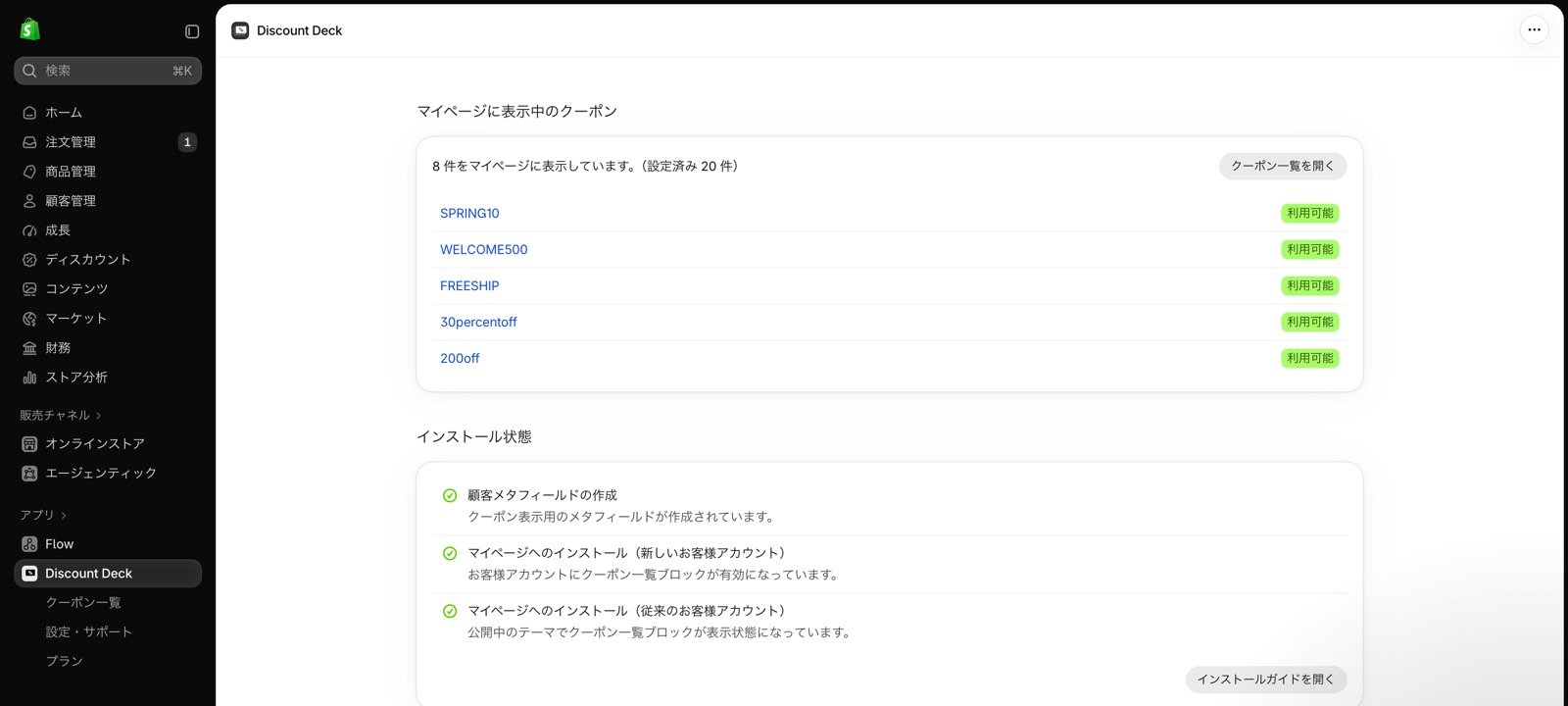
Reading the admin screens
Home
Coupons on the customer account page shows how many coupons are showing on your customers’ account pages and lists up to five of them. Open the coupon list takes you to all your coupons. Installation status below shows whether the coupon list block is placed on the customer account page. If the row for the type of customer accounts you use (new or legacy) has a green check mark, installation is done. For Shopify Plus stores, a row for the checkout also appears. If some coupons failed to sync or your customer count is nearing your plan’s limit, a notice appears at the top of the home page. Its button takes you to the screen where you can deal with it.Coupons
Lists the coupons with a code that you created under Discounts in your Shopify admin. You can filter them with the All coupons, Showing on account page, Scheduled, and Sync errors tabs, or search by coupon name. The Shown to customers column shows at a glance whether each coupon is on the account page. Select coupons to show Show on the customer account page and Hide from the customer account page above the list. Click a coupon name to open its details, where you can set the image and description shown on the account page.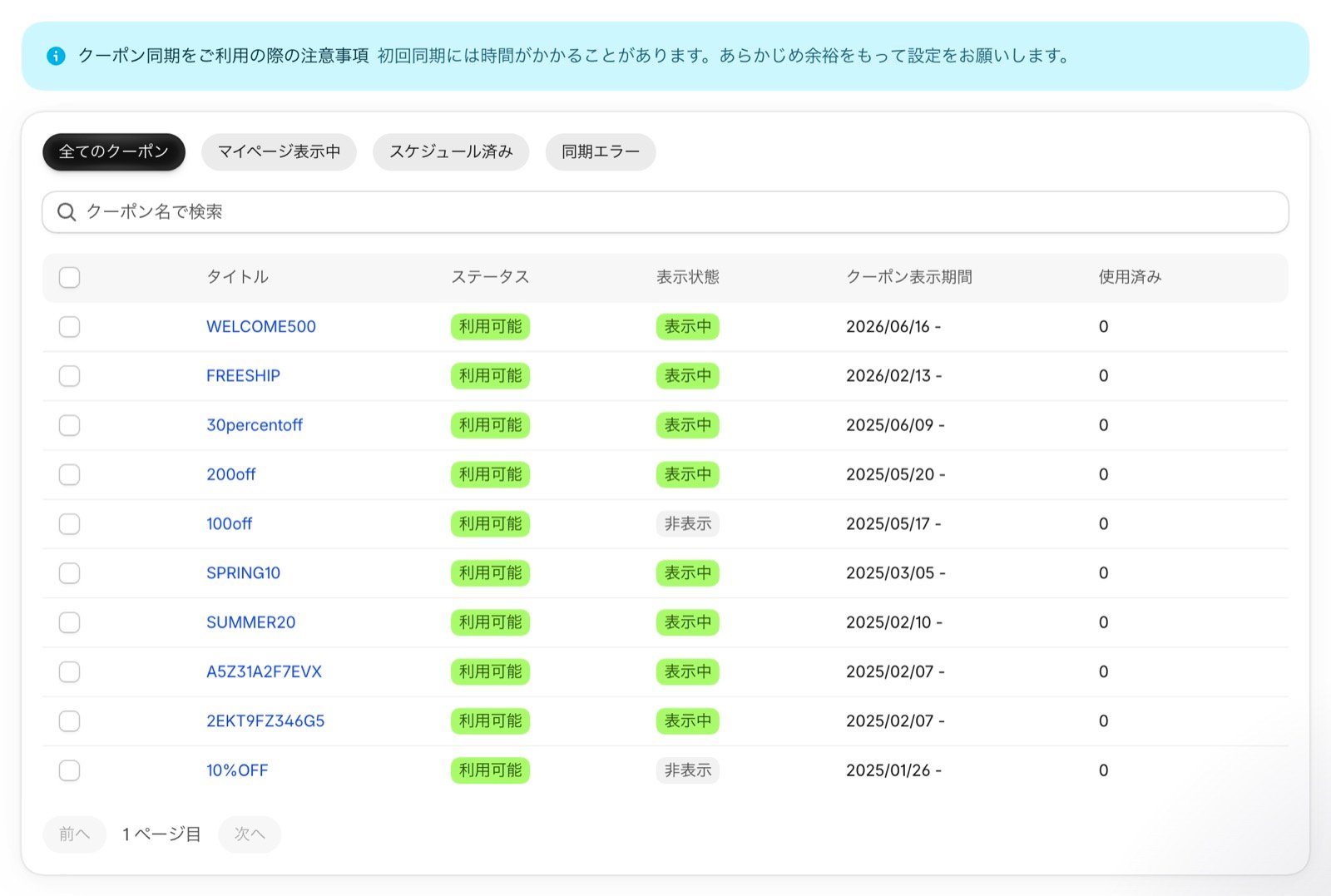
Settings & support
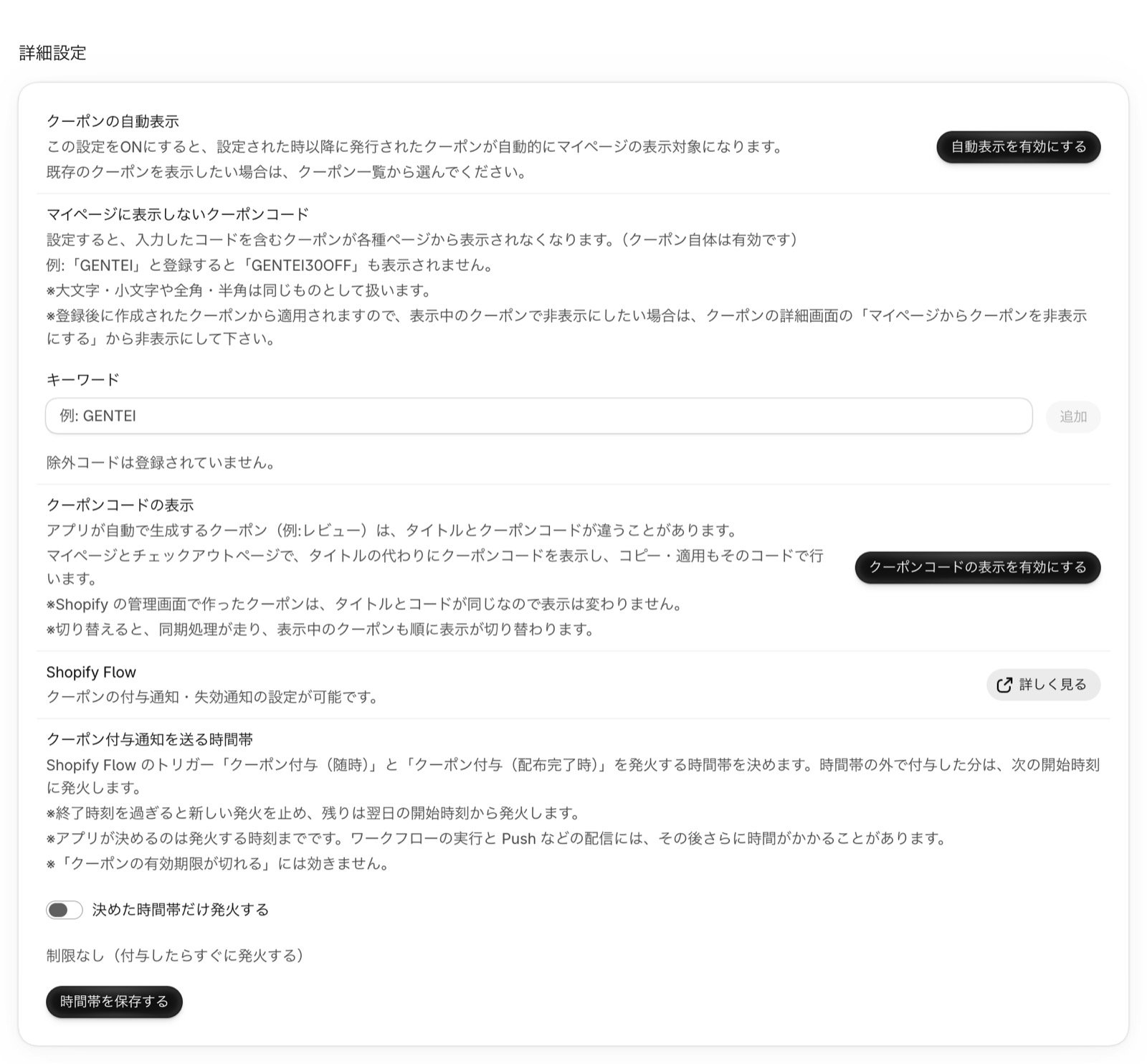
Under Advanced, set how coupons are shown and set up Shopify Flow notifications.- Automatic coupon display: when it’s on, coupons issued after that point are automatically shown on the customer account page
- Coupon codes not shown on the customer account page: keeps coupons whose code contains a registered keyword off the account page (Set coupon codes not shown on the account page)
- Coupon code display: for coupons issued by other apps, shows the coupon code instead of the title on the account page and at checkout (Can coupons issued by other apps be shown?)
- Shopify Flow: shows how to set up coupon issued and expiry notifications
- Coupon grant notification hours: sets the hours when coupon issued notifications are sent (Send coupon notifications after the distribution finishes)
Plan
Shows your current plan and your store’s customer count. Choose a plan shows each plan’s price and which plans you can choose with your current customer count. In the Pricing simulator below, enter a customer count to see the expected monthly cost of each plan.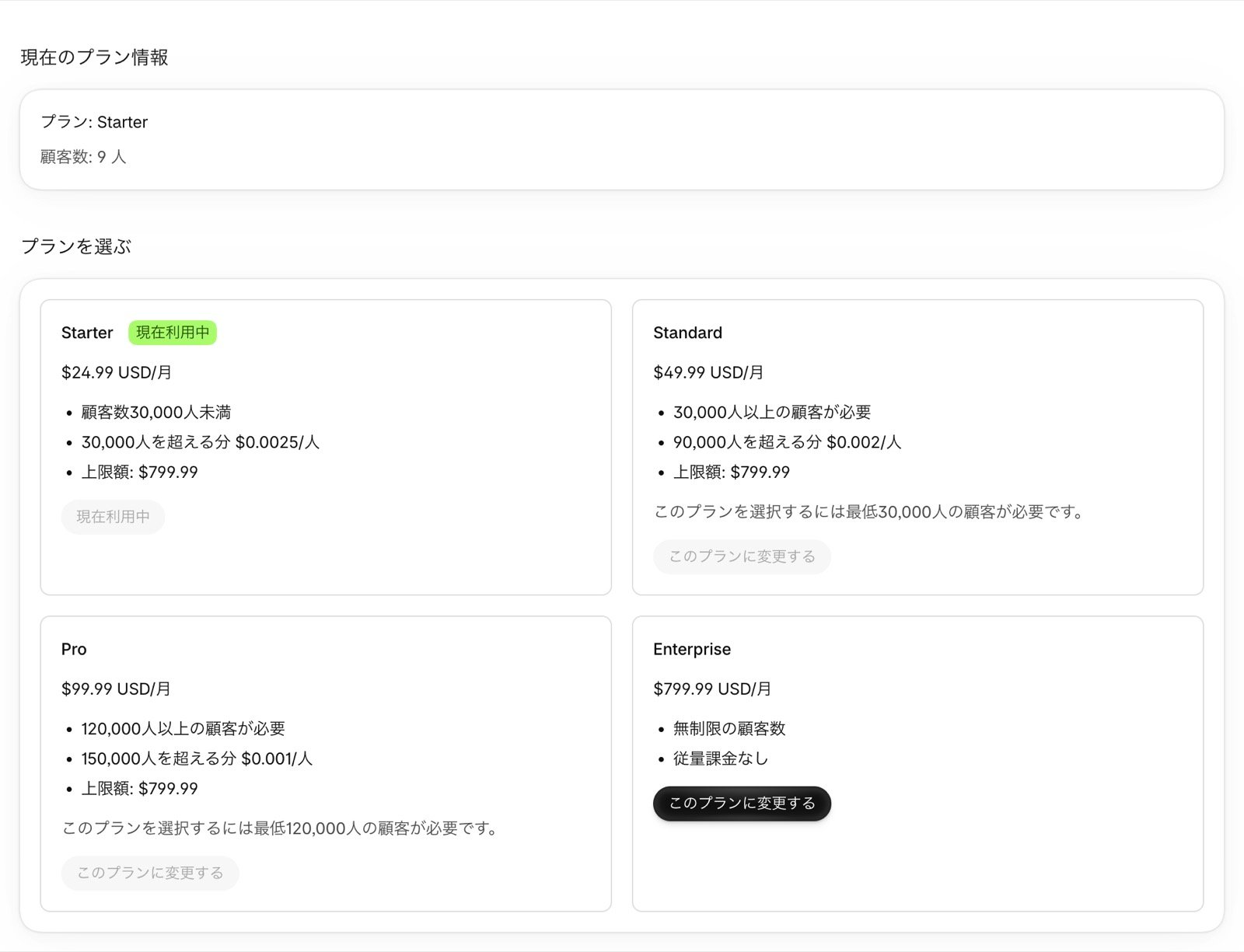
Day-to-day operations
Show new coupons on the account page
After you create a coupon under Discounts in your Shopify admin, select it in the app’s Coupons list, press Show on the customer account page, and then press Show in the confirmation dialog. Syncing starts, and the coupon appears in turn on the account pages of customers who can use it. To skip selecting each new coupon, turn on Automatic coupon display in Settings & support (Can new coupons appear on the account page automatically?). Coupons you don’t want everyone to see, such as for secret sales or employee discounts, can be kept out of automatic display by registering them in coupon codes not shown on the account page.Review the coupons you’re showing
When a campaign ends, select its coupons in the Showing on account page tab and press Hide from the customer account page to hide them all at once (Can I hide displayed coupons all at once?). When you delete a coupon under Discounts in Shopify, the app removes it from the account page automatically. For how used coupons and coupons that haven’t started or have ended are shown, see Are used, scheduled, and ended coupons shown?.Check the sync status
After you choose to show or hide coupons, Coupon sync progress above the coupon list shows how the sync is going. Coupons that failed to sync are listed in the Sync errors tab. Select them and press Sync selected coupons again to retry (Coupon sync doesn’t finish).Turn coupon delivery into notifications
With Shopify Flow, you can let customers know by email or other channels when they receive a coupon or when a coupon is about to expire. Making sure customers notice their coupons helps prevent them from going unused and leads to purchases. For setup, see Coupon issued notification and Coupon expiry notification.Hand out coupons with a claim button
You can place a “Get coupon” button on product pages or landing pages and give the coupon only to customers who press it (Standard plan or higher). For setup, see Give a coupon only to customers who press a claim button.When you change or redesign your theme
Blocks placed in a theme are set per theme. When you switch to a new theme, place the same blocks in the new theme and set their display options before you publish it.- The coupon list block on the customer account page for legacy customer accounts
- The coupon list block on the cart page
- Coupon claim buttons on product pages or landing pages
Changing or canceling your plan
On the app’s Plan screen, press Switch to this plan and approve it on Shopify’s screen to change your plan. The plans you can choose depend on your store’s customer count. For pricing, see Pricing. When your customer count nears your plan’s limit, a notice appears on the home page. Press Change plan in the notice to switch to a plan that fits your customer count. If you want to stop using the app, uninstall it from your Shopify admin. Uninstalling the app cancels your plan.If something goes wrong
- If the home page shows “X coupons failed to sync”: press Review sync errors in the notice to go to the Sync errors tab, select the coupons, and press Sync selected coupons again
- If coupons aren’t showing on the account page: see Coupons are not showing in the list on the account page
- To learn how to use the app: see the Discount Deck FAQ
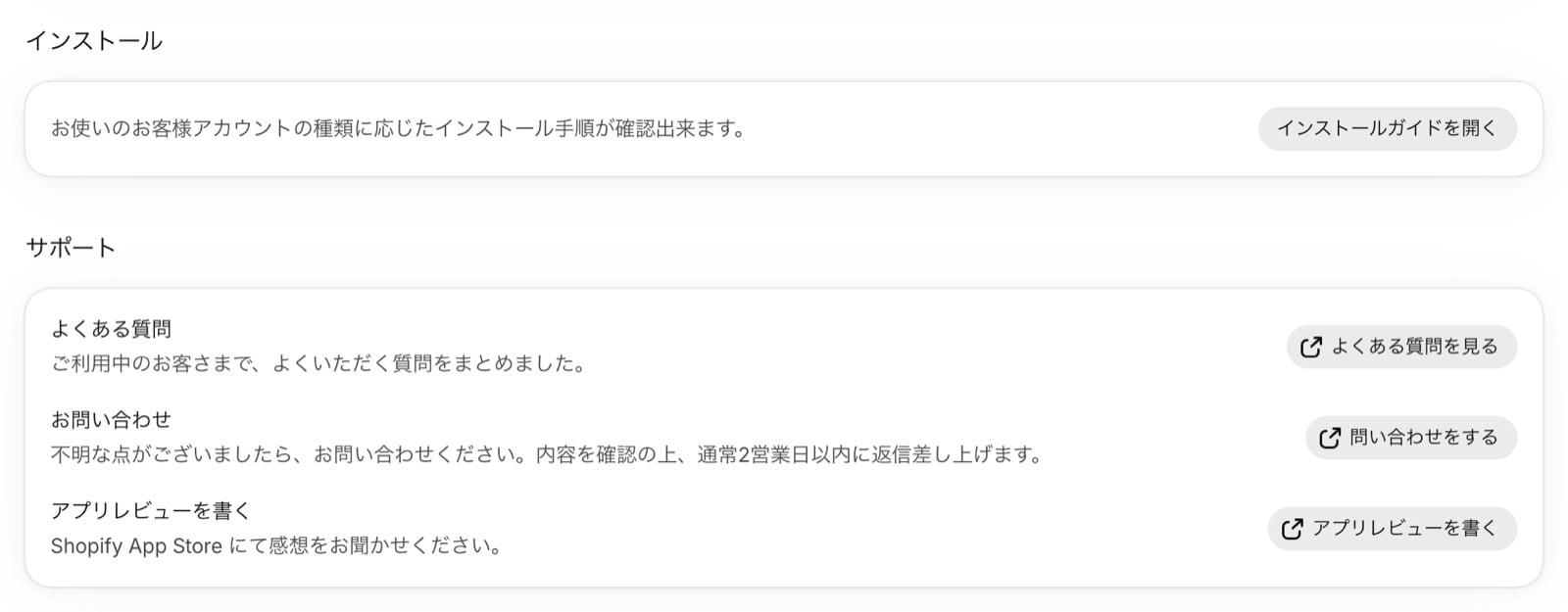
- To ask us something: contact our support team from Contact support in the app’s Settings & support. We usually reply within 2 business days