

- Order confirmation … The same product appears once per recipient, and you can’t tell which item goes to whom. “Shipping address” shows only the orderer’s address or the first recipient’s address
- Shipping confirmation … One email arrives per recipient, but it only says “Your order is on the way” and “Order #1001-1”, so you can’t tell which recipient it’s for
What changes
Order confirmation (Shopify’s “Order confirmation”)
- The message becomes “ご注文の商品は、お届け先ごとに分けて発送いたします。” (We’ll ship your items separately to each recipient.)
- Each product in the order summary shows its recipient (お届け先:鈴木 一郎様)
- A new “お届け先” (Recipients) section lists, for each recipient: name, address, phone number, products and quantities, delivery date and time, noshi (outer or inner, name), message card (title and message), and gift bag
- The “Shipping address” section isn’t shown. The billing address, payment, and shipping method are shown as before
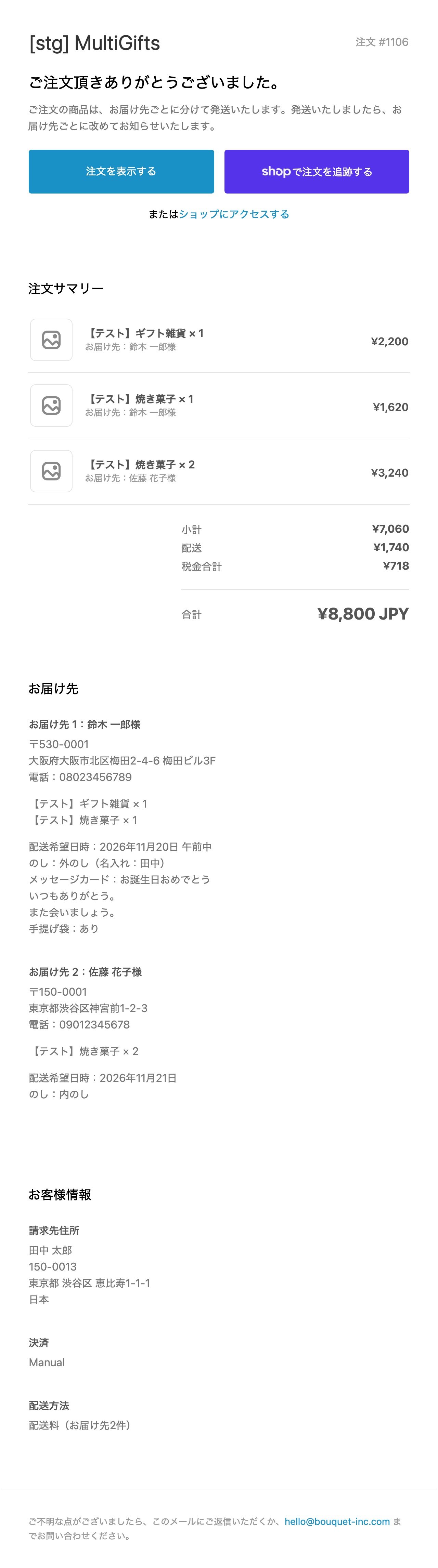
The order confirmation doesn’t show the noshi type (such as 御祝) or the message card design name. The shipping confirmation shows them.
Shipping confirmation (Shopify’s “Shipping confirmation”)
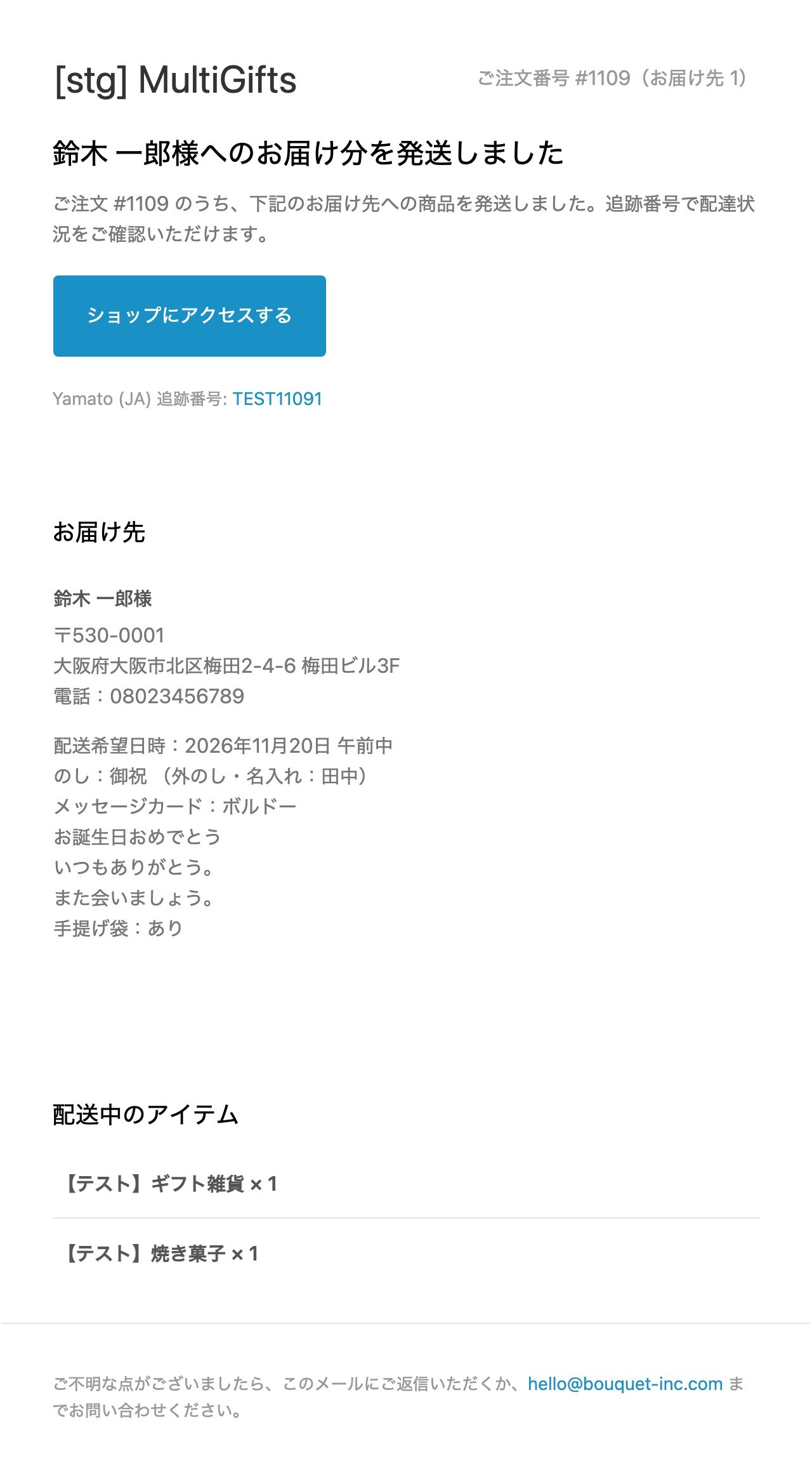
- The heading becomes “鈴木 一郎様へのお届け分を発送しました” (The items for Ichiro Suzuki have shipped). When only some items ship, it says ”…の一部を発送しました” (Some of the items … have shipped)
- The number at the top right becomes “ご注文番号 #1001(お届け先 1)” (Order #1001, recipient 1), the same order number as in the order confirmation
- A new “お届け先” (Recipient) section shows the name, address, phone number, delivery date and time, noshi (type, outer or inner, name), message card (design, title, message), and gift bag
- The “View your order” button is replaced with “Visit our store”. The order for each recipient (child order) doesn’t appear in the customer’s account
- The subject becomes “注文番号 #1001(鈴木 一郎様へのお届け分)の発送が完了しました” (if you also replace the subject)
Set it up
If you’ve already edited a template, pasting the whole template removes your edits. See “If you’ve edited the templates” further down this page.
1
Open the order confirmation template
In the Shopify admin, go to Settings → Notifications → Customer notifications, open Order confirmation, and click Edit code.
2
Replace the body
Delete everything in Email body (HTML), open “Order confirmation template” below, copy it with the button at the top right, and paste it. Leave Email subject as it is, and click Save.
3
Open the shipping confirmation template
Go back to the Notifications list, open Shipping confirmation, and click Edit code.
4
Replace the body and subject
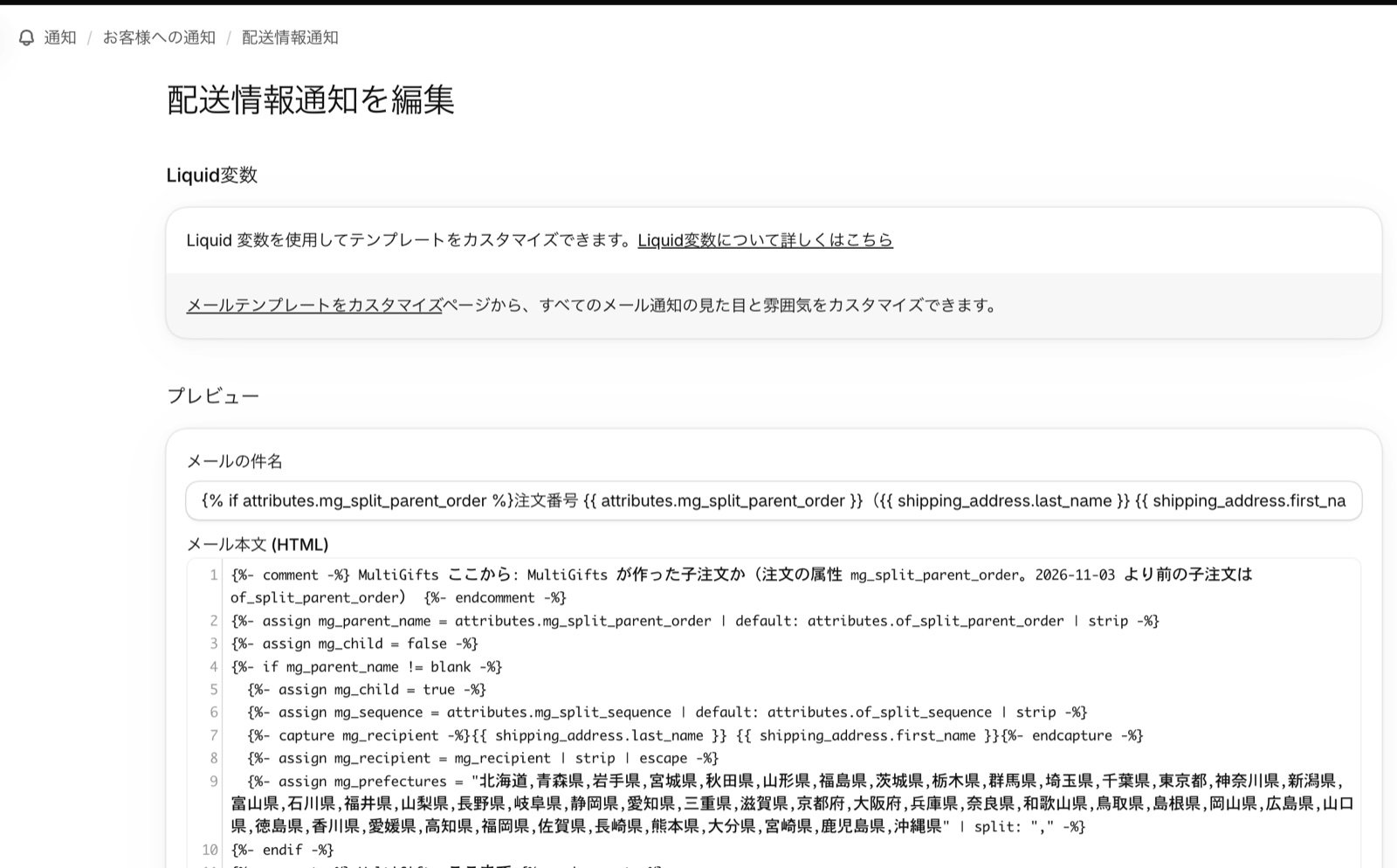
Delete everything in Email body (HTML) and paste “Shipping confirmation template” below. Replace Email subject with “Shipping confirmation subject” below too, and click Save.
Templates
Order confirmation template
Order confirmation template
order-confirmation.liquid
{% assign buyer_email_rtl = false %}{% if locale_direction == 'rtl' %}{% assign buyer_email_rtl = true %}{% endif %}{% assign delivery_method_types = delivery_agreements | map: 'delivery_method_type' | uniq %}
{% assign has_split_cart = false %}
{% assign non_none_count = 0 %}
{% for type in delivery_method_types %}
{% unless type == 'none' %}
{% assign non_none_count = non_none_count | plus: 1 %}
{% endunless %}
{% endfor %}
{% if non_none_count > 1 %}
{% assign has_split_cart = true %}
{% endif %}
{% assign non_none_agreements_count = 0 %}
{% for agreement in delivery_agreements %}
{% unless agreement.delivery_method_type == 'none' %}
{% assign non_none_agreements_count = non_none_agreements_count | plus: 1 %}
{% endunless %}
{% endfor %}
{%- comment -%} MultiGifts ここから: 複数配送の注文か(商品の行に _mg_destination_id がある)と、お届け先の一覧(出てきた順) {%- endcomment -%}
{%- assign mg_multi = false -%}
{%- assign mg_dest_ids_str = "" -%}
{%- for line in line_items -%}
{%- assign mg_id = line.properties["_mg_destination_id"] | strip -%}
{%- if mg_id != blank -%}
{%- assign mg_multi = true -%}
{%- assign mg_key = "|" | append: mg_id | append: "|" -%}
{%- assign mg_seen = "|" | append: mg_dest_ids_str | append: "|" -%}
{%- unless mg_seen contains mg_key -%}
{%- if mg_dest_ids_str == "" -%}
{%- assign mg_dest_ids_str = mg_id -%}
{%- else -%}
{%- assign mg_dest_ids_str = mg_dest_ids_str | append: "|" | append: mg_id -%}
{%- endif -%}
{%- endunless -%}
{%- endif -%}
{%- endfor -%}
{%- assign mg_dest_ids = mg_dest_ids_str | split: "|" -%}
{%- assign mg_prefectures = "北海道,青森県,岩手県,宮城県,秋田県,山形県,福島県,茨城県,栃木県,群馬県,埼玉県,千葉県,東京都,神奈川県,新潟県,富山県,石川県,福井県,山梨県,長野県,岐阜県,静岡県,愛知県,三重県,滋賀県,京都府,大阪府,兵庫県,奈良県,和歌山県,鳥取県,島根県,岡山県,広島県,山口県,徳島県,香川県,愛媛県,高知県,福岡県,佐賀県,長崎県,熊本県,大分県,宮崎県,鹿児島県,沖縄県" | split: "," -%}
{%- comment -%} MultiGifts ここまで {%- endcomment -%}
{% capture email_title %}
ご注文頂きありがとうございました。
{% endcapture %}
{% capture email_body %}
{% if has_pending_payment %}
{% if buyer_action_required %}
支払い完了後、確認メールが届きます。
{% else %}
決済が処理されています。注文が確認されるとメールが届きます。
{% endif %}
{% elsif payment_charged_on_fulfillment %}
{% if buyer_email_rtl == true %}‏‎<span dir="auto" style="display: inline-block; unicode-bidi: isolate; font-size: inherit;">{% endif %}{{ customer.last_name }}様{% if buyer_email_rtl == true %}</span>‎‏{% endif %} 様、ご注文を承りました。ご注文の発送準備が整った時点で、決済方法に請求されます。商品が発送されましたら、お知らせいたします。
{% else %}
{% if requires_shipping %}
{%- comment -%} MultiGifts ここから: 複数配送の注文は、お届け先ごとに発送することを伝える {%- endcomment -%}
{% if mg_multi %}
ご注文の商品は、お届け先ごとに分けて発送いたします。発送いたしましたら、お届け先ごとに改めてお知らせいたします。
{% else %}
{%- comment -%} MultiGifts ここまで {%- endcomment -%}
{% if has_split_cart %}
{% case split_cart_delivery_method %}
{% when 'pick-up' %}
注文の受取の準備が整うと、メールが届きます。
{% when 'local' %}
{% if buyer_email_rtl == true %}‏‎<span dir="auto" style="display: inline-block; unicode-bidi: isolate; font-size: inherit;">{% endif %}{{ customer.last_name }}様{% if buyer_email_rtl == true %}</span>‎‏{% endif %}様、ご注文の品を配達する準備を行っております。
{% when 'shipping' %}
注文の発送準備を行なっております。商品を発送いたしましたら、改めてお知らせいたします。
{% else %}
注文の発送準備を行なっております。商品を発送いたしましたら、改めてお知らせいたします。
{% endcase %}
{% else %}
{% case delivery_method %}
{% when 'pick-up' %}
注文の受取の準備が整うと、メールが届きます。
{% when 'local' %}
{% if buyer_email_rtl == true %}‏‎<span dir="auto" style="display: inline-block; unicode-bidi: isolate; font-size: inherit;">{% endif %}{{ customer.last_name }}様{% if buyer_email_rtl == true %}</span>‎‏{% endif %}様、ご注文の品を配達する準備を行っております。
{% else %}
注文の発送準備を行なっております。商品を発送いたしましたら、改めてお知らせいたします。
{% endcase %}
{% endif %}
{%- comment -%} MultiGifts ここから {%- endcomment -%}
{% endif %}
{%- comment -%} MultiGifts ここまで {%- endcomment -%}
{% if delivery_instructions != blank %}
<p><b>配達情報:</b> {% if buyer_email_rtl == true %}‏‎<span dir="auto" style="display: inline-block; unicode-bidi: isolate; font-size: inherit;">{% endif %}{{ delivery_instructions }}{% if buyer_email_rtl == true %}</span>‎‏{% endif %}</p>
{% endif %}
{% unless delivery_method_types.size > 1 %}
{% if consolidated_estimated_delivery_time %}
{% if non_none_agreements_count > 1 %}
<h3 class="estimated_delivery__title">配達予定</h3>
<p>{% if buyer_email_rtl == true %}‏‎<span dir="auto" style="display: inline-block; unicode-bidi: isolate; font-size: inherit;">{% endif %}{{ consolidated_estimated_delivery_time }}{% if buyer_email_rtl == true %}</span>‎‏{% endif %}</p>
{% else %}
<p>
配達予定 <b>{% if buyer_email_rtl == true %}‏‎<span dir="auto" style="display: inline-block; unicode-bidi: isolate; font-size: inherit;">{% endif %}{{ consolidated_estimated_delivery_time }}{% if buyer_email_rtl == true %}</span>‎‏{% endif %}</b>
</p>
{% endif %}
{% endif %}
{% endunless %}
{% endif %}
{% endif %}
{% assign gift_card_line_items = line_items | where: "gift_card" %}
{% assign found_gift_card_with_recipient_email = false %}
{% for line_item in gift_card_line_items %}
{% if line_item.properties["__shopify_send_gift_card_to_recipient"] and line_item.properties["Recipient email"] %}
{% assign found_gift_card_with_recipient_email = true %}
{% break %}
{% endif %}
{% endfor %}
{% if found_gift_card_with_recipient_email %}
<p>ギフトカードの受取人には、ギフトカードコードが記載されたメールが届きます。</p>
{% elsif gift_card_line_items.first %}
<p>ギフトカードの個別のメールが届きます。</p>
{% endif %}
{% endcapture %}
<!DOCTYPE html>
<html lang="ja"{% if buyer_email_rtl %} dir="rtl"{% endif %}>
<head>
<title>{{ email_title }}</title>
<meta http-equiv="Content-Type" content="text/html; charset=utf-8">
<meta name="viewport" content="width=device-width">
<link rel="stylesheet" type="text/css" href="/assets/notifications/styles.css">
<style>
.button__cell { background: {{ shop.email_accent_color }}; }
.actions-buttons .button__cell--primary { background-color: {{ shop.email_accent_color }}; }
.actions-buttons .button__cell--outlined .button__text { color: {{ shop.email_accent_color }}; }
a, a:hover, a:active, a:visited { color: {{ shop.email_accent_color }}; }
</style>
</head>
<body>
<table class="body{% if buyer_email_rtl %} buyer-email-rtl{% endif %}"{% if buyer_email_rtl %} dir="rtl"{% endif %}>
<tr>
<td>
<table class="header row">
<tr>
<td class="header__cell">
<center>
<table class="container"{% if buyer_email_rtl == true %} dir="rtl"{% endif %}>
<tr>
<td>
<table class="row">
<tr>
<td class="shop-name__cell"{% if buyer_email_rtl == true %} align="right"{% endif %}>
{%- if shop.email_logo_url %}
<img src="{{shop.email_logo_url}}" alt="{{ shop.name }}" width="{{ shop.email_logo_width }}">
{%- else %}
<h1 class="shop-name__text">
<a href="{{shop.url}}">{% if buyer_email_rtl == true %}‏‎<span dir="auto" style="display: inline-block; unicode-bidi: isolate; font-size: inherit;">{% endif %}{{ shop.name }}{% if buyer_email_rtl == true %}</span>‎‏{% endif %}</a>
</h1>
{%- endif %}
</td>
<td{% if buyer_email_rtl == true %} class="order-po-number__cell"{% endif %}>
<table class="order-po-number__container">
<tr>
<td class="order-number__cell"{% if buyer_email_rtl == true %} align="left"{% endif %}>
<span class="order-number__text">
注文 {% if buyer_email_rtl == true %}<span dir="ltr" style="display: inline-block; unicode-bidi: isolate; font-size: inherit;">{% endif %}{{ order_name }}{% if buyer_email_rtl == true %}</span>{% endif %}
</span>
</td>
</tr>
{%- if po_number %}
<tr>
<td class="po-number__cell"{% if buyer_email_rtl == true %} align="left"{% endif %}>
<span class="po-number__text">
注文書番号 {% if buyer_email_rtl == true %}<span dir="ltr" style="display: inline-block; unicode-bidi: isolate; font-size: inherit;">{% endif %}#{{ po_number }}{% if buyer_email_rtl == true %}</span>{% endif %}
</span>
</td>
</tr>
{%- endif %}
</table>
</td>
</tr>
</table>
</td>
</tr>
</table>
</center>
</td>
</tr>
</table>
<table class="row content">
<tr>
<td class="content__cell">
<center>
<table class="container"{% if buyer_email_rtl == true %} dir="rtl"{% endif %}>
<tr>
<td>
<h2>{{ email_title }}</h2>
<p>{{ email_body }}</p>
{% assign transaction_count = transactions | size %}
{% if transaction_count > 0 %}
{% for transaction in transactions %}
{% if transaction.show_buyer_pending_payment_instructions? %}
<p> {% if buyer_email_rtl == true %}‏‎<span dir="auto" style="display: inline-block; unicode-bidi: isolate; font-size: inherit;">{% endif %}{{transaction.buyer_pending_payment_notice}}{% if buyer_email_rtl == true %}</span>‎‏{% endif %} </p>
<p>
<table class="row">
<tr>
{% for instruction in transaction.buyer_pending_payment_instructions %}
<td>{% if buyer_email_rtl == true %}‏‎<span dir="auto" style="display: inline-block; unicode-bidi: isolate; font-size: inherit;">{% endif %}{{ instruction.header }}{% if buyer_email_rtl == true %}</span>‎‏{% endif %}</td>
{% endfor %}
<td>金額</td>
</tr>
<tr>
{% for instruction in transaction.buyer_pending_payment_instructions %}
<td>{% if buyer_email_rtl == true %}<span dir="ltr" style="display: inline-block; unicode-bidi: isolate; font-size: inherit;">{% endif %}{{ instruction.value }}{% if buyer_email_rtl == true %}</span>{% endif %}</td>
{% endfor %}
<td>{% if buyer_email_rtl == true %}‏‎<span dir="auto" style="display: inline-block; unicode-bidi: isolate; font-size: inherit;">{% endif %}{{transaction.amount | money}}{% if buyer_email_rtl == true %}</span>‎‏{% endif %}</td>
</tr>
</table>
</p>
{% endif %}
{% endfor%}
{% endif %}
{% if order_status_url %}
{% if shop_app_tracking_url and shop_app_tracking_button_variant_key %}
{% if shop_app_tracking_button_variant_key == "track_with_shop" %}
<table class="row actions">
<tr>
<td class="empty-line"> </td>
</tr>
<tr>
<td class="actions__cell">
{% capture shop_logo_img %}<img src="{{ 'mailer/shop_logo.png' | cdn_asset_url }}" alt="Shop" width="42" height="17" class="button__shop-logo">{% endcapture %}
<table class="actions-buttons" width="100%" cellpadding="0" cellspacing="0" border="0">
<tr>
<td class="button__cell button__cell--primary" width="50%">
<a href="{{ order_status_url }}" class="button__text">注文を表示する</a>
</td>
<td class="button__cell--separator"></td>
<td class="button__cell button__cell--shop-app" width="50%">
<a href="{{ shop_app_tracking_url }}" class="button__text button__text--shop-app">{{ shop_logo_img }}で注文を追跡する</a>
</td>
</tr>
</table>
<div class="actions__group">
{% if shop.url %}
<table class="link secondary-action-cell">
<tr>
<td class="link__cell">または<a href="{{ shop.url }}">ショップにアクセスする</a></td>
</tr>
</table>
{% endif %}
</div>
</td>
</tr>
</table>
{% else %}
<table class="row actions">
<tr>
<td class="empty-line"> </td>
</tr>
<tr>
<td class="actions__cell">
{% capture shop_logo_img %}<img src="{{ 'mailer/shop_logo.png' | cdn_asset_url }}" alt="Shop" width="42" height="17" class="button__shop-logo">{% endcapture %}
<table class="actions-buttons" width="100%" cellpadding="0" cellspacing="0" border="0">
<tr>
<td class="button__cell button__cell--primary" width="50%">
<a href="{{ order_status_url }}" class="button__text">注文を表示する</a>
</td>
<td class="button__cell--separator"></td>
<td class="button__cell button__cell--shop-app" width="50%">
<a href="{{ shop_app_tracking_url }}" class="button__text button__text--shop-app">ダウンロードして {{ shop_logo_img }} で追跡</a>
</td>
</tr>
</table>
<div class="actions__group">
{% if shop.url %}
<table class="link secondary-action-cell">
<tr>
<td class="link__cell">または<a href="{{ shop.url }}">ショップにアクセスする</a></td>
</tr>
</table>
{% endif %}
</div>
</td>
</tr>
</table>
{% endif %}
{% else %}
<table class="row actions">
<tr>
<td class="empty-line"> </td>
</tr>
<tr>
<td class="actions__cell">
<table cellpadding="0" cellspacing="0" border="0">
<tr>
<td valign="middle">
<table class="button main-action-cell">
<tr>
<td class="button__cell"><a href="{{ order_status_url }}" class="button__text">注文を表示する</a></td>
</tr>
</table>
</td>
<td valign="middle" style="{% if buyer_email_rtl == true %}padding-right: 15px; padding-left: 0;{% else %}padding-left: 15px;{% endif %} vertical-align: middle;">
{% if shop.url %}
<table class="link secondary-action-cell" style="margin-top: 0; vertical-align: middle;">
<tr>
<td class="link__cell">または<a href="{{ shop.url }}">ショップにアクセスする</a></td>
</tr>
</table>
{% endif %}
</td>
</tr>
</table>
</td>
</tr>
</table>
{% endif %}
{% else %}
{% if shop.url %}
<table class="row actions">
<tr>
<td class="actions__cell">
<table class="button main-action-cell">
<tr>
<td class="button__cell"><a href="{{ shop.url }}" class="button__text">ショップにアクセスする</a></td>
</tr>
</table>
</td>
</tr>
</table>
{% endif %}
{% endif %}
</td>
</tr>
</table>
</center>
</td>
</tr>
</table>
<table class="row section">
<tr>
<td class="section__cell">
<center>
<table class="container">
<tr>
<td>
<h3>注文サマリー</h3>
</td>
</tr>
</table>
<table class="container">
<tr>
<td>
{% if delivery_method_types.size > 1 %}
<table class="row">
{% for line in subtotal_line_items %}
{% unless line.delivery_agreement %}
{% if line.groups.size == 0 %}
{% assign legacy_separator = true %}
{% comment %} Skip child add-ons since they will be rendered under the parent line item {% endcomment %}
{% unless line.nested_line_child? %}
{% assign is_parent = false %}
{% assign is_nested_line_parent = line.nested_line_parent? %}
{% if line.bundle_parent? or line.nested_line_parent? %}
{% assign is_parent = true %}
{% endif %}
{% if is_nested_line_parent %}
{% assign css_order_list_cell_nested_line_parent_class = 'order-list__parent-cell' %}
{% assign css_order_list_parent_image_cell_nested_line_parent_class = 'order-list__nested-parent-image-cell' %}
{% endif %}
<tr class="order-list__item">
<td class="order-list__item__cell {{ css_order_list_cell_nested_line_parent_class }}">
<table height="100%">
<td style="padding-bottom: 0px;">
<table height="100%">
<tr valign="top">
{% if false and is_parent %}
<td class="order-list__parent-image-cell {{ css_order_list_parent_image_cell_nested_line_parent_class }}">
{% if line.image %}
<img src="{{ line | img_url: 'compact_cropped' }}" align="{% if buyer_email_rtl == true %}right{% else %}left{% endif %}" width="60" height="60" class="order-list__product-image"/>
{% else %}
<div class="order-list__no-image-cell">
<img src="{{ 'notifications/no-image.png' | shopify_asset_url }}" align="{% if buyer_email_rtl == true %}right{% else %}left{% endif %}" class="order-list__no-product-image"/>
</div>
{% endif %}
</td>
{% else %}
<td class="order-list__image-cell">
{% if line.image %}
<img src="{{ line | img_url: 'compact_cropped' }}" align="{% if buyer_email_rtl == true %}right{% else %}left{% endif %}" width="60" height="60" class="order-list__product-image"/>
{% else %}
<div class="order-list__no-image-cell">
<img src="{{ 'notifications/no-image.png' | shopify_asset_url }}" align="{% if buyer_email_rtl == true %}right{% else %}left{% endif %}" width="60" height="60" class="order-list__no-product-image"/>
</div>
{% endif %}
</td>
{% endif %}
</tr>
{% if is_nested_line_parent %}
<tr height="100%">
<td style="padding: 0px;" height="100%">
<table height="100%">
<tr>
<td height="100%" class="nested-line-item-spacer-cell">
<div class="nested-line-item-spacer"></div>
</td>
<td height="100%" class="parent-vertical-line__cell">
<div class="parent-vertical-line__content"></div>
</td>
</tr>
</table>
</td>
</tr>
{% endif %}
</table>
</td>
<td class="order-list__product-description-cell">
{% if line.presentment_title %}
{% assign line_title = line.presentment_title %}
{% elsif line.title %}
{% assign line_title = line.title %}
{% else %}
{% assign line_title = line.product.title %}
{% endif %}
{% if line.quantity < line.quantity %}
{% capture line_display %}
{{ line.quantity }}/{{ line.quantity }}個
{% endcapture %}
{% else %}
{% assign line_display = line.quantity %}
{% endif %}
<span class="order-list__item-title">{% if buyer_email_rtl == true %}‏‎<span dir="auto" style="display: inline-block; unicode-bidi: isolate; font-size: inherit;">{% endif %}{{ line_title }}{% if buyer_email_rtl == true %}</span>‎‏{% endif %} × {% if buyer_email_rtl == true %}‏‎<span dir="auto" style="display: inline-block; unicode-bidi: isolate; font-size: inherit;">{% endif %}{{ line_display }}{% if buyer_email_rtl == true %}</span>‎‏{% endif %}</span><br/>
{% if line.variant.title != 'Default Title' and is_parent == false %}
<span class="order-list__item-variant">{% if buyer_email_rtl == true %}‏‎<span dir="auto" style="display: inline-block; unicode-bidi: isolate; font-size: inherit;">{% endif %}{{ line.variant.title }}{% if buyer_email_rtl == true %}</span>‎‏{% endif %}</span><br/>
{% elsif line.variant.title != 'Default Title' and line.nested_line_parent? %}
<span class="order-list__item-variant">{% if buyer_email_rtl == true %}‏‎<span dir="auto" style="display: inline-block; unicode-bidi: isolate; font-size: inherit;">{% endif %}{{ line.variant.title }}{% if buyer_email_rtl == true %}</span>‎‏{% endif %}</span><br/>
{% elsif line.variant.title != 'Default Title' and line.bundle_parent? and false == false %}
<span class="order-list__item-variant">{% if buyer_email_rtl == true %}‏‎<span dir="auto" style="display: inline-block; unicode-bidi: isolate; font-size: inherit;">{% endif %}{{ line.variant.title }}{% if buyer_email_rtl == true %}</span>‎‏{% endif %}</span><br/>
{% endif %}
{% if false %}{% if line.bundle_parent? and line.selling_plan_allocation %}
<span class="order-list__item-variant">{% if buyer_email_rtl == true %}‏‎<span dir="auto" style="display: inline-block; unicode-bidi: isolate; font-size: inherit;">{% endif %}{{ line.selling_plan_allocation.selling_plan.name }}{% if buyer_email_rtl == true %}</span>‎‏{% endif %}</span><br/>
{% endif %}
{% for child_line in line.bundle_components %}
{% if true %}
{% assign css_class = 'order-list__bundle-item' %}
{% assign css_image_class = 'order-list__image-cell' %}
{% assign css_description_class = 'order-list__product-description-cell' %}
{% else %}
{% assign css_class = 'order-list__deliverable-item_abandoned' %}
{% assign css_image_class = 'order-list__image-cell--nested-line-item' %}
{% assign css_description_class = 'order-list__product-description-cell--nested-line-item' %}
{% if false %}
{% assign css_curved_line_cell_container_class = 'curved-line-cell-container__top-spacer-cell--show-border' %}
{% assign css_hide_vertical_line_class = 'vertical-line__content--hide' %}
{% assign css_curved_line_cell_container_cell__no_padding_class = 'curved-line-cell-container__cell--no-padding' %}
{% endif %}
{% endif %}
<table height="100%">
<tr class="order-list__item">
<td class="{{ css_class }}" height="100%">
<table height="100%">
<td class="{{ css_image_class }}">
{% if child_line.image %}
<img src="{{ child_line | img_url: 'compact_cropped' }}" align="{% if buyer_email_rtl == true %}right{% else %}left{% endif %}" width="40" height="40" class="order-list__product-image small"/>
{% else %}
<div class="order-list__no-image-cell small">
<img src="{{ 'notifications/no-image.png' | shopify_asset_url }}" align="{% if buyer_email_rtl == true %}right{% else %}left{% endif %}" width="20" height="20" class="order-list__no-product-image small"/>
</div>
{% endif %}
</td>
<td class="{{ css_description_class }}">
{% if child_line.product.title %}
{% assign item_title = child_line.product.title %}
{% else %}
{% assign item_title = child_line.title %}
{% endif %}
{% assign item_display = child_line.quantity %}
<span class="order-list__item-title">{% if buyer_email_rtl == true %}<span dir="ltr" style="display: inline-block; unicode-bidi: isolate; font-size: inherit;">{% endif %}{{ item_display }}{% if buyer_email_rtl == true %}</span>{% endif %} × {% if buyer_email_rtl == true %}‏‎<span dir="auto" style="display: inline-block; unicode-bidi: isolate; font-size: inherit;">{% endif %}{{ item_title }}{% if buyer_email_rtl == true %}</span>‎‏{% endif %}</span><br>
{% if child_line.variant.title != 'Default Title'%}
<span class="order-list__item-variant">{% if buyer_email_rtl == true %}‏‎<span dir="auto" style="display: inline-block; unicode-bidi: isolate; font-size: inherit;">{% endif %}{{ child_line.variant.title }}{% if buyer_email_rtl == true %}</span>‎‏{% endif %}</span><br/>
{% endif %}
{% if child_line.selling_plan_allocation and line.selling_plan_allocation == nil %}
<span class="order-list__item-variant">{% if buyer_email_rtl == true %}‏‎<span dir="auto" style="display: inline-block; unicode-bidi: isolate; font-size: inherit;">{% endif %}{{ child_line.selling_plan_allocation.selling_plan.name }}{% if buyer_email_rtl == true %}</span>‎‏{% endif %}</span>
{% endif %}
</td>
</table>
</td>
</tr>
</table>
{% endfor %}
{% else %}
{% for group in line.groups %}
{% if group.deliverable? %}
<span class="order-list__item-variant">対象:{{ group.display_title }}</span><br/>
{% else %}
<span class="order-list__item-variant">{{ group.display_title }}の一部</span><br/>
{% endif %}
{% endfor %}
{% endif %}
{% if line.gift_card and line.properties["__shopify_send_gift_card_to_recipient"] %}
{% for property in line.properties %}
{% assign property_first_char = property.first | slice: 0 %}
{% if property.last != blank and property_first_char != '_' %}
<div class="order-list__item-property">
<dt>{% if buyer_email_rtl == true %}‏‎<span dir="auto" style="display: inline-block; unicode-bidi: isolate; font-size: inherit;">{% endif %}{{ property.first }}:{% if buyer_email_rtl == true %}</span>‎‏{% endif %}</dt>
<dd>
{% if property.last contains '/uploads/' %}
<a href="{{ property.last }}" class="link" target="_blank">
{% if buyer_email_rtl == true %}<span dir="{% if property.first == 'Recipient email' %}ltr{% else %}auto{% endif %}" style="display: inline-block; unicode-bidi: isolate; font-size: inherit;">{% endif %}{{ property.last | split: '/' | last }}{% if buyer_email_rtl == true %}</span>{% endif %}
</a>
{% else %}
{% if buyer_email_rtl == true %}<span dir="{% if property.first == 'Recipient email' %}ltr{% else %}auto{% endif %}" style="display: inline-block; unicode-bidi: isolate; font-size: inherit;">{% endif %}{{ property.last }}{% if buyer_email_rtl == true %}</span>{% endif %}
{% endif %}
</dd>
</div>
{% endif %}
{% endfor %}
{% endif %}
{% if line.selling_plan_allocation %}{% unless false and line.bundle_parent? %}
<span class="order-list__item-variant">{% if buyer_email_rtl == true %}‏‎<span dir="auto" style="display: inline-block; unicode-bidi: isolate; font-size: inherit;">{% endif %}{{ line.selling_plan_allocation.selling_plan.name }}{% if buyer_email_rtl == true %}</span>‎‏{% endif %}</span><br/>
{% endunless %}{% endif %}
{% if line.refunded_quantity > 0 %}
<span class="order-list__item-refunded">返金済み</span>
{% endif %}
{% if line.discount_allocations %}
{% for discount_allocation in line.discount_allocations %}
{% if discount_allocation.discount_application.target_selection != 'all' %}
<p>
<span class="order-list__item-discount-allocation">
<img src="{{ 'notifications/discounttag.png' | shopify_asset_url }}" width="18" height="18" class="discount-tag-icon" />
<span>
{% if buyer_email_rtl == true %}‏‎<span dir="auto" style="display: inline-block; unicode-bidi: isolate; font-size: inherit;">{% endif %}{{ discount_allocation.discount_application.title | upcase }}{% if buyer_email_rtl == true %}</span>‎‏{% endif %}
{% if buyer_email_rtl == true %}‏‎<span dir="auto" style="display: inline-block; unicode-bidi: isolate; font-size: inherit;">{% endif %}(-{{ discount_allocation.amount | money }}){% if buyer_email_rtl == true %}</span>‎‏{% endif %}
</span>
</span>
</p>
{% endif %}
{% endfor %}
{% endif %}
</td>
{% if false and is_parent %}
<td class="order-list__parent-price-cell">
{% else %}
<td class="order-list__price-cell">
{% endif %}
{% if line.original_line_price != line.final_line_price %}
<del class="order-list__item-original-price">{% if buyer_email_rtl == true %}‏‎<span dir="auto" style="display: inline-block; unicode-bidi: isolate; font-size: inherit; text-decoration: line-through;">{% endif %}{{ line.original_line_price | money }}{% if buyer_email_rtl == true %}</span>‎‏{% endif %}</del>
{% endif %}
<p class="order-list__item-price">
{% if line.final_line_price > 0 %}
{% if buyer_email_rtl == true %}‏‎<span dir="auto" style="display: inline-block; unicode-bidi: isolate; font-size: inherit;">{% endif %}{{ line.final_line_price | money }}{% if buyer_email_rtl == true %}</span>‎‏{% endif %}
{% if line.unit_price_measurement %}
<div class="order-list__unit-price">{% if buyer_email_rtl == true %}‏‎<span dir="auto" style="display: inline-block; unicode-bidi: isolate; font-size: inherit;">{% endif %}{{- line.unit_price | unit_price_with_measurement: line.unit_price_measurement -}}{% if buyer_email_rtl == true %}</span>‎‏{% endif %}</div>
{% endif %}
{% else %}
無料
{% endif %}
</p>
</td>
{% if line.nested_line_parent? %}
{% for child_line in line.nested_lines %}
{% if false %}
{% assign css_class = 'order-list__bundle-item' %}
{% assign css_image_class = 'order-list__image-cell' %}
{% assign css_description_class = 'order-list__product-description-cell' %}
{% else %}
{% assign css_class = 'order-list__deliverable-item_abandoned' %}
{% assign css_image_class = 'order-list__image-cell--nested-line-item' %}
{% assign css_description_class = 'order-list__product-description-cell--nested-line-item' %}
{% if forloop.last %}
{% assign css_curved_line_cell_container_class = 'curved-line-cell-container__top-spacer-cell--show-border' %}
{% assign css_hide_vertical_line_class = 'vertical-line__content--hide' %}
{% assign css_curved_line_cell_container_cell__no_padding_class = 'curved-line-cell-container__cell--no-padding' %}
{% endif %}
{% endif %}
<table height="100%">
<tr class="order-list__item">
<td class="{{ css_class }}" height="100%">
<table height="100%">
<td class="nested-line-item-spacer-cell"style="padding: 1px;">
<div class="nested-line-item-spacer"></div>
</td>
<td class="curved-line-cell-container" valign="top">
<div style="width: 0px;">
<table>
<tr>
<td class="{{ css_curved_line_cell_container_cell__no_padding_class }}" style="{% if buyer_email_rtl == true %}mso-padding-left-alt: 10px; mso-padding-right-alt: 0;{% else %}mso-padding-right-alt: 10px;{% endif %}">
<div class="curved-line-cell-container__top-spacer {{ css_curved_line_cell_container_class }}"></div>
</td>
</tr>
<tr>
<td class="curved-line-cell-container__curvedLine-cell">
<div class="curved-line-cell-container__curvedLine-cell__curvedLine"></div>
</td>
</tr>
</table>
</div>
</td>
<td class="vertical-line" height="100%">
<div class="vertical-line__content {{ css_hide_vertical_line_class }}"></div>
</td>
<td class="nested-line-item-spacer-cell--right">
<div class="nested-line-item-spacer"></div>
</td>
<td class="{{ css_image_class }}">
{% if child_line.image %}
<img src="{{ child_line | img_url: 'compact_cropped' }}" align="{% if buyer_email_rtl == true %}right{% else %}left{% endif %}" width="40" height="40" class="order-list__product-image small"/>
{% else %}
<div class="order-list__no-image-cell small">
<img src="{{ 'notifications/no-image.png' | shopify_asset_url }}" align="{% if buyer_email_rtl == true %}right{% else %}left{% endif %}" width="20" height="20" class="order-list__no-product-image small"/>
</div>
{% endif %}
</td>
<td class="{{ css_description_class }}">
{% if child_line.product.title %}
{% assign item_title = child_line.product.title %}
{% else %}
{% assign item_title = child_line.title %}
{% endif %}
{% assign item_display = child_line.quantity %}
<span class="order-list__item-title">{% if buyer_email_rtl == true %}‏‎<span dir="auto" style="display: inline-block; unicode-bidi: isolate; font-size: inherit;">{% endif %}{{ item_title }}{% if buyer_email_rtl == true %}</span>‎‏{% endif %} × {% if buyer_email_rtl == true %}<span dir="ltr" style="display: inline-block; unicode-bidi: isolate; font-size: inherit;">{% endif %}{{ item_display }}{% if buyer_email_rtl == true %}</span>{% endif %}</span><br>
{% if child_line.variant.title != 'Default Title'%}
<span class="order-list__item-variant">{% if buyer_email_rtl == true %}‏‎<span dir="auto" style="display: inline-block; unicode-bidi: isolate; font-size: inherit;">{% endif %}{{ child_line.variant.title }}{% if buyer_email_rtl == true %}</span>‎‏{% endif %}</span><br/>
{% endif %}
{% if child_line.selling_plan_allocation %}
<span class="order-list__item-variant">{% if buyer_email_rtl == true %}‏‎<span dir="auto" style="display: inline-block; unicode-bidi: isolate; font-size: inherit;">{% endif %}{{ child_line.selling_plan_allocation.selling_plan.name }}{% if buyer_email_rtl == true %}</span>‎‏{% endif %}</span>
{% endif %}
</td>
</table>
</td>
</tr>
</table>
{% endfor %}
{% endif %}
</table>
</td>
</tr>
{% endunless %}
{% endif %}
{% endunless %}
{% endfor %}
{% for line_item_group in line_item_groups %}
{% unless line_item_group.components.first.delivery_agreement %}
{% assign legacy_separator = true %}
{% assign final_line_price = 0 %}
{% assign original_line_price = 0 %}
{% assign discount_keys_str = "" %}
{% assign parent_line_item = nil %}
{% if line_item_group.deliverable? == false %}
{% assign line_item_group_class = "order-list__item__cell" %}
{% for component in line_item_group.components %}
{% assign final_line_price = final_line_price | plus: component.final_line_price %}
{% assign original_line_price = original_line_price | plus: component.original_line_price %}
{% for da in component.discount_allocations %}
{% if da.discount_application.target_selection != 'all' %}
{% assign discount_key = da.discount_application.title | append: da.discount_application.type %}
{% assign discount_keys_str = discount_keys_str | append: discount_key | append: "," %}
{% endif %}
{% endfor %}
{% endfor %}
{% endif %}
{% if line_item_group.deliverable? %}
{% assign parent_line_item = line_item_group.parent_sales_line_item %}
{% assign final_line_price = parent_line_item.final_line_price %}
{% assign original_line_price = parent_line_item.original_line_price %}
{% assign line_item_group_class = "order-list__parent_item__cell" %}
{% assign padding_bottom_none_class = "padding-bottom-none" %}
{% endif %}
{% assign discount_keys = discount_keys_str | split: "," | uniq %}
<tr class="order-list__item">
<td class="{{ line_item_group_class }}" style="{% if buyer_email_rtl == true %}padding: 15px 1px 0 0;{% else %}padding: 15px 0 0px 1px;{% endif %}">
<table height="100%">
<td class="order-list__parent-image-cell">
<table height="100%">
<tr>
<td class="{{ padding_bottom_none_class }}" valign="top">
{% if parent_line_item and parent_line_item.image %}
<img src="{{ parent_line_item | img_url: 'compact_cropped' }}" align="{% if buyer_email_rtl == true %}right{% else %}left{% endif %}" width="60" height="60" class="order-list__product-image"/>
{% elsif line_item_group.image %}
<img src="{{ line_item_group | img_url: 'compact_cropped' }}" align="{% if buyer_email_rtl == true %}right{% else %}left{% endif %}" width="60" height="60" class="order-list__product-image"/>
{% else %}
<div class="order-list__no-image-cell">
<img src="{{ 'notifications/no-image.png' | shopify_asset_url }}" align="{% if buyer_email_rtl == true %}right{% else %}left{% endif %}" width="30" height="30" class="order-list__no-product-image"/>
</div>
{% endif %}
</td>
</tr>
{% if line_item_group.deliverable? == true %}
<tr height="100%">
<td height="100%" class="parent-vertical-line__cell">
<table height="100%" style="width: auto;">
<tr>
<td height="100%" class="nested-line-item-spacer-cell">
<div style="width: 6px;"></div>
</td>
<td height="100%" class="parent-vertical-line__cell">
<div class="parent-vertical-line__content"></div>
</td>
</tr>
</table>
</td>
</tr>
{% endif %}
</table>
</td>
<td class="order-list__product-description-cell">
<table>
<tr>
<td class="order-list__product-description-cell" colspan="2">
<span class="order-list__item-title">{% if buyer_email_rtl == true %}‏‎<span dir="auto" style="display: inline-block; unicode-bidi: isolate; font-size: inherit;">{% endif %}{{ line_item_group.display_title }}{% if buyer_email_rtl == true %}</span>‎‏{% endif %} × {% if buyer_email_rtl == true %}<span dir="ltr" style="display: inline-block; unicode-bidi: isolate; font-size: inherit;">{% endif %}{{ line_item_group.quantity }}{% if buyer_email_rtl == true %}</span>{% endif %}</span><br/>
{% if line_item_group.variant and line_item_group.variant.title != 'Default Title' %}
<span class="order-list__item-variant">{% if buyer_email_rtl == true %}‏‎<span dir="auto" style="display: inline-block; unicode-bidi: isolate; font-size: inherit;">{% endif %}{{ line_item_group.variant.title }}{% if buyer_email_rtl == true %}</span>‎‏{% endif %}</span>
{% endif %}
{% if line_item_group.deliverable? %}
{% if parent_line_item.discount_allocations %}
{% for discount_allocation in parent_line_item.discount_allocations %}
{% if discount_allocation.discount_application.target_selection != 'all' %}
<p>
<span class="order-list__item-discount-allocation">
<img src="{{ 'notifications/discounttag.png' | shopify_asset_url }}" width="18" height="18" class="discount-tag-icon" />
<span>
{% if buyer_email_rtl == true %}‏‎<span dir="auto" style="display: inline-block; unicode-bidi: isolate; font-size: inherit;">{% endif %}{{ discount_allocation.discount_application.title | upcase }}{% if buyer_email_rtl == true %}</span>‎‏{% endif %}
{% if buyer_email_rtl == true %}‏‎<span dir="auto" style="display: inline-block; unicode-bidi: isolate; font-size: inherit;">{% endif %}(-{{ discount_allocation.amount | money }}){% if buyer_email_rtl == true %}</span>‎‏{% endif %}
</span>
</span>
</p>
{% endif %}
{% endfor %}
{% endif %}
{% else %}
{% for discount_key in discount_keys %}
{% assign discount_amount = 0 %}
{% for component in line_item_group.components %}
{% for da in component.discount_allocations %}
{% assign key = da.discount_application.title | append: da.discount_application.type %}
{% if da.discount_application.target_selection != 'all' and key == discount_key %}
{% assign discount_amount = discount_amount | plus: da.amount %}
{% assign discount_title = da.discount_application.title %}
{% endif %}
{% endfor %}
{% endfor %}
<p>
<span class="order-list__item-discount-allocation">
<img src="{{ 'notifications/discounttag.png' | shopify_asset_url }}" width="18" height="18" class="discount-tag-icon" />
<span>
{% if buyer_email_rtl == true %}‏‎<span dir="auto" style="display: inline-block; unicode-bidi: isolate; font-size: inherit;">{% endif %}{{ discount_title | upcase }}{% if buyer_email_rtl == true %}</span>‎‏{% endif %}
{% if buyer_email_rtl == true %}‏‎<span dir="auto" style="display: inline-block; unicode-bidi: isolate; font-size: inherit;">{% endif %}(-{{ discount_amount | money }}){% if buyer_email_rtl == true %}</span>‎‏{% endif %}
</span>
</span>
</p>
{% endfor %}
{% endif %}
</td>
<td class="order-list__parent_price-cell">
{% if original_line_price != final_line_price %}
<del class="order-list__item-original-price">{% if buyer_email_rtl == true %}‏‎<span dir="auto" style="display: inline-block; unicode-bidi: isolate; font-size: inherit; text-decoration: line-through;">{% endif %}{{ original_line_price | money }}{% if buyer_email_rtl == true %}</span>‎‏{% endif %}</del>
{% endif %}
<p class="order-list__item-price">
{% if final_line_price > 0 %}
{% if buyer_email_rtl == true %}‏‎<span dir="auto" style="display: inline-block; unicode-bidi: isolate; font-size: inherit;">{% endif %}{{ final_line_price | money }}{% if buyer_email_rtl == true %}</span>‎‏{% endif %}
{% else %}
{{ 'notifications.views.mailers.notifications.discount_free' | t }}
{% endif %}
</p>
</td>
</tr>
{% if line_item_group.deliverable? == false %}
{% for component in line_item_group.components %}
{% if true %}
{% assign order_list_item_class = "order-list__bundle-item" %}
{% assign css_image_class = 'order-list__image-cell' %}
{% assign order_list_product_description_class = 'order-list__product-description-cell' %}
{% else %}
{% assign order_list_product_description_class = 'order-list__product-description-cell--nested-line-item' %}
{% if false %}
{% assign css_curved_line_cell_container_class = 'curved-line-cell-container__top-spacer-cell--show-border' %}
{% assign css_hide_vertical_line_class = 'vertical-line__content--hide' %}
{% assign css_curved_line_cell_container_cell__no_padding_class = 'curved-line-cell-container__cell--no-padding' %}
{% endif %}
{% endif %}
<tr height="100%">
<td class="{{ order_list_item_class }} {{ css_image_class }}" valign="top">
{% if component.image %}
<img src="{{ component | img_url: 'compact_cropped' }}" align="{% if buyer_email_rtl == true %}right{% else %}left{% endif %}" width="40" height="40" class="order-list__product-image"/>
{% else %}
<div class="order-list__no-image-cell small">
<img src="{{ 'notifications/no-image.png' | shopify_asset_url }}" align="{% if buyer_email_rtl == true %}right{% else %}left{% endif %}" width="20" height="20" class="order-list__no-product-image small"/>
</div>
{% endif %}
</td>
<td class="{{ order_list_product_description_class }}" valign="top">
{% if component.product.title %}
{% assign component_title = component.product.title %}
{% else %}
{% assign component_title = component.title %}
{% endif %}
{% if line_item_group.deliverable? %}
<span class="order-list__item-title">{% if buyer_email_rtl == true %}‏‎<span dir="auto" style="display: inline-block; unicode-bidi: isolate; font-size: inherit;">{% endif %}{{ component_title }}{% if buyer_email_rtl == true %}</span>‎‏{% endif %} × {% if buyer_email_rtl == true %}<span dir="ltr" style="display: inline-block; unicode-bidi: isolate; font-size: inherit;">{% endif %}{{ component.quantity }}{% if buyer_email_rtl == true %}</span>{% endif %}</span>
{% else %}
<span class="order-list__item-title">{% if buyer_email_rtl == true %}<span dir="ltr" style="display: inline-block; unicode-bidi: isolate; font-size: inherit;">{% endif %}{{ component.quantity }}{% if buyer_email_rtl == true %}</span>{% endif %} × {% if buyer_email_rtl == true %}‏‎<span dir="auto" style="display: inline-block; unicode-bidi: isolate; font-size: inherit;">{% endif %}{{ component_title }}{% if buyer_email_rtl == true %}</span>‎‏{% endif %}</span>
{% endif %}
<br>
{% if component.variant.title != 'Default Title' %}
<span class="order-list__item-variant">{% if buyer_email_rtl == true %}‏‎<span dir="auto" style="display: inline-block; unicode-bidi: isolate; font-size: inherit;">{% endif %}{{ component.variant.title }}{% if buyer_email_rtl == true %}</span>‎‏{% endif %}</span>
{% endif %}
{% if line_item_group.deliverable? %}
{% if component.discount_allocations %}
{% for discount_allocation in component.discount_allocations %}
{% if discount_allocation.discount_application.target_selection != 'all' %}
<p>
<span class="order-list__item-discount-allocation">
<img src="{{ 'notifications/discounttag.png' | shopify_asset_url }}" width="18" height="18" class="discount-tag-icon" />
<span>
{% if buyer_email_rtl == true %}‏‎<span dir="auto" style="display: inline-block; unicode-bidi: isolate; font-size: inherit;">{% endif %}{{ discount_allocation.discount_application.title | upcase }}{% if buyer_email_rtl == true %}</span>‎‏{% endif %}
{% if buyer_email_rtl == true %}‏‎<span dir="auto" style="display: inline-block; unicode-bidi: isolate; font-size: inherit;">{% endif %}(-{{ discount_allocation.amount | money }}){% if buyer_email_rtl == true %}</span>‎‏{% endif %}
</span>
</span>
</p>
{% endif %}
{% endfor %}
{% endif %}
{% endif %}
</td>
{% if line_item_group.deliverable? %}
<td class="order-list__price-cell">
{% if component.original_line_price != component.final_line_price %}
<del class="order-list__item-original-price">{% if buyer_email_rtl == true %}‏‎<span dir="auto" style="display: inline-block; unicode-bidi: isolate; font-size: inherit; text-decoration: line-through;">{% endif %}{{ component.original_line_price | money }}{% if buyer_email_rtl == true %}</span>‎‏{% endif %}</del>
{% endif %}
<p class="order-list__item-price">
{% if component.final_line_price > 0 %}
{% if buyer_email_rtl == true %}‏‎<span dir="auto" style="display: inline-block; unicode-bidi: isolate; font-size: inherit;">{% endif %}{{ component.final_line_price | money }}{% if buyer_email_rtl == true %}</span>‎‏{% endif %}
{% else %}
無料
{% endif %}
</p>
</td>
{% endif %}
</tr>
{% endfor %}
{% endif %}
</table>
</td>
</table>
{% if line_item_group.deliverable? %}
<td height="100%">
{% for component in line_item_group.components %}
<tr>
<td class="order-list__deliverable-item" height="100%" style="padding: 0;">
<table height="100%">
{% if false %}
{% assign order_list_item_class = "order-list__bundle-item" %}
{% assign css_image_class = 'order-list__image-cell' %}
{% assign order_list_product_description_class = 'order-list__product-description-cell' %}
{% else %}
{% assign order_list_product_description_class = 'order-list__product-description-cell--nested-line-item' %}
{% if forloop.last %}
{% assign css_curved_line_cell_container_class = 'curved-line-cell-container__top-spacer-cell--show-border' %}
{% assign css_hide_vertical_line_class = 'vertical-line__content--hide' %}
{% assign css_curved_line_cell_container_cell__no_padding_class = 'curved-line-cell-container__cell--no-padding' %}
{% endif %}
{% endif %}
<tr height="100%">
<td class="nested-line-item-spacer-cell" style="padding: 1px;">
<div class="nested-line-item-spacer"></div>
</td>
<td class="curved-line-cell-container" valign="top">
<div style="width: 0px;">
<table>
<tr>
<td class="{{ css_curved_line_cell_container_cell__no_padding_class }}" style="{% if buyer_email_rtl == true %}mso-padding-left-alt: 10px; mso-padding-right-alt: 0;{% else %}mso-padding-right-alt: 10px;{% endif %}">
<div class="curved-line-cell-container__top-spacer {{ css_curved_line_cell_container_class }}"></div>
</td>
</tr>
<tr>
<td class="curved-line-cell-container__curvedLine-cell">
<div class="curved-line-cell-container__curvedLine-cell__curvedLine"></div>
</td>
</tr>
</table>
</div>
</td>
<td class="vertical-line" height="100%">
<div class="vertical-line__content {{ css_hide_vertical_line_class }}"></div>
</td>
<td class="nested-line-item-spacer-cell--right">
<div class="nested-line-item-spacer"></div>
</td>
<td class="{{ order_list_item_class }} {{ css_image_class }}" valign="top">
{% if component.image %}
<img src="{{ component | img_url: 'compact_cropped' }}" align="{% if buyer_email_rtl == true %}right{% else %}left{% endif %}" width="40" height="40" class="order-list__product-image"/>
{% else %}
<div class="order-list__no-image-cell small">
<img src="{{ 'notifications/no-image.png' | shopify_asset_url }}" align="{% if buyer_email_rtl == true %}right{% else %}left{% endif %}" width="20" height="20" class="order-list__no-product-image small"/>
</div>
{% endif %}
</td>
<td class="{{ order_list_product_description_class }}" valign="top">
{% if component.product.title %}
{% assign component_title = component.product.title %}
{% else %}
{% assign component_title = component.title %}
{% endif %}
{% if line_item_group.deliverable? %}
<span class="order-list__item-title">{% if buyer_email_rtl == true %}‏‎<span dir="auto" style="display: inline-block; unicode-bidi: isolate; font-size: inherit;">{% endif %}{{ component_title }}{% if buyer_email_rtl == true %}</span>‎‏{% endif %} × {% if buyer_email_rtl == true %}<span dir="ltr" style="display: inline-block; unicode-bidi: isolate; font-size: inherit;">{% endif %}{{ component.quantity }}{% if buyer_email_rtl == true %}</span>{% endif %}</span>
{% else %}
<span class="order-list__item-title">{% if buyer_email_rtl == true %}<span dir="ltr" style="display: inline-block; unicode-bidi: isolate; font-size: inherit;">{% endif %}{{ component.quantity }}{% if buyer_email_rtl == true %}</span>{% endif %} × {% if buyer_email_rtl == true %}‏‎<span dir="auto" style="display: inline-block; unicode-bidi: isolate; font-size: inherit;">{% endif %}{{ component_title }}{% if buyer_email_rtl == true %}</span>‎‏{% endif %}</span>
{% endif %}
<br>
{% if component.variant.title != 'Default Title' %}
<span class="order-list__item-variant">{% if buyer_email_rtl == true %}‏‎<span dir="auto" style="display: inline-block; unicode-bidi: isolate; font-size: inherit;">{% endif %}{{ component.variant.title }}{% if buyer_email_rtl == true %}</span>‎‏{% endif %}</span>
{% endif %}
{% if line_item_group.deliverable? %}
{% if component.discount_allocations %}
{% for discount_allocation in component.discount_allocations %}
{% if discount_allocation.discount_application.target_selection != 'all' %}
<p>
<span class="order-list__item-discount-allocation">
<img src="{{ 'notifications/discounttag.png' | shopify_asset_url }}" width="18" height="18" class="discount-tag-icon" />
<span>
{% if buyer_email_rtl == true %}‏‎<span dir="auto" style="display: inline-block; unicode-bidi: isolate; font-size: inherit;">{% endif %}{{ discount_allocation.discount_application.title | upcase }}{% if buyer_email_rtl == true %}</span>‎‏{% endif %}
{% if buyer_email_rtl == true %}‏‎<span dir="auto" style="display: inline-block; unicode-bidi: isolate; font-size: inherit;">{% endif %}(-{{ discount_allocation.amount | money }}){% if buyer_email_rtl == true %}</span>‎‏{% endif %}
</span>
</span>
</p>
{% endif %}
{% endfor %}
{% endif %}
{% endif %}
</td>
{% if line_item_group.deliverable? %}
<td class="order-list__price-cell">
{% if component.original_line_price != component.final_line_price %}
<del class="order-list__item-original-price">{% if buyer_email_rtl == true %}‏‎<span dir="auto" style="display: inline-block; unicode-bidi: isolate; font-size: inherit; text-decoration: line-through;">{% endif %}{{ component.original_line_price | money }}{% if buyer_email_rtl == true %}</span>‎‏{% endif %}</del>
{% endif %}
<p class="order-list__item-price">
{% if component.final_line_price > 0 %}
{% if buyer_email_rtl == true %}‏‎<span dir="auto" style="display: inline-block; unicode-bidi: isolate; font-size: inherit;">{% endif %}{{ component.final_line_price | money }}{% if buyer_email_rtl == true %}</span>‎‏{% endif %}
{% else %}
無料
{% endif %}
</p>
</td>
{% endif %}
</tr>
</table>
</td>
</tr>
{% endfor %}
</td>
{% endif %}
</td>
</tr>
{% endunless %}
{% endfor %}
</table>
{% if legacy_separator %}
<hr class="order-list__delivery-method-type-separator">
{% endif %}
{% for delivery_agreement in delivery_agreements %}
{% if delivery_agreement.line_items != blank %}
{% if delivery_agreements.size > 1 %}
<h4 class="order-list__delivery-method-type">
{% if buyer_email_rtl == true %}‏‎<span dir="auto" style="display: inline-block; unicode-bidi: isolate; font-size: inherit;">{% endif %}{{ delivery_agreement.delivery_method_name }}{% if buyer_email_rtl == true %}</span>‎‏{% endif %} 個のアイテム
</h4>
{% if delivery_agreement.delivery_method_type == 'pick-up' %}
{% if delivery_agreement.estimated_delivery_date %}
<p class="order-list__estimated-delivery">
配達予定 · <strong>{% if buyer_email_rtl == true %}‏‎<span dir="auto" style="display: inline-block; unicode-bidi: isolate; font-size: inherit;">{% endif %}{{ delivery_agreement.estimated_delivery_date }}{% if buyer_email_rtl == true %}</span>‎‏{% endif %}</strong>
</p>
{% endif %}
<p class="order-list__estimated-delivery">
注文の受取の準備が整うと、メールが届きます。
</p>
{% elsif delivery_agreement.delivery_method_type == 'shipping'
or delivery_agreement.delivery_method_type == 'local'
or delivery_agreement.delivery_method_type == 'pickup-point' %}
{% if delivery_agreement.presentment_title %}
{% if delivery_agreement.estimated_delivery_date %}
<p class="order-list__estimated-delivery">
配達予定
</p>
{% endif %}
<p class="order-list__estimated-delivery">
{% if buyer_email_rtl == true %}‏‎<span dir="auto" style="display: inline-block; unicode-bidi: isolate; font-size: inherit;">{% endif %}{{ delivery_agreement.presentment_title }}{% if buyer_email_rtl == true %}</span>‎‏{% endif %}{% if delivery_agreement.estimated_delivery_date %} · {% if buyer_email_rtl == true %}‏‎<span dir="auto" style="display: inline-block; unicode-bidi: isolate; font-size: inherit;">{% endif %}{{ delivery_agreement.estimated_delivery_date }}{% if buyer_email_rtl == true %}</span>‎‏{% endif %}{% endif %}
</p>
{% endif %}
{% endif %}
{% endif %}
<table class="row">
{% for line in delivery_agreement.non_parent_line_items %}
{% if line.groups.size == 0 %}
{% comment %} Skip child add-ons since they will be rendered under the parent line item {% endcomment %}
{% unless line.nested_line_child? %}
{% assign is_parent = false %}
{% assign is_nested_line_parent = line.nested_line_parent? %}
{% if line.bundle_parent? or line.nested_line_parent? %}
{% assign is_parent = true %}
{% endif %}
{% if is_nested_line_parent %}
{% assign css_order_list_cell_nested_line_parent_class = 'order-list__parent-cell' %}
{% assign css_order_list_parent_image_cell_nested_line_parent_class = 'order-list__nested-parent-image-cell' %}
{% endif %}
<tr class="order-list__item">
<td class="order-list__item__cell {{ css_order_list_cell_nested_line_parent_class }}">
<table height="100%">
<td style="padding-bottom: 0px;">
<table height="100%">
<tr valign="top">
{% if false and is_parent %}
<td class="order-list__parent-image-cell {{ css_order_list_parent_image_cell_nested_line_parent_class }}">
{% if line.image %}
<img src="{{ line | img_url: 'compact_cropped' }}" align="{% if buyer_email_rtl == true %}right{% else %}left{% endif %}" width="60" height="60" class="order-list__product-image"/>
{% else %}
<div class="order-list__no-image-cell">
<img src="{{ 'notifications/no-image.png' | shopify_asset_url }}" align="{% if buyer_email_rtl == true %}right{% else %}left{% endif %}" class="order-list__no-product-image"/>
</div>
{% endif %}
</td>
{% else %}
<td class="order-list__image-cell">
{% if line.image %}
<img src="{{ line | img_url: 'compact_cropped' }}" align="{% if buyer_email_rtl == true %}right{% else %}left{% endif %}" width="60" height="60" class="order-list__product-image"/>
{% else %}
<div class="order-list__no-image-cell">
<img src="{{ 'notifications/no-image.png' | shopify_asset_url }}" align="{% if buyer_email_rtl == true %}right{% else %}left{% endif %}" width="60" height="60" class="order-list__no-product-image"/>
</div>
{% endif %}
</td>
{% endif %}
</tr>
{% if is_nested_line_parent %}
<tr height="100%">
<td style="padding: 0px;" height="100%">
<table height="100%">
<tr>
<td height="100%" class="nested-line-item-spacer-cell">
<div class="nested-line-item-spacer"></div>
</td>
<td height="100%" class="parent-vertical-line__cell">
<div class="parent-vertical-line__content"></div>
</td>
</tr>
</table>
</td>
</tr>
{% endif %}
</table>
</td>
<td class="order-list__product-description-cell">
{% if line.presentment_title %}
{% assign line_title = line.presentment_title %}
{% elsif line.title %}
{% assign line_title = line.title %}
{% else %}
{% assign line_title = line.product.title %}
{% endif %}
{% if line.quantity < line.quantity %}
{% capture line_display %}
{{ line.quantity }}/{{ line.quantity }}個
{% endcapture %}
{% else %}
{% assign line_display = line.quantity %}
{% endif %}
<span class="order-list__item-title">{% if buyer_email_rtl == true %}‏‎<span dir="auto" style="display: inline-block; unicode-bidi: isolate; font-size: inherit;">{% endif %}{{ line_title }}{% if buyer_email_rtl == true %}</span>‎‏{% endif %} × {% if buyer_email_rtl == true %}‏‎<span dir="auto" style="display: inline-block; unicode-bidi: isolate; font-size: inherit;">{% endif %}{{ line_display }}{% if buyer_email_rtl == true %}</span>‎‏{% endif %}</span><br/>
{% if line.variant.title != 'Default Title' and is_parent == false %}
<span class="order-list__item-variant">{% if buyer_email_rtl == true %}‏‎<span dir="auto" style="display: inline-block; unicode-bidi: isolate; font-size: inherit;">{% endif %}{{ line.variant.title }}{% if buyer_email_rtl == true %}</span>‎‏{% endif %}</span><br/>
{% elsif line.variant.title != 'Default Title' and line.nested_line_parent? %}
<span class="order-list__item-variant">{% if buyer_email_rtl == true %}‏‎<span dir="auto" style="display: inline-block; unicode-bidi: isolate; font-size: inherit;">{% endif %}{{ line.variant.title }}{% if buyer_email_rtl == true %}</span>‎‏{% endif %}</span><br/>
{% elsif line.variant.title != 'Default Title' and line.bundle_parent? and false == false %}
<span class="order-list__item-variant">{% if buyer_email_rtl == true %}‏‎<span dir="auto" style="display: inline-block; unicode-bidi: isolate; font-size: inherit;">{% endif %}{{ line.variant.title }}{% if buyer_email_rtl == true %}</span>‎‏{% endif %}</span><br/>
{% endif %}
{% if false %}{% if line.bundle_parent? and line.selling_plan_allocation %}
<span class="order-list__item-variant">{% if buyer_email_rtl == true %}‏‎<span dir="auto" style="display: inline-block; unicode-bidi: isolate; font-size: inherit;">{% endif %}{{ line.selling_plan_allocation.selling_plan.name }}{% if buyer_email_rtl == true %}</span>‎‏{% endif %}</span><br/>
{% endif %}
{% for child_line in line.bundle_components %}
{% if true %}
{% assign css_class = 'order-list__bundle-item' %}
{% assign css_image_class = 'order-list__image-cell' %}
{% assign css_description_class = 'order-list__product-description-cell' %}
{% else %}
{% assign css_class = 'order-list__deliverable-item_abandoned' %}
{% assign css_image_class = 'order-list__image-cell--nested-line-item' %}
{% assign css_description_class = 'order-list__product-description-cell--nested-line-item' %}
{% if false %}
{% assign css_curved_line_cell_container_class = 'curved-line-cell-container__top-spacer-cell--show-border' %}
{% assign css_hide_vertical_line_class = 'vertical-line__content--hide' %}
{% assign css_curved_line_cell_container_cell__no_padding_class = 'curved-line-cell-container__cell--no-padding' %}
{% endif %}
{% endif %}
<table height="100%">
<tr class="order-list__item">
<td class="{{ css_class }}" height="100%">
<table height="100%">
<td class="{{ css_image_class }}">
{% if child_line.image %}
<img src="{{ child_line | img_url: 'compact_cropped' }}" align="{% if buyer_email_rtl == true %}right{% else %}left{% endif %}" width="40" height="40" class="order-list__product-image small"/>
{% else %}
<div class="order-list__no-image-cell small">
<img src="{{ 'notifications/no-image.png' | shopify_asset_url }}" align="{% if buyer_email_rtl == true %}right{% else %}left{% endif %}" width="20" height="20" class="order-list__no-product-image small"/>
</div>
{% endif %}
</td>
<td class="{{ css_description_class }}">
{% if child_line.product.title %}
{% assign item_title = child_line.product.title %}
{% else %}
{% assign item_title = child_line.title %}
{% endif %}
{% assign item_display = child_line.quantity %}
<span class="order-list__item-title">{% if buyer_email_rtl == true %}<span dir="ltr" style="display: inline-block; unicode-bidi: isolate; font-size: inherit;">{% endif %}{{ item_display }}{% if buyer_email_rtl == true %}</span>{% endif %} × {% if buyer_email_rtl == true %}‏‎<span dir="auto" style="display: inline-block; unicode-bidi: isolate; font-size: inherit;">{% endif %}{{ item_title }}{% if buyer_email_rtl == true %}</span>‎‏{% endif %}</span><br>
{% if child_line.variant.title != 'Default Title'%}
<span class="order-list__item-variant">{% if buyer_email_rtl == true %}‏‎<span dir="auto" style="display: inline-block; unicode-bidi: isolate; font-size: inherit;">{% endif %}{{ child_line.variant.title }}{% if buyer_email_rtl == true %}</span>‎‏{% endif %}</span><br/>
{% endif %}
{% if child_line.selling_plan_allocation and line.selling_plan_allocation == nil %}
<span class="order-list__item-variant">{% if buyer_email_rtl == true %}‏‎<span dir="auto" style="display: inline-block; unicode-bidi: isolate; font-size: inherit;">{% endif %}{{ child_line.selling_plan_allocation.selling_plan.name }}{% if buyer_email_rtl == true %}</span>‎‏{% endif %}</span>
{% endif %}
</td>
</table>
</td>
</tr>
</table>
{% endfor %}
{% else %}
{% for group in line.groups %}
{% if group.deliverable? %}
<span class="order-list__item-variant">対象:{{ group.display_title }}</span><br/>
{% else %}
<span class="order-list__item-variant">{{ group.display_title }}の一部</span><br/>
{% endif %}
{% endfor %}
{% endif %}
{% if line.gift_card and line.properties["__shopify_send_gift_card_to_recipient"] %}
{% for property in line.properties %}
{% assign property_first_char = property.first | slice: 0 %}
{% if property.last != blank and property_first_char != '_' %}
<div class="order-list__item-property">
<dt>{% if buyer_email_rtl == true %}‏‎<span dir="auto" style="display: inline-block; unicode-bidi: isolate; font-size: inherit;">{% endif %}{{ property.first }}:{% if buyer_email_rtl == true %}</span>‎‏{% endif %}</dt>
<dd>
{% if property.last contains '/uploads/' %}
<a href="{{ property.last }}" class="link" target="_blank">
{% if buyer_email_rtl == true %}<span dir="{% if property.first == 'Recipient email' %}ltr{% else %}auto{% endif %}" style="display: inline-block; unicode-bidi: isolate; font-size: inherit;">{% endif %}{{ property.last | split: '/' | last }}{% if buyer_email_rtl == true %}</span>{% endif %}
</a>
{% else %}
{% if buyer_email_rtl == true %}<span dir="{% if property.first == 'Recipient email' %}ltr{% else %}auto{% endif %}" style="display: inline-block; unicode-bidi: isolate; font-size: inherit;">{% endif %}{{ property.last }}{% if buyer_email_rtl == true %}</span>{% endif %}
{% endif %}
</dd>
</div>
{% endif %}
{% endfor %}
{% endif %}
{% if line.selling_plan_allocation %}{% unless false and line.bundle_parent? %}
<span class="order-list__item-variant">{% if buyer_email_rtl == true %}‏‎<span dir="auto" style="display: inline-block; unicode-bidi: isolate; font-size: inherit;">{% endif %}{{ line.selling_plan_allocation.selling_plan.name }}{% if buyer_email_rtl == true %}</span>‎‏{% endif %}</span><br/>
{% endunless %}{% endif %}
{% if line.refunded_quantity > 0 %}
<span class="order-list__item-refunded">返金済み</span>
{% endif %}
{% if line.discount_allocations %}
{% for discount_allocation in line.discount_allocations %}
{% if discount_allocation.discount_application.target_selection != 'all' %}
<p>
<span class="order-list__item-discount-allocation">
<img src="{{ 'notifications/discounttag.png' | shopify_asset_url }}" width="18" height="18" class="discount-tag-icon" />
<span>
{% if buyer_email_rtl == true %}‏‎<span dir="auto" style="display: inline-block; unicode-bidi: isolate; font-size: inherit;">{% endif %}{{ discount_allocation.discount_application.title | upcase }}{% if buyer_email_rtl == true %}</span>‎‏{% endif %}
{% if buyer_email_rtl == true %}‏‎<span dir="auto" style="display: inline-block; unicode-bidi: isolate; font-size: inherit;">{% endif %}(-{{ discount_allocation.amount | money }}){% if buyer_email_rtl == true %}</span>‎‏{% endif %}
</span>
</span>
</p>
{% endif %}
{% endfor %}
{% endif %}
</td>
{% if false and is_parent %}
<td class="order-list__parent-price-cell">
{% else %}
<td class="order-list__price-cell">
{% endif %}
{% if line.original_line_price != line.final_line_price %}
<del class="order-list__item-original-price">{% if buyer_email_rtl == true %}‏‎<span dir="auto" style="display: inline-block; unicode-bidi: isolate; font-size: inherit; text-decoration: line-through;">{% endif %}{{ line.original_line_price | money }}{% if buyer_email_rtl == true %}</span>‎‏{% endif %}</del>
{% endif %}
<p class="order-list__item-price">
{% if line.final_line_price > 0 %}
{% if buyer_email_rtl == true %}‏‎<span dir="auto" style="display: inline-block; unicode-bidi: isolate; font-size: inherit;">{% endif %}{{ line.final_line_price | money }}{% if buyer_email_rtl == true %}</span>‎‏{% endif %}
{% if line.unit_price_measurement %}
<div class="order-list__unit-price">{% if buyer_email_rtl == true %}‏‎<span dir="auto" style="display: inline-block; unicode-bidi: isolate; font-size: inherit;">{% endif %}{{- line.unit_price | unit_price_with_measurement: line.unit_price_measurement -}}{% if buyer_email_rtl == true %}</span>‎‏{% endif %}</div>
{% endif %}
{% else %}
無料
{% endif %}
</p>
</td>
{% if line.nested_line_parent? %}
{% for child_line in line.nested_lines %}
{% if false %}
{% assign css_class = 'order-list__bundle-item' %}
{% assign css_image_class = 'order-list__image-cell' %}
{% assign css_description_class = 'order-list__product-description-cell' %}
{% else %}
{% assign css_class = 'order-list__deliverable-item_abandoned' %}
{% assign css_image_class = 'order-list__image-cell--nested-line-item' %}
{% assign css_description_class = 'order-list__product-description-cell--nested-line-item' %}
{% if forloop.last %}
{% assign css_curved_line_cell_container_class = 'curved-line-cell-container__top-spacer-cell--show-border' %}
{% assign css_hide_vertical_line_class = 'vertical-line__content--hide' %}
{% assign css_curved_line_cell_container_cell__no_padding_class = 'curved-line-cell-container__cell--no-padding' %}
{% endif %}
{% endif %}
<table height="100%">
<tr class="order-list__item">
<td class="{{ css_class }}" height="100%">
<table height="100%">
<td class="nested-line-item-spacer-cell"style="padding: 1px;">
<div class="nested-line-item-spacer"></div>
</td>
<td class="curved-line-cell-container" valign="top">
<div style="width: 0px;">
<table>
<tr>
<td class="{{ css_curved_line_cell_container_cell__no_padding_class }}" style="{% if buyer_email_rtl == true %}mso-padding-left-alt: 10px; mso-padding-right-alt: 0;{% else %}mso-padding-right-alt: 10px;{% endif %}">
<div class="curved-line-cell-container__top-spacer {{ css_curved_line_cell_container_class }}"></div>
</td>
</tr>
<tr>
<td class="curved-line-cell-container__curvedLine-cell">
<div class="curved-line-cell-container__curvedLine-cell__curvedLine"></div>
</td>
</tr>
</table>
</div>
</td>
<td class="vertical-line" height="100%">
<div class="vertical-line__content {{ css_hide_vertical_line_class }}"></div>
</td>
<td class="nested-line-item-spacer-cell--right">
<div class="nested-line-item-spacer"></div>
</td>
<td class="{{ css_image_class }}">
{% if child_line.image %}
<img src="{{ child_line | img_url: 'compact_cropped' }}" align="{% if buyer_email_rtl == true %}right{% else %}left{% endif %}" width="40" height="40" class="order-list__product-image small"/>
{% else %}
<div class="order-list__no-image-cell small">
<img src="{{ 'notifications/no-image.png' | shopify_asset_url }}" align="{% if buyer_email_rtl == true %}right{% else %}left{% endif %}" width="20" height="20" class="order-list__no-product-image small"/>
</div>
{% endif %}
</td>
<td class="{{ css_description_class }}">
{% if child_line.product.title %}
{% assign item_title = child_line.product.title %}
{% else %}
{% assign item_title = child_line.title %}
{% endif %}
{% assign item_display = child_line.quantity %}
<span class="order-list__item-title">{% if buyer_email_rtl == true %}‏‎<span dir="auto" style="display: inline-block; unicode-bidi: isolate; font-size: inherit;">{% endif %}{{ item_title }}{% if buyer_email_rtl == true %}</span>‎‏{% endif %} × {% if buyer_email_rtl == true %}<span dir="ltr" style="display: inline-block; unicode-bidi: isolate; font-size: inherit;">{% endif %}{{ item_display }}{% if buyer_email_rtl == true %}</span>{% endif %}</span><br>
{% if child_line.variant.title != 'Default Title'%}
<span class="order-list__item-variant">{% if buyer_email_rtl == true %}‏‎<span dir="auto" style="display: inline-block; unicode-bidi: isolate; font-size: inherit;">{% endif %}{{ child_line.variant.title }}{% if buyer_email_rtl == true %}</span>‎‏{% endif %}</span><br/>
{% endif %}
{% if child_line.selling_plan_allocation %}
<span class="order-list__item-variant">{% if buyer_email_rtl == true %}‏‎<span dir="auto" style="display: inline-block; unicode-bidi: isolate; font-size: inherit;">{% endif %}{{ child_line.selling_plan_allocation.selling_plan.name }}{% if buyer_email_rtl == true %}</span>‎‏{% endif %}</span>
{% endif %}
</td>
</table>
</td>
</tr>
</table>
{% endfor %}
{% endif %}
</table>
</td>
</tr>
{% endunless %}
{% endif %}
{% endfor %}
{% for line_item_group in delivery_agreement.line_item_groups %}
{% if line_item_group.deliverable? == false %}
{% assign final_line_price = 0 %}
{% assign original_line_price = 0 %}
{% assign discount_keys_str = "" %}
{% assign parent_line_item = nil %}
{% if line_item_group.deliverable? == false %}
{% assign line_item_group_class = "order-list__item__cell" %}
{% for component in line_item_group.components %}
{% assign final_line_price = final_line_price | plus: component.final_line_price %}
{% assign original_line_price = original_line_price | plus: component.original_line_price %}
{% for da in component.discount_allocations %}
{% if da.discount_application.target_selection != 'all' %}
{% assign discount_key = da.discount_application.title | append: da.discount_application.type %}
{% assign discount_keys_str = discount_keys_str | append: discount_key | append: "," %}
{% endif %}
{% endfor %}
{% endfor %}
{% endif %}
{% if line_item_group.deliverable? %}
{% assign parent_line_item = line_item_group.parent_sales_line_item %}
{% assign final_line_price = parent_line_item.final_line_price %}
{% assign original_line_price = parent_line_item.original_line_price %}
{% assign line_item_group_class = "order-list__parent_item__cell" %}
{% assign padding_bottom_none_class = "padding-bottom-none" %}
{% endif %}
{% assign discount_keys = discount_keys_str | split: "," | uniq %}
<tr class="order-list__item">
<td class="{{ line_item_group_class }}" style="{% if buyer_email_rtl == true %}padding: 15px 1px 0 0;{% else %}padding: 15px 0 0px 1px;{% endif %}">
<table height="100%">
<td class="order-list__parent-image-cell">
<table height="100%">
<tr>
<td class="{{ padding_bottom_none_class }}" valign="top">
{% if parent_line_item and parent_line_item.image %}
<img src="{{ parent_line_item | img_url: 'compact_cropped' }}" align="{% if buyer_email_rtl == true %}right{% else %}left{% endif %}" width="60" height="60" class="order-list__product-image"/>
{% elsif line_item_group.image %}
<img src="{{ line_item_group | img_url: 'compact_cropped' }}" align="{% if buyer_email_rtl == true %}right{% else %}left{% endif %}" width="60" height="60" class="order-list__product-image"/>
{% else %}
<div class="order-list__no-image-cell">
<img src="{{ 'notifications/no-image.png' | shopify_asset_url }}" align="{% if buyer_email_rtl == true %}right{% else %}left{% endif %}" width="30" height="30" class="order-list__no-product-image"/>
</div>
{% endif %}
</td>
</tr>
{% if line_item_group.deliverable? == true %}
<tr height="100%">
<td height="100%" class="parent-vertical-line__cell">
<table height="100%" style="width: auto;">
<tr>
<td height="100%" class="nested-line-item-spacer-cell">
<div style="width: 6px;"></div>
</td>
<td height="100%" class="parent-vertical-line__cell">
<div class="parent-vertical-line__content"></div>
</td>
</tr>
</table>
</td>
</tr>
{% endif %}
</table>
</td>
<td class="order-list__product-description-cell">
<table>
<tr>
<td class="order-list__product-description-cell" colspan="2">
<span class="order-list__item-title">{% if buyer_email_rtl == true %}‏‎<span dir="auto" style="display: inline-block; unicode-bidi: isolate; font-size: inherit;">{% endif %}{{ line_item_group.display_title }}{% if buyer_email_rtl == true %}</span>‎‏{% endif %} × {% if buyer_email_rtl == true %}<span dir="ltr" style="display: inline-block; unicode-bidi: isolate; font-size: inherit;">{% endif %}{{ line_item_group.quantity }}{% if buyer_email_rtl == true %}</span>{% endif %}</span><br/>
{% if line_item_group.variant and line_item_group.variant.title != 'Default Title' %}
<span class="order-list__item-variant">{% if buyer_email_rtl == true %}‏‎<span dir="auto" style="display: inline-block; unicode-bidi: isolate; font-size: inherit;">{% endif %}{{ line_item_group.variant.title }}{% if buyer_email_rtl == true %}</span>‎‏{% endif %}</span>
{% endif %}
{% if line_item_group.deliverable? %}
{% if parent_line_item.discount_allocations %}
{% for discount_allocation in parent_line_item.discount_allocations %}
{% if discount_allocation.discount_application.target_selection != 'all' %}
<p>
<span class="order-list__item-discount-allocation">
<img src="{{ 'notifications/discounttag.png' | shopify_asset_url }}" width="18" height="18" class="discount-tag-icon" />
<span>
{% if buyer_email_rtl == true %}‏‎<span dir="auto" style="display: inline-block; unicode-bidi: isolate; font-size: inherit;">{% endif %}{{ discount_allocation.discount_application.title | upcase }}{% if buyer_email_rtl == true %}</span>‎‏{% endif %}
{% if buyer_email_rtl == true %}‏‎<span dir="auto" style="display: inline-block; unicode-bidi: isolate; font-size: inherit;">{% endif %}(-{{ discount_allocation.amount | money }}){% if buyer_email_rtl == true %}</span>‎‏{% endif %}
</span>
</span>
</p>
{% endif %}
{% endfor %}
{% endif %}
{% else %}
{% for discount_key in discount_keys %}
{% assign discount_amount = 0 %}
{% for component in line_item_group.components %}
{% for da in component.discount_allocations %}
{% assign key = da.discount_application.title | append: da.discount_application.type %}
{% if da.discount_application.target_selection != 'all' and key == discount_key %}
{% assign discount_amount = discount_amount | plus: da.amount %}
{% assign discount_title = da.discount_application.title %}
{% endif %}
{% endfor %}
{% endfor %}
<p>
<span class="order-list__item-discount-allocation">
<img src="{{ 'notifications/discounttag.png' | shopify_asset_url }}" width="18" height="18" class="discount-tag-icon" />
<span>
{% if buyer_email_rtl == true %}‏‎<span dir="auto" style="display: inline-block; unicode-bidi: isolate; font-size: inherit;">{% endif %}{{ discount_title | upcase }}{% if buyer_email_rtl == true %}</span>‎‏{% endif %}
{% if buyer_email_rtl == true %}‏‎<span dir="auto" style="display: inline-block; unicode-bidi: isolate; font-size: inherit;">{% endif %}(-{{ discount_amount | money }}){% if buyer_email_rtl == true %}</span>‎‏{% endif %}
</span>
</span>
</p>
{% endfor %}
{% endif %}
</td>
<td class="order-list__parent_price-cell">
{% if original_line_price != final_line_price %}
<del class="order-list__item-original-price">{% if buyer_email_rtl == true %}‏‎<span dir="auto" style="display: inline-block; unicode-bidi: isolate; font-size: inherit; text-decoration: line-through;">{% endif %}{{ original_line_price | money }}{% if buyer_email_rtl == true %}</span>‎‏{% endif %}</del>
{% endif %}
<p class="order-list__item-price">
{% if final_line_price > 0 %}
{% if buyer_email_rtl == true %}‏‎<span dir="auto" style="display: inline-block; unicode-bidi: isolate; font-size: inherit;">{% endif %}{{ final_line_price | money }}{% if buyer_email_rtl == true %}</span>‎‏{% endif %}
{% else %}
{{ 'notifications.views.mailers.notifications.discount_free' | t }}
{% endif %}
</p>
</td>
</tr>
{% if line_item_group.deliverable? == false %}
{% for component in line_item_group.components %}
{% if true %}
{% assign order_list_item_class = "order-list__bundle-item" %}
{% assign css_image_class = 'order-list__image-cell' %}
{% assign order_list_product_description_class = 'order-list__product-description-cell' %}
{% else %}
{% assign order_list_product_description_class = 'order-list__product-description-cell--nested-line-item' %}
{% if false %}
{% assign css_curved_line_cell_container_class = 'curved-line-cell-container__top-spacer-cell--show-border' %}
{% assign css_hide_vertical_line_class = 'vertical-line__content--hide' %}
{% assign css_curved_line_cell_container_cell__no_padding_class = 'curved-line-cell-container__cell--no-padding' %}
{% endif %}
{% endif %}
<tr height="100%">
<td class="{{ order_list_item_class }} {{ css_image_class }}" valign="top">
{% if component.image %}
<img src="{{ component | img_url: 'compact_cropped' }}" align="{% if buyer_email_rtl == true %}right{% else %}left{% endif %}" width="40" height="40" class="order-list__product-image"/>
{% else %}
<div class="order-list__no-image-cell small">
<img src="{{ 'notifications/no-image.png' | shopify_asset_url }}" align="{% if buyer_email_rtl == true %}right{% else %}left{% endif %}" width="20" height="20" class="order-list__no-product-image small"/>
</div>
{% endif %}
</td>
<td class="{{ order_list_product_description_class }}" valign="top">
{% if component.product.title %}
{% assign component_title = component.product.title %}
{% else %}
{% assign component_title = component.title %}
{% endif %}
{% if line_item_group.deliverable? %}
<span class="order-list__item-title">{% if buyer_email_rtl == true %}‏‎<span dir="auto" style="display: inline-block; unicode-bidi: isolate; font-size: inherit;">{% endif %}{{ component_title }}{% if buyer_email_rtl == true %}</span>‎‏{% endif %} × {% if buyer_email_rtl == true %}<span dir="ltr" style="display: inline-block; unicode-bidi: isolate; font-size: inherit;">{% endif %}{{ component.quantity }}{% if buyer_email_rtl == true %}</span>{% endif %}</span>
{% else %}
<span class="order-list__item-title">{% if buyer_email_rtl == true %}<span dir="ltr" style="display: inline-block; unicode-bidi: isolate; font-size: inherit;">{% endif %}{{ component.quantity }}{% if buyer_email_rtl == true %}</span>{% endif %} × {% if buyer_email_rtl == true %}‏‎<span dir="auto" style="display: inline-block; unicode-bidi: isolate; font-size: inherit;">{% endif %}{{ component_title }}{% if buyer_email_rtl == true %}</span>‎‏{% endif %}</span>
{% endif %}
<br>
{% if component.variant.title != 'Default Title' %}
<span class="order-list__item-variant">{% if buyer_email_rtl == true %}‏‎<span dir="auto" style="display: inline-block; unicode-bidi: isolate; font-size: inherit;">{% endif %}{{ component.variant.title }}{% if buyer_email_rtl == true %}</span>‎‏{% endif %}</span>
{% endif %}
{% if line_item_group.deliverable? %}
{% if component.discount_allocations %}
{% for discount_allocation in component.discount_allocations %}
{% if discount_allocation.discount_application.target_selection != 'all' %}
<p>
<span class="order-list__item-discount-allocation">
<img src="{{ 'notifications/discounttag.png' | shopify_asset_url }}" width="18" height="18" class="discount-tag-icon" />
<span>
{% if buyer_email_rtl == true %}‏‎<span dir="auto" style="display: inline-block; unicode-bidi: isolate; font-size: inherit;">{% endif %}{{ discount_allocation.discount_application.title | upcase }}{% if buyer_email_rtl == true %}</span>‎‏{% endif %}
{% if buyer_email_rtl == true %}‏‎<span dir="auto" style="display: inline-block; unicode-bidi: isolate; font-size: inherit;">{% endif %}(-{{ discount_allocation.amount | money }}){% if buyer_email_rtl == true %}</span>‎‏{% endif %}
</span>
</span>
</p>
{% endif %}
{% endfor %}
{% endif %}
{% endif %}
</td>
{% if line_item_group.deliverable? %}
<td class="order-list__price-cell">
{% if component.original_line_price != component.final_line_price %}
<del class="order-list__item-original-price">{% if buyer_email_rtl == true %}‏‎<span dir="auto" style="display: inline-block; unicode-bidi: isolate; font-size: inherit; text-decoration: line-through;">{% endif %}{{ component.original_line_price | money }}{% if buyer_email_rtl == true %}</span>‎‏{% endif %}</del>
{% endif %}
<p class="order-list__item-price">
{% if component.final_line_price > 0 %}
{% if buyer_email_rtl == true %}‏‎<span dir="auto" style="display: inline-block; unicode-bidi: isolate; font-size: inherit;">{% endif %}{{ component.final_line_price | money }}{% if buyer_email_rtl == true %}</span>‎‏{% endif %}
{% else %}
無料
{% endif %}
</p>
</td>
{% endif %}
</tr>
{% endfor %}
{% endif %}
</table>
</td>
</table>
{% if line_item_group.deliverable? %}
<td height="100%">
{% for component in line_item_group.components %}
<tr>
<td class="order-list__deliverable-item" height="100%" style="padding: 0;">
<table height="100%">
{% if false %}
{% assign order_list_item_class = "order-list__bundle-item" %}
{% assign css_image_class = 'order-list__image-cell' %}
{% assign order_list_product_description_class = 'order-list__product-description-cell' %}
{% else %}
{% assign order_list_product_description_class = 'order-list__product-description-cell--nested-line-item' %}
{% if forloop.last %}
{% assign css_curved_line_cell_container_class = 'curved-line-cell-container__top-spacer-cell--show-border' %}
{% assign css_hide_vertical_line_class = 'vertical-line__content--hide' %}
{% assign css_curved_line_cell_container_cell__no_padding_class = 'curved-line-cell-container__cell--no-padding' %}
{% endif %}
{% endif %}
<tr height="100%">
<td class="nested-line-item-spacer-cell" style="padding: 1px;">
<div class="nested-line-item-spacer"></div>
</td>
<td class="curved-line-cell-container" valign="top">
<div style="width: 0px;">
<table>
<tr>
<td class="{{ css_curved_line_cell_container_cell__no_padding_class }}" style="{% if buyer_email_rtl == true %}mso-padding-left-alt: 10px; mso-padding-right-alt: 0;{% else %}mso-padding-right-alt: 10px;{% endif %}">
<div class="curved-line-cell-container__top-spacer {{ css_curved_line_cell_container_class }}"></div>
</td>
</tr>
<tr>
<td class="curved-line-cell-container__curvedLine-cell">
<div class="curved-line-cell-container__curvedLine-cell__curvedLine"></div>
</td>
</tr>
</table>
</div>
</td>
<td class="vertical-line" height="100%">
<div class="vertical-line__content {{ css_hide_vertical_line_class }}"></div>
</td>
<td class="nested-line-item-spacer-cell--right">
<div class="nested-line-item-spacer"></div>
</td>
<td class="{{ order_list_item_class }} {{ css_image_class }}" valign="top">
{% if component.image %}
<img src="{{ component | img_url: 'compact_cropped' }}" align="{% if buyer_email_rtl == true %}right{% else %}left{% endif %}" width="40" height="40" class="order-list__product-image"/>
{% else %}
<div class="order-list__no-image-cell small">
<img src="{{ 'notifications/no-image.png' | shopify_asset_url }}" align="{% if buyer_email_rtl == true %}right{% else %}left{% endif %}" width="20" height="20" class="order-list__no-product-image small"/>
</div>
{% endif %}
</td>
<td class="{{ order_list_product_description_class }}" valign="top">
{% if component.product.title %}
{% assign component_title = component.product.title %}
{% else %}
{% assign component_title = component.title %}
{% endif %}
{% if line_item_group.deliverable? %}
<span class="order-list__item-title">{% if buyer_email_rtl == true %}‏‎<span dir="auto" style="display: inline-block; unicode-bidi: isolate; font-size: inherit;">{% endif %}{{ component_title }}{% if buyer_email_rtl == true %}</span>‎‏{% endif %} × {% if buyer_email_rtl == true %}<span dir="ltr" style="display: inline-block; unicode-bidi: isolate; font-size: inherit;">{% endif %}{{ component.quantity }}{% if buyer_email_rtl == true %}</span>{% endif %}</span>
{% else %}
<span class="order-list__item-title">{% if buyer_email_rtl == true %}<span dir="ltr" style="display: inline-block; unicode-bidi: isolate; font-size: inherit;">{% endif %}{{ component.quantity }}{% if buyer_email_rtl == true %}</span>{% endif %} × {% if buyer_email_rtl == true %}‏‎<span dir="auto" style="display: inline-block; unicode-bidi: isolate; font-size: inherit;">{% endif %}{{ component_title }}{% if buyer_email_rtl == true %}</span>‎‏{% endif %}</span>
{% endif %}
<br>
{% if component.variant.title != 'Default Title' %}
<span class="order-list__item-variant">{% if buyer_email_rtl == true %}‏‎<span dir="auto" style="display: inline-block; unicode-bidi: isolate; font-size: inherit;">{% endif %}{{ component.variant.title }}{% if buyer_email_rtl == true %}</span>‎‏{% endif %}</span>
{% endif %}
{% if line_item_group.deliverable? %}
{% if component.discount_allocations %}
{% for discount_allocation in component.discount_allocations %}
{% if discount_allocation.discount_application.target_selection != 'all' %}
<p>
<span class="order-list__item-discount-allocation">
<img src="{{ 'notifications/discounttag.png' | shopify_asset_url }}" width="18" height="18" class="discount-tag-icon" />
<span>
{% if buyer_email_rtl == true %}‏‎<span dir="auto" style="display: inline-block; unicode-bidi: isolate; font-size: inherit;">{% endif %}{{ discount_allocation.discount_application.title | upcase }}{% if buyer_email_rtl == true %}</span>‎‏{% endif %}
{% if buyer_email_rtl == true %}‏‎<span dir="auto" style="display: inline-block; unicode-bidi: isolate; font-size: inherit;">{% endif %}(-{{ discount_allocation.amount | money }}){% if buyer_email_rtl == true %}</span>‎‏{% endif %}
</span>
</span>
</p>
{% endif %}
{% endfor %}
{% endif %}
{% endif %}
</td>
{% if line_item_group.deliverable? %}
<td class="order-list__price-cell">
{% if component.original_line_price != component.final_line_price %}
<del class="order-list__item-original-price">{% if buyer_email_rtl == true %}‏‎<span dir="auto" style="display: inline-block; unicode-bidi: isolate; font-size: inherit; text-decoration: line-through;">{% endif %}{{ component.original_line_price | money }}{% if buyer_email_rtl == true %}</span>‎‏{% endif %}</del>
{% endif %}
<p class="order-list__item-price">
{% if component.final_line_price > 0 %}
{% if buyer_email_rtl == true %}‏‎<span dir="auto" style="display: inline-block; unicode-bidi: isolate; font-size: inherit;">{% endif %}{{ component.final_line_price | money }}{% if buyer_email_rtl == true %}</span>‎‏{% endif %}
{% else %}
無料
{% endif %}
</p>
</td>
{% endif %}
</tr>
</table>
</td>
</tr>
{% endfor %}
</td>
{% endif %}
</td>
</tr>
{% else %}
{% if delivery_agreement == line_item_group.parent_sales_line_item.delivery_agreement %}
{% assign final_line_price = 0 %}
{% assign original_line_price = 0 %}
{% assign discount_keys_str = "" %}
{% assign parent_line_item = nil %}
{% if line_item_group.deliverable? == false %}
{% assign line_item_group_class = "order-list__item__cell" %}
{% for component in line_item_group.components %}
{% assign final_line_price = final_line_price | plus: component.final_line_price %}
{% assign original_line_price = original_line_price | plus: component.original_line_price %}
{% for da in component.discount_allocations %}
{% if da.discount_application.target_selection != 'all' %}
{% assign discount_key = da.discount_application.title | append: da.discount_application.type %}
{% assign discount_keys_str = discount_keys_str | append: discount_key | append: "," %}
{% endif %}
{% endfor %}
{% endfor %}
{% endif %}
{% if line_item_group.deliverable? %}
{% assign parent_line_item = line_item_group.parent_sales_line_item %}
{% assign final_line_price = parent_line_item.final_line_price %}
{% assign original_line_price = parent_line_item.original_line_price %}
{% assign line_item_group_class = "order-list__parent_item__cell" %}
{% assign padding_bottom_none_class = "padding-bottom-none" %}
{% endif %}
{% assign discount_keys = discount_keys_str | split: "," | uniq %}
<tr class="order-list__item">
<td class="{{ line_item_group_class }}" style="{% if buyer_email_rtl == true %}padding: 15px 1px 0 0;{% else %}padding: 15px 0 0px 1px;{% endif %}">
<table height="100%">
<td class="order-list__parent-image-cell">
<table height="100%">
<tr>
<td class="{{ padding_bottom_none_class }}" valign="top">
{% if parent_line_item and parent_line_item.image %}
<img src="{{ parent_line_item | img_url: 'compact_cropped' }}" align="{% if buyer_email_rtl == true %}right{% else %}left{% endif %}" width="60" height="60" class="order-list__product-image"/>
{% elsif line_item_group.image %}
<img src="{{ line_item_group | img_url: 'compact_cropped' }}" align="{% if buyer_email_rtl == true %}right{% else %}left{% endif %}" width="60" height="60" class="order-list__product-image"/>
{% else %}
<div class="order-list__no-image-cell">
<img src="{{ 'notifications/no-image.png' | shopify_asset_url }}" align="{% if buyer_email_rtl == true %}right{% else %}left{% endif %}" width="30" height="30" class="order-list__no-product-image"/>
</div>
{% endif %}
</td>
</tr>
{% if line_item_group.deliverable? == true %}
<tr height="100%">
<td height="100%" class="parent-vertical-line__cell">
<table height="100%" style="width: auto;">
<tr>
<td height="100%" class="nested-line-item-spacer-cell">
<div style="width: 6px;"></div>
</td>
<td height="100%" class="parent-vertical-line__cell">
<div class="parent-vertical-line__content"></div>
</td>
</tr>
</table>
</td>
</tr>
{% endif %}
</table>
</td>
<td class="order-list__product-description-cell">
<table>
<tr>
<td class="order-list__product-description-cell" colspan="2">
<span class="order-list__item-title">{% if buyer_email_rtl == true %}‏‎<span dir="auto" style="display: inline-block; unicode-bidi: isolate; font-size: inherit;">{% endif %}{{ line_item_group.display_title }}{% if buyer_email_rtl == true %}</span>‎‏{% endif %} × {% if buyer_email_rtl == true %}<span dir="ltr" style="display: inline-block; unicode-bidi: isolate; font-size: inherit;">{% endif %}{{ line_item_group.quantity }}{% if buyer_email_rtl == true %}</span>{% endif %}</span><br/>
{% if line_item_group.variant and line_item_group.variant.title != 'Default Title' %}
<span class="order-list__item-variant">{% if buyer_email_rtl == true %}‏‎<span dir="auto" style="display: inline-block; unicode-bidi: isolate; font-size: inherit;">{% endif %}{{ line_item_group.variant.title }}{% if buyer_email_rtl == true %}</span>‎‏{% endif %}</span>
{% endif %}
{% if line_item_group.deliverable? %}
{% if parent_line_item.discount_allocations %}
{% for discount_allocation in parent_line_item.discount_allocations %}
{% if discount_allocation.discount_application.target_selection != 'all' %}
<p>
<span class="order-list__item-discount-allocation">
<img src="{{ 'notifications/discounttag.png' | shopify_asset_url }}" width="18" height="18" class="discount-tag-icon" />
<span>
{% if buyer_email_rtl == true %}‏‎<span dir="auto" style="display: inline-block; unicode-bidi: isolate; font-size: inherit;">{% endif %}{{ discount_allocation.discount_application.title | upcase }}{% if buyer_email_rtl == true %}</span>‎‏{% endif %}
{% if buyer_email_rtl == true %}‏‎<span dir="auto" style="display: inline-block; unicode-bidi: isolate; font-size: inherit;">{% endif %}(-{{ discount_allocation.amount | money }}){% if buyer_email_rtl == true %}</span>‎‏{% endif %}
</span>
</span>
</p>
{% endif %}
{% endfor %}
{% endif %}
{% else %}
{% for discount_key in discount_keys %}
{% assign discount_amount = 0 %}
{% for component in line_item_group.components %}
{% for da in component.discount_allocations %}
{% assign key = da.discount_application.title | append: da.discount_application.type %}
{% if da.discount_application.target_selection != 'all' and key == discount_key %}
{% assign discount_amount = discount_amount | plus: da.amount %}
{% assign discount_title = da.discount_application.title %}
{% endif %}
{% endfor %}
{% endfor %}
<p>
<span class="order-list__item-discount-allocation">
<img src="{{ 'notifications/discounttag.png' | shopify_asset_url }}" width="18" height="18" class="discount-tag-icon" />
<span>
{% if buyer_email_rtl == true %}‏‎<span dir="auto" style="display: inline-block; unicode-bidi: isolate; font-size: inherit;">{% endif %}{{ discount_title | upcase }}{% if buyer_email_rtl == true %}</span>‎‏{% endif %}
{% if buyer_email_rtl == true %}‏‎<span dir="auto" style="display: inline-block; unicode-bidi: isolate; font-size: inherit;">{% endif %}(-{{ discount_amount | money }}){% if buyer_email_rtl == true %}</span>‎‏{% endif %}
</span>
</span>
</p>
{% endfor %}
{% endif %}
</td>
<td class="order-list__parent_price-cell">
{% if original_line_price != final_line_price %}
<del class="order-list__item-original-price">{% if buyer_email_rtl == true %}‏‎<span dir="auto" style="display: inline-block; unicode-bidi: isolate; font-size: inherit; text-decoration: line-through;">{% endif %}{{ original_line_price | money }}{% if buyer_email_rtl == true %}</span>‎‏{% endif %}</del>
{% endif %}
<p class="order-list__item-price">
{% if final_line_price > 0 %}
{% if buyer_email_rtl == true %}‏‎<span dir="auto" style="display: inline-block; unicode-bidi: isolate; font-size: inherit;">{% endif %}{{ final_line_price | money }}{% if buyer_email_rtl == true %}</span>‎‏{% endif %}
{% else %}
{{ 'notifications.views.mailers.notifications.discount_free' | t }}
{% endif %}
</p>
</td>
</tr>
{% if line_item_group.deliverable? == false %}
{% for component in line_item_group.components %}
{% if true %}
{% assign order_list_item_class = "order-list__bundle-item" %}
{% assign css_image_class = 'order-list__image-cell' %}
{% assign order_list_product_description_class = 'order-list__product-description-cell' %}
{% else %}
{% assign order_list_product_description_class = 'order-list__product-description-cell--nested-line-item' %}
{% if false %}
{% assign css_curved_line_cell_container_class = 'curved-line-cell-container__top-spacer-cell--show-border' %}
{% assign css_hide_vertical_line_class = 'vertical-line__content--hide' %}
{% assign css_curved_line_cell_container_cell__no_padding_class = 'curved-line-cell-container__cell--no-padding' %}
{% endif %}
{% endif %}
<tr height="100%">
<td class="{{ order_list_item_class }} {{ css_image_class }}" valign="top">
{% if component.image %}
<img src="{{ component | img_url: 'compact_cropped' }}" align="{% if buyer_email_rtl == true %}right{% else %}left{% endif %}" width="40" height="40" class="order-list__product-image"/>
{% else %}
<div class="order-list__no-image-cell small">
<img src="{{ 'notifications/no-image.png' | shopify_asset_url }}" align="{% if buyer_email_rtl == true %}right{% else %}left{% endif %}" width="20" height="20" class="order-list__no-product-image small"/>
</div>
{% endif %}
</td>
<td class="{{ order_list_product_description_class }}" valign="top">
{% if component.product.title %}
{% assign component_title = component.product.title %}
{% else %}
{% assign component_title = component.title %}
{% endif %}
{% if line_item_group.deliverable? %}
<span class="order-list__item-title">{% if buyer_email_rtl == true %}‏‎<span dir="auto" style="display: inline-block; unicode-bidi: isolate; font-size: inherit;">{% endif %}{{ component_title }}{% if buyer_email_rtl == true %}</span>‎‏{% endif %} × {% if buyer_email_rtl == true %}<span dir="ltr" style="display: inline-block; unicode-bidi: isolate; font-size: inherit;">{% endif %}{{ component.quantity }}{% if buyer_email_rtl == true %}</span>{% endif %}</span>
{% else %}
<span class="order-list__item-title">{% if buyer_email_rtl == true %}<span dir="ltr" style="display: inline-block; unicode-bidi: isolate; font-size: inherit;">{% endif %}{{ component.quantity }}{% if buyer_email_rtl == true %}</span>{% endif %} × {% if buyer_email_rtl == true %}‏‎<span dir="auto" style="display: inline-block; unicode-bidi: isolate; font-size: inherit;">{% endif %}{{ component_title }}{% if buyer_email_rtl == true %}</span>‎‏{% endif %}</span>
{% endif %}
<br>
{% if component.variant.title != 'Default Title' %}
<span class="order-list__item-variant">{% if buyer_email_rtl == true %}‏‎<span dir="auto" style="display: inline-block; unicode-bidi: isolate; font-size: inherit;">{% endif %}{{ component.variant.title }}{% if buyer_email_rtl == true %}</span>‎‏{% endif %}</span>
{% endif %}
{% if line_item_group.deliverable? %}
{% if component.discount_allocations %}
{% for discount_allocation in component.discount_allocations %}
{% if discount_allocation.discount_application.target_selection != 'all' %}
<p>
<span class="order-list__item-discount-allocation">
<img src="{{ 'notifications/discounttag.png' | shopify_asset_url }}" width="18" height="18" class="discount-tag-icon" />
<span>
{% if buyer_email_rtl == true %}‏‎<span dir="auto" style="display: inline-block; unicode-bidi: isolate; font-size: inherit;">{% endif %}{{ discount_allocation.discount_application.title | upcase }}{% if buyer_email_rtl == true %}</span>‎‏{% endif %}
{% if buyer_email_rtl == true %}‏‎<span dir="auto" style="display: inline-block; unicode-bidi: isolate; font-size: inherit;">{% endif %}(-{{ discount_allocation.amount | money }}){% if buyer_email_rtl == true %}</span>‎‏{% endif %}
</span>
</span>
</p>
{% endif %}
{% endfor %}
{% endif %}
{% endif %}
</td>
{% if line_item_group.deliverable? %}
<td class="order-list__price-cell">
{% if component.original_line_price != component.final_line_price %}
<del class="order-list__item-original-price">{% if buyer_email_rtl == true %}‏‎<span dir="auto" style="display: inline-block; unicode-bidi: isolate; font-size: inherit; text-decoration: line-through;">{% endif %}{{ component.original_line_price | money }}{% if buyer_email_rtl == true %}</span>‎‏{% endif %}</del>
{% endif %}
<p class="order-list__item-price">
{% if component.final_line_price > 0 %}
{% if buyer_email_rtl == true %}‏‎<span dir="auto" style="display: inline-block; unicode-bidi: isolate; font-size: inherit;">{% endif %}{{ component.final_line_price | money }}{% if buyer_email_rtl == true %}</span>‎‏{% endif %}
{% else %}
無料
{% endif %}
</p>
</td>
{% endif %}
</tr>
{% endfor %}
{% endif %}
</table>
</td>
</table>
{% if line_item_group.deliverable? %}
<td height="100%">
{% for component in line_item_group.components %}
<tr>
<td class="order-list__deliverable-item" height="100%" style="padding: 0;">
<table height="100%">
{% if false %}
{% assign order_list_item_class = "order-list__bundle-item" %}
{% assign css_image_class = 'order-list__image-cell' %}
{% assign order_list_product_description_class = 'order-list__product-description-cell' %}
{% else %}
{% assign order_list_product_description_class = 'order-list__product-description-cell--nested-line-item' %}
{% if forloop.last %}
{% assign css_curved_line_cell_container_class = 'curved-line-cell-container__top-spacer-cell--show-border' %}
{% assign css_hide_vertical_line_class = 'vertical-line__content--hide' %}
{% assign css_curved_line_cell_container_cell__no_padding_class = 'curved-line-cell-container__cell--no-padding' %}
{% endif %}
{% endif %}
<tr height="100%">
<td class="nested-line-item-spacer-cell" style="padding: 1px;">
<div class="nested-line-item-spacer"></div>
</td>
<td class="curved-line-cell-container" valign="top">
<div style="width: 0px;">
<table>
<tr>
<td class="{{ css_curved_line_cell_container_cell__no_padding_class }}" style="{% if buyer_email_rtl == true %}mso-padding-left-alt: 10px; mso-padding-right-alt: 0;{% else %}mso-padding-right-alt: 10px;{% endif %}">
<div class="curved-line-cell-container__top-spacer {{ css_curved_line_cell_container_class }}"></div>
</td>
</tr>
<tr>
<td class="curved-line-cell-container__curvedLine-cell">
<div class="curved-line-cell-container__curvedLine-cell__curvedLine"></div>
</td>
</tr>
</table>
</div>
</td>
<td class="vertical-line" height="100%">
<div class="vertical-line__content {{ css_hide_vertical_line_class }}"></div>
</td>
<td class="nested-line-item-spacer-cell--right">
<div class="nested-line-item-spacer"></div>
</td>
<td class="{{ order_list_item_class }} {{ css_image_class }}" valign="top">
{% if component.image %}
<img src="{{ component | img_url: 'compact_cropped' }}" align="{% if buyer_email_rtl == true %}right{% else %}left{% endif %}" width="40" height="40" class="order-list__product-image"/>
{% else %}
<div class="order-list__no-image-cell small">
<img src="{{ 'notifications/no-image.png' | shopify_asset_url }}" align="{% if buyer_email_rtl == true %}right{% else %}left{% endif %}" width="20" height="20" class="order-list__no-product-image small"/>
</div>
{% endif %}
</td>
<td class="{{ order_list_product_description_class }}" valign="top">
{% if component.product.title %}
{% assign component_title = component.product.title %}
{% else %}
{% assign component_title = component.title %}
{% endif %}
{% if line_item_group.deliverable? %}
<span class="order-list__item-title">{% if buyer_email_rtl == true %}‏‎<span dir="auto" style="display: inline-block; unicode-bidi: isolate; font-size: inherit;">{% endif %}{{ component_title }}{% if buyer_email_rtl == true %}</span>‎‏{% endif %} × {% if buyer_email_rtl == true %}<span dir="ltr" style="display: inline-block; unicode-bidi: isolate; font-size: inherit;">{% endif %}{{ component.quantity }}{% if buyer_email_rtl == true %}</span>{% endif %}</span>
{% else %}
<span class="order-list__item-title">{% if buyer_email_rtl == true %}<span dir="ltr" style="display: inline-block; unicode-bidi: isolate; font-size: inherit;">{% endif %}{{ component.quantity }}{% if buyer_email_rtl == true %}</span>{% endif %} × {% if buyer_email_rtl == true %}‏‎<span dir="auto" style="display: inline-block; unicode-bidi: isolate; font-size: inherit;">{% endif %}{{ component_title }}{% if buyer_email_rtl == true %}</span>‎‏{% endif %}</span>
{% endif %}
<br>
{% if component.variant.title != 'Default Title' %}
<span class="order-list__item-variant">{% if buyer_email_rtl == true %}‏‎<span dir="auto" style="display: inline-block; unicode-bidi: isolate; font-size: inherit;">{% endif %}{{ component.variant.title }}{% if buyer_email_rtl == true %}</span>‎‏{% endif %}</span>
{% endif %}
{% if line_item_group.deliverable? %}
{% if component.discount_allocations %}
{% for discount_allocation in component.discount_allocations %}
{% if discount_allocation.discount_application.target_selection != 'all' %}
<p>
<span class="order-list__item-discount-allocation">
<img src="{{ 'notifications/discounttag.png' | shopify_asset_url }}" width="18" height="18" class="discount-tag-icon" />
<span>
{% if buyer_email_rtl == true %}‏‎<span dir="auto" style="display: inline-block; unicode-bidi: isolate; font-size: inherit;">{% endif %}{{ discount_allocation.discount_application.title | upcase }}{% if buyer_email_rtl == true %}</span>‎‏{% endif %}
{% if buyer_email_rtl == true %}‏‎<span dir="auto" style="display: inline-block; unicode-bidi: isolate; font-size: inherit;">{% endif %}(-{{ discount_allocation.amount | money }}){% if buyer_email_rtl == true %}</span>‎‏{% endif %}
</span>
</span>
</p>
{% endif %}
{% endfor %}
{% endif %}
{% endif %}
</td>
{% if line_item_group.deliverable? %}
<td class="order-list__price-cell">
{% if component.original_line_price != component.final_line_price %}
<del class="order-list__item-original-price">{% if buyer_email_rtl == true %}‏‎<span dir="auto" style="display: inline-block; unicode-bidi: isolate; font-size: inherit; text-decoration: line-through;">{% endif %}{{ component.original_line_price | money }}{% if buyer_email_rtl == true %}</span>‎‏{% endif %}</del>
{% endif %}
<p class="order-list__item-price">
{% if component.final_line_price > 0 %}
{% if buyer_email_rtl == true %}‏‎<span dir="auto" style="display: inline-block; unicode-bidi: isolate; font-size: inherit;">{% endif %}{{ component.final_line_price | money }}{% if buyer_email_rtl == true %}</span>‎‏{% endif %}
{% else %}
無料
{% endif %}
</p>
</td>
{% endif %}
</tr>
</table>
</td>
</tr>
{% endfor %}
</td>
{% endif %}
</td>
</tr>
{% else %}
{% for component in line_item_group.components %}
{% comment %} Skip child add-ons since they will be rendered under the parent line item {% endcomment %}
{% unless component.nested_line_child? %}
{% assign is_parent = false %}
{% assign is_nested_line_parent = component.nested_line_parent? %}
{% if component.bundle_parent? or component.nested_line_parent? %}
{% assign is_parent = true %}
{% endif %}
{% if is_nested_line_parent %}
{% assign css_order_list_cell_nested_line_parent_class = 'order-list__parent-cell' %}
{% assign css_order_list_parent_image_cell_nested_line_parent_class = 'order-list__nested-parent-image-cell' %}
{% endif %}
<tr class="order-list__item">
<td class="order-list__item__cell {{ css_order_list_cell_nested_line_parent_class }}">
<table height="100%">
<td style="padding-bottom: 0px;">
<table height="100%">
<tr valign="top">
{% if false and is_parent %}
<td class="order-list__parent-image-cell {{ css_order_list_parent_image_cell_nested_line_parent_class }}">
{% if component.image %}
<img src="{{ component | img_url: 'compact_cropped' }}" align="{% if buyer_email_rtl == true %}right{% else %}left{% endif %}" width="60" height="60" class="order-list__product-image"/>
{% else %}
<div class="order-list__no-image-cell">
<img src="{{ 'notifications/no-image.png' | shopify_asset_url }}" align="{% if buyer_email_rtl == true %}right{% else %}left{% endif %}" class="order-list__no-product-image"/>
</div>
{% endif %}
</td>
{% else %}
<td class="order-list__image-cell">
{% if component.image %}
<img src="{{ component | img_url: 'compact_cropped' }}" align="{% if buyer_email_rtl == true %}right{% else %}left{% endif %}" width="60" height="60" class="order-list__product-image"/>
{% else %}
<div class="order-list__no-image-cell">
<img src="{{ 'notifications/no-image.png' | shopify_asset_url }}" align="{% if buyer_email_rtl == true %}right{% else %}left{% endif %}" width="60" height="60" class="order-list__no-product-image"/>
</div>
{% endif %}
</td>
{% endif %}
</tr>
{% if is_nested_line_parent %}
<tr height="100%">
<td style="padding: 0px;" height="100%">
<table height="100%">
<tr>
<td height="100%" class="nested-line-item-spacer-cell">
<div class="nested-line-item-spacer"></div>
</td>
<td height="100%" class="parent-vertical-line__cell">
<div class="parent-vertical-line__content"></div>
</td>
</tr>
</table>
</td>
</tr>
{% endif %}
</table>
</td>
<td class="order-list__product-description-cell">
{% if component.presentment_title %}
{% assign line_title = component.presentment_title %}
{% elsif component.title %}
{% assign line_title = component.title %}
{% else %}
{% assign line_title = component.product.title %}
{% endif %}
{% if line.quantity < component.quantity %}
{% capture line_display %}
{{ line.quantity }}/{{ component.quantity }}個
{% endcapture %}
{% else %}
{% assign line_display = component.quantity %}
{% endif %}
<span class="order-list__item-title">{% if buyer_email_rtl == true %}‏‎<span dir="auto" style="display: inline-block; unicode-bidi: isolate; font-size: inherit;">{% endif %}{{ line_title }}{% if buyer_email_rtl == true %}</span>‎‏{% endif %} × {% if buyer_email_rtl == true %}‏‎<span dir="auto" style="display: inline-block; unicode-bidi: isolate; font-size: inherit;">{% endif %}{{ line_display }}{% if buyer_email_rtl == true %}</span>‎‏{% endif %}</span><br/>
{% if component.variant.title != 'Default Title' and is_parent == false %}
<span class="order-list__item-variant">{% if buyer_email_rtl == true %}‏‎<span dir="auto" style="display: inline-block; unicode-bidi: isolate; font-size: inherit;">{% endif %}{{ component.variant.title }}{% if buyer_email_rtl == true %}</span>‎‏{% endif %}</span><br/>
{% elsif component.variant.title != 'Default Title' and component.nested_line_parent? %}
<span class="order-list__item-variant">{% if buyer_email_rtl == true %}‏‎<span dir="auto" style="display: inline-block; unicode-bidi: isolate; font-size: inherit;">{% endif %}{{ component.variant.title }}{% if buyer_email_rtl == true %}</span>‎‏{% endif %}</span><br/>
{% elsif component.variant.title != 'Default Title' and component.bundle_parent? and false == false %}
<span class="order-list__item-variant">{% if buyer_email_rtl == true %}‏‎<span dir="auto" style="display: inline-block; unicode-bidi: isolate; font-size: inherit;">{% endif %}{{ component.variant.title }}{% if buyer_email_rtl == true %}</span>‎‏{% endif %}</span><br/>
{% endif %}
{% if false %}{% if component.bundle_parent? and component.selling_plan_allocation %}
<span class="order-list__item-variant">{% if buyer_email_rtl == true %}‏‎<span dir="auto" style="display: inline-block; unicode-bidi: isolate; font-size: inherit;">{% endif %}{{ component.selling_plan_allocation.selling_plan.name }}{% if buyer_email_rtl == true %}</span>‎‏{% endif %}</span><br/>
{% endif %}
{% for child_line in component.bundle_components %}
{% if true %}
{% assign css_class = 'order-list__bundle-item' %}
{% assign css_image_class = 'order-list__image-cell' %}
{% assign css_description_class = 'order-list__product-description-cell' %}
{% else %}
{% assign css_class = 'order-list__deliverable-item_abandoned' %}
{% assign css_image_class = 'order-list__image-cell--nested-line-item' %}
{% assign css_description_class = 'order-list__product-description-cell--nested-line-item' %}
{% if false %}
{% assign css_curved_line_cell_container_class = 'curved-line-cell-container__top-spacer-cell--show-border' %}
{% assign css_hide_vertical_line_class = 'vertical-line__content--hide' %}
{% assign css_curved_line_cell_container_cell__no_padding_class = 'curved-line-cell-container__cell--no-padding' %}
{% endif %}
{% endif %}
<table height="100%">
<tr class="order-list__item">
<td class="{{ css_class }}" height="100%">
<table height="100%">
<td class="{{ css_image_class }}">
{% if child_line.image %}
<img src="{{ child_line | img_url: 'compact_cropped' }}" align="{% if buyer_email_rtl == true %}right{% else %}left{% endif %}" width="40" height="40" class="order-list__product-image small"/>
{% else %}
<div class="order-list__no-image-cell small">
<img src="{{ 'notifications/no-image.png' | shopify_asset_url }}" align="{% if buyer_email_rtl == true %}right{% else %}left{% endif %}" width="20" height="20" class="order-list__no-product-image small"/>
</div>
{% endif %}
</td>
<td class="{{ css_description_class }}">
{% if child_line.product.title %}
{% assign item_title = child_line.product.title %}
{% else %}
{% assign item_title = child_line.title %}
{% endif %}
{% assign item_display = child_line.quantity %}
<span class="order-list__item-title">{% if buyer_email_rtl == true %}<span dir="ltr" style="display: inline-block; unicode-bidi: isolate; font-size: inherit;">{% endif %}{{ item_display }}{% if buyer_email_rtl == true %}</span>{% endif %} × {% if buyer_email_rtl == true %}‏‎<span dir="auto" style="display: inline-block; unicode-bidi: isolate; font-size: inherit;">{% endif %}{{ item_title }}{% if buyer_email_rtl == true %}</span>‎‏{% endif %}</span><br>
{% if child_line.variant.title != 'Default Title'%}
<span class="order-list__item-variant">{% if buyer_email_rtl == true %}‏‎<span dir="auto" style="display: inline-block; unicode-bidi: isolate; font-size: inherit;">{% endif %}{{ child_line.variant.title }}{% if buyer_email_rtl == true %}</span>‎‏{% endif %}</span><br/>
{% endif %}
{% if child_line.selling_plan_allocation and component.selling_plan_allocation == nil %}
<span class="order-list__item-variant">{% if buyer_email_rtl == true %}‏‎<span dir="auto" style="display: inline-block; unicode-bidi: isolate; font-size: inherit;">{% endif %}{{ child_line.selling_plan_allocation.selling_plan.name }}{% if buyer_email_rtl == true %}</span>‎‏{% endif %}</span>
{% endif %}
</td>
</table>
</td>
</tr>
</table>
{% endfor %}
{% else %}
{% for group in component.groups %}
{% if group.deliverable? %}
<span class="order-list__item-variant">対象:{{ group.display_title }}</span><br/>
{% else %}
<span class="order-list__item-variant">{{ group.display_title }}の一部</span><br/>
{% endif %}
{% endfor %}
{% endif %}
{% if component.gift_card and component.properties["__shopify_send_gift_card_to_recipient"] %}
{% for property in component.properties %}
{% assign property_first_char = property.first | slice: 0 %}
{% if property.last != blank and property_first_char != '_' %}
<div class="order-list__item-property">
<dt>{% if buyer_email_rtl == true %}‏‎<span dir="auto" style="display: inline-block; unicode-bidi: isolate; font-size: inherit;">{% endif %}{{ property.first }}:{% if buyer_email_rtl == true %}</span>‎‏{% endif %}</dt>
<dd>
{% if property.last contains '/uploads/' %}
<a href="{{ property.last }}" class="link" target="_blank">
{% if buyer_email_rtl == true %}<span dir="{% if property.first == 'Recipient email' %}ltr{% else %}auto{% endif %}" style="display: inline-block; unicode-bidi: isolate; font-size: inherit;">{% endif %}{{ property.last | split: '/' | last }}{% if buyer_email_rtl == true %}</span>{% endif %}
</a>
{% else %}
{% if buyer_email_rtl == true %}<span dir="{% if property.first == 'Recipient email' %}ltr{% else %}auto{% endif %}" style="display: inline-block; unicode-bidi: isolate; font-size: inherit;">{% endif %}{{ property.last }}{% if buyer_email_rtl == true %}</span>{% endif %}
{% endif %}
</dd>
</div>
{% endif %}
{% endfor %}
{% endif %}
{% if component.selling_plan_allocation %}{% unless false and component.bundle_parent? %}
<span class="order-list__item-variant">{% if buyer_email_rtl == true %}‏‎<span dir="auto" style="display: inline-block; unicode-bidi: isolate; font-size: inherit;">{% endif %}{{ component.selling_plan_allocation.selling_plan.name }}{% if buyer_email_rtl == true %}</span>‎‏{% endif %}</span><br/>
{% endunless %}{% endif %}
{% if component.refunded_quantity > 0 %}
<span class="order-list__item-refunded">返金済み</span>
{% endif %}
{% if component.discount_allocations %}
{% for discount_allocation in component.discount_allocations %}
{% if discount_allocation.discount_application.target_selection != 'all' %}
<p>
<span class="order-list__item-discount-allocation">
<img src="{{ 'notifications/discounttag.png' | shopify_asset_url }}" width="18" height="18" class="discount-tag-icon" />
<span>
{% if buyer_email_rtl == true %}‏‎<span dir="auto" style="display: inline-block; unicode-bidi: isolate; font-size: inherit;">{% endif %}{{ discount_allocation.discount_application.title | upcase }}{% if buyer_email_rtl == true %}</span>‎‏{% endif %}
{% if buyer_email_rtl == true %}‏‎<span dir="auto" style="display: inline-block; unicode-bidi: isolate; font-size: inherit;">{% endif %}(-{{ discount_allocation.amount | money }}){% if buyer_email_rtl == true %}</span>‎‏{% endif %}
</span>
</span>
</p>
{% endif %}
{% endfor %}
{% endif %}
</td>
{% if false and is_parent %}
<td class="order-list__parent-price-cell">
{% else %}
<td class="order-list__price-cell">
{% endif %}
{% if component.original_line_price != component.final_line_price %}
<del class="order-list__item-original-price">{% if buyer_email_rtl == true %}‏‎<span dir="auto" style="display: inline-block; unicode-bidi: isolate; font-size: inherit; text-decoration: line-through;">{% endif %}{{ component.original_line_price | money }}{% if buyer_email_rtl == true %}</span>‎‏{% endif %}</del>
{% endif %}
<p class="order-list__item-price">
{% if component.final_line_price > 0 %}
{% if buyer_email_rtl == true %}‏‎<span dir="auto" style="display: inline-block; unicode-bidi: isolate; font-size: inherit;">{% endif %}{{ component.final_line_price | money }}{% if buyer_email_rtl == true %}</span>‎‏{% endif %}
{% if component.unit_price_measurement %}
<div class="order-list__unit-price">{% if buyer_email_rtl == true %}‏‎<span dir="auto" style="display: inline-block; unicode-bidi: isolate; font-size: inherit;">{% endif %}{{- component.unit_price | unit_price_with_measurement: component.unit_price_measurement -}}{% if buyer_email_rtl == true %}</span>‎‏{% endif %}</div>
{% endif %}
{% else %}
無料
{% endif %}
</p>
</td>
{% if component.nested_line_parent? %}
{% for child_line in component.nested_lines %}
{% if false %}
{% assign css_class = 'order-list__bundle-item' %}
{% assign css_image_class = 'order-list__image-cell' %}
{% assign css_description_class = 'order-list__product-description-cell' %}
{% else %}
{% assign css_class = 'order-list__deliverable-item_abandoned' %}
{% assign css_image_class = 'order-list__image-cell--nested-line-item' %}
{% assign css_description_class = 'order-list__product-description-cell--nested-line-item' %}
{% if forloop.last %}
{% assign css_curved_line_cell_container_class = 'curved-line-cell-container__top-spacer-cell--show-border' %}
{% assign css_hide_vertical_line_class = 'vertical-line__content--hide' %}
{% assign css_curved_line_cell_container_cell__no_padding_class = 'curved-line-cell-container__cell--no-padding' %}
{% endif %}
{% endif %}
<table height="100%">
<tr class="order-list__item">
<td class="{{ css_class }}" height="100%">
<table height="100%">
<td class="nested-line-item-spacer-cell"style="padding: 1px;">
<div class="nested-line-item-spacer"></div>
</td>
<td class="curved-line-cell-container" valign="top">
<div style="width: 0px;">
<table>
<tr>
<td class="{{ css_curved_line_cell_container_cell__no_padding_class }}" style="{% if buyer_email_rtl == true %}mso-padding-left-alt: 10px; mso-padding-right-alt: 0;{% else %}mso-padding-right-alt: 10px;{% endif %}">
<div class="curved-line-cell-container__top-spacer {{ css_curved_line_cell_container_class }}"></div>
</td>
</tr>
<tr>
<td class="curved-line-cell-container__curvedLine-cell">
<div class="curved-line-cell-container__curvedLine-cell__curvedLine"></div>
</td>
</tr>
</table>
</div>
</td>
<td class="vertical-line" height="100%">
<div class="vertical-line__content {{ css_hide_vertical_line_class }}"></div>
</td>
<td class="nested-line-item-spacer-cell--right">
<div class="nested-line-item-spacer"></div>
</td>
<td class="{{ css_image_class }}">
{% if child_line.image %}
<img src="{{ child_line | img_url: 'compact_cropped' }}" align="{% if buyer_email_rtl == true %}right{% else %}left{% endif %}" width="40" height="40" class="order-list__product-image small"/>
{% else %}
<div class="order-list__no-image-cell small">
<img src="{{ 'notifications/no-image.png' | shopify_asset_url }}" align="{% if buyer_email_rtl == true %}right{% else %}left{% endif %}" width="20" height="20" class="order-list__no-product-image small"/>
</div>
{% endif %}
</td>
<td class="{{ css_description_class }}">
{% if child_line.product.title %}
{% assign item_title = child_line.product.title %}
{% else %}
{% assign item_title = child_line.title %}
{% endif %}
{% assign item_display = child_line.quantity %}
<span class="order-list__item-title">{% if buyer_email_rtl == true %}‏‎<span dir="auto" style="display: inline-block; unicode-bidi: isolate; font-size: inherit;">{% endif %}{{ item_title }}{% if buyer_email_rtl == true %}</span>‎‏{% endif %} × {% if buyer_email_rtl == true %}<span dir="ltr" style="display: inline-block; unicode-bidi: isolate; font-size: inherit;">{% endif %}{{ item_display }}{% if buyer_email_rtl == true %}</span>{% endif %}</span><br>
{% if child_line.variant.title != 'Default Title'%}
<span class="order-list__item-variant">{% if buyer_email_rtl == true %}‏‎<span dir="auto" style="display: inline-block; unicode-bidi: isolate; font-size: inherit;">{% endif %}{{ child_line.variant.title }}{% if buyer_email_rtl == true %}</span>‎‏{% endif %}</span><br/>
{% endif %}
{% if child_line.selling_plan_allocation %}
<span class="order-list__item-variant">{% if buyer_email_rtl == true %}‏‎<span dir="auto" style="display: inline-block; unicode-bidi: isolate; font-size: inherit;">{% endif %}{{ child_line.selling_plan_allocation.selling_plan.name }}{% if buyer_email_rtl == true %}</span>‎‏{% endif %}</span>
{% endif %}
</td>
</table>
</td>
</tr>
</table>
{% endfor %}
{% endif %}
</table>
</td>
</tr>
{% endunless %}
{% endfor %}
{% endif %}
{% endif %}
{% endfor %}
</table>
{% unless forloop.last %}
<hr class="order-list__delivery-method-type-separator">
{% endunless %}
{% endif %}
{% endfor %}
{% else %}
<table class="row">
{% for line in subtotal_line_items %}
{% if line.groups.size == 0 %}
{% comment %} Skip child add-ons since they will be rendered under the parent line item {% endcomment %}
{% unless line.nested_line_child? %}
{% assign is_parent = false %}
{% assign is_nested_line_parent = line.nested_line_parent? %}
{% if line.bundle_parent? or line.nested_line_parent? %}
{% assign is_parent = true %}
{% endif %}
{% if is_nested_line_parent %}
{% assign css_order_list_cell_nested_line_parent_class = 'order-list__parent-cell' %}
{% assign css_order_list_parent_image_cell_nested_line_parent_class = 'order-list__nested-parent-image-cell' %}
{% endif %}
<tr class="order-list__item">
<td class="order-list__item__cell {{ css_order_list_cell_nested_line_parent_class }}">
<table height="100%">
<td style="padding-bottom: 0px;">
<table height="100%">
<tr valign="top">
{% if false and is_parent %}
<td class="order-list__parent-image-cell {{ css_order_list_parent_image_cell_nested_line_parent_class }}">
{% if line.image %}
<img src="{{ line | img_url: 'compact_cropped' }}" align="{% if buyer_email_rtl == true %}right{% else %}left{% endif %}" width="60" height="60" class="order-list__product-image"/>
{% else %}
<div class="order-list__no-image-cell">
<img src="{{ 'notifications/no-image.png' | shopify_asset_url }}" align="{% if buyer_email_rtl == true %}right{% else %}left{% endif %}" class="order-list__no-product-image"/>
</div>
{% endif %}
</td>
{% else %}
<td class="order-list__image-cell">
{% if line.image %}
<img src="{{ line | img_url: 'compact_cropped' }}" align="{% if buyer_email_rtl == true %}right{% else %}left{% endif %}" width="60" height="60" class="order-list__product-image"/>
{% else %}
<div class="order-list__no-image-cell">
<img src="{{ 'notifications/no-image.png' | shopify_asset_url }}" align="{% if buyer_email_rtl == true %}right{% else %}left{% endif %}" width="60" height="60" class="order-list__no-product-image"/>
</div>
{% endif %}
</td>
{% endif %}
</tr>
{% if is_nested_line_parent %}
<tr height="100%">
<td style="padding: 0px;" height="100%">
<table height="100%">
<tr>
<td height="100%" class="nested-line-item-spacer-cell">
<div class="nested-line-item-spacer"></div>
</td>
<td height="100%" class="parent-vertical-line__cell">
<div class="parent-vertical-line__content"></div>
</td>
</tr>
</table>
</td>
</tr>
{% endif %}
</table>
</td>
<td class="order-list__product-description-cell">
{% if line.presentment_title %}
{% assign line_title = line.presentment_title %}
{% elsif line.title %}
{% assign line_title = line.title %}
{% else %}
{% assign line_title = line.product.title %}
{% endif %}
{% if line.quantity < line.quantity %}
{% capture line_display %}
{{ line.quantity }}/{{ line.quantity }}個
{% endcapture %}
{% else %}
{% assign line_display = line.quantity %}
{% endif %}
<span class="order-list__item-title">{% if buyer_email_rtl == true %}‏‎<span dir="auto" style="display: inline-block; unicode-bidi: isolate; font-size: inherit;">{% endif %}{{ line_title }}{% if buyer_email_rtl == true %}</span>‎‏{% endif %} × {% if buyer_email_rtl == true %}‏‎<span dir="auto" style="display: inline-block; unicode-bidi: isolate; font-size: inherit;">{% endif %}{{ line_display }}{% if buyer_email_rtl == true %}</span>‎‏{% endif %}</span><br/>
{% if line.variant.title != 'Default Title' and is_parent == false %}
<span class="order-list__item-variant">{% if buyer_email_rtl == true %}‏‎<span dir="auto" style="display: inline-block; unicode-bidi: isolate; font-size: inherit;">{% endif %}{{ line.variant.title }}{% if buyer_email_rtl == true %}</span>‎‏{% endif %}</span><br/>
{% elsif line.variant.title != 'Default Title' and line.nested_line_parent? %}
<span class="order-list__item-variant">{% if buyer_email_rtl == true %}‏‎<span dir="auto" style="display: inline-block; unicode-bidi: isolate; font-size: inherit;">{% endif %}{{ line.variant.title }}{% if buyer_email_rtl == true %}</span>‎‏{% endif %}</span><br/>
{% elsif line.variant.title != 'Default Title' and line.bundle_parent? and false == false %}
<span class="order-list__item-variant">{% if buyer_email_rtl == true %}‏‎<span dir="auto" style="display: inline-block; unicode-bidi: isolate; font-size: inherit;">{% endif %}{{ line.variant.title }}{% if buyer_email_rtl == true %}</span>‎‏{% endif %}</span><br/>
{% endif %}
{%- comment -%} MultiGifts ここから: 商品の行にお届け先の宛名を出す {%- endcomment -%}
{%- assign mg_line_name = line.properties["_mg_destination_name"] | strip -%}
{%- if mg_line_name != blank -%}
<span class="order-list__item-variant">お届け先:{{ mg_line_name | escape }}様</span><br/>
{%- endif -%}
{%- comment -%} MultiGifts ここまで {%- endcomment -%}
{% if false %}{% if line.bundle_parent? and line.selling_plan_allocation %}
<span class="order-list__item-variant">{% if buyer_email_rtl == true %}‏‎<span dir="auto" style="display: inline-block; unicode-bidi: isolate; font-size: inherit;">{% endif %}{{ line.selling_plan_allocation.selling_plan.name }}{% if buyer_email_rtl == true %}</span>‎‏{% endif %}</span><br/>
{% endif %}
{% for child_line in line.bundle_components %}
{% if true %}
{% assign css_class = 'order-list__bundle-item' %}
{% assign css_image_class = 'order-list__image-cell' %}
{% assign css_description_class = 'order-list__product-description-cell' %}
{% else %}
{% assign css_class = 'order-list__deliverable-item_abandoned' %}
{% assign css_image_class = 'order-list__image-cell--nested-line-item' %}
{% assign css_description_class = 'order-list__product-description-cell--nested-line-item' %}
{% if false %}
{% assign css_curved_line_cell_container_class = 'curved-line-cell-container__top-spacer-cell--show-border' %}
{% assign css_hide_vertical_line_class = 'vertical-line__content--hide' %}
{% assign css_curved_line_cell_container_cell__no_padding_class = 'curved-line-cell-container__cell--no-padding' %}
{% endif %}
{% endif %}
<table height="100%">
<tr class="order-list__item">
<td class="{{ css_class }}" height="100%">
<table height="100%">
<td class="{{ css_image_class }}">
{% if child_line.image %}
<img src="{{ child_line | img_url: 'compact_cropped' }}" align="{% if buyer_email_rtl == true %}right{% else %}left{% endif %}" width="40" height="40" class="order-list__product-image small"/>
{% else %}
<div class="order-list__no-image-cell small">
<img src="{{ 'notifications/no-image.png' | shopify_asset_url }}" align="{% if buyer_email_rtl == true %}right{% else %}left{% endif %}" width="20" height="20" class="order-list__no-product-image small"/>
</div>
{% endif %}
</td>
<td class="{{ css_description_class }}">
{% if child_line.product.title %}
{% assign item_title = child_line.product.title %}
{% else %}
{% assign item_title = child_line.title %}
{% endif %}
{% assign item_display = child_line.quantity %}
<span class="order-list__item-title">{% if buyer_email_rtl == true %}<span dir="ltr" style="display: inline-block; unicode-bidi: isolate; font-size: inherit;">{% endif %}{{ item_display }}{% if buyer_email_rtl == true %}</span>{% endif %} × {% if buyer_email_rtl == true %}‏‎<span dir="auto" style="display: inline-block; unicode-bidi: isolate; font-size: inherit;">{% endif %}{{ item_title }}{% if buyer_email_rtl == true %}</span>‎‏{% endif %}</span><br>
{% if child_line.variant.title != 'Default Title'%}
<span class="order-list__item-variant">{% if buyer_email_rtl == true %}‏‎<span dir="auto" style="display: inline-block; unicode-bidi: isolate; font-size: inherit;">{% endif %}{{ child_line.variant.title }}{% if buyer_email_rtl == true %}</span>‎‏{% endif %}</span><br/>
{% endif %}
{% if child_line.selling_plan_allocation and line.selling_plan_allocation == nil %}
<span class="order-list__item-variant">{% if buyer_email_rtl == true %}‏‎<span dir="auto" style="display: inline-block; unicode-bidi: isolate; font-size: inherit;">{% endif %}{{ child_line.selling_plan_allocation.selling_plan.name }}{% if buyer_email_rtl == true %}</span>‎‏{% endif %}</span>
{% endif %}
</td>
</table>
</td>
</tr>
</table>
{% endfor %}
{% else %}
{% for group in line.groups %}
{% if group.deliverable? %}
<span class="order-list__item-variant">対象:{{ group.display_title }}</span><br/>
{% else %}
<span class="order-list__item-variant">{{ group.display_title }}の一部</span><br/>
{% endif %}
{% endfor %}
{% endif %}
{% if line.gift_card and line.properties["__shopify_send_gift_card_to_recipient"] %}
{% for property in line.properties %}
{% assign property_first_char = property.first | slice: 0 %}
{% if property.last != blank and property_first_char != '_' %}
<div class="order-list__item-property">
<dt>{% if buyer_email_rtl == true %}‏‎<span dir="auto" style="display: inline-block; unicode-bidi: isolate; font-size: inherit;">{% endif %}{{ property.first }}:{% if buyer_email_rtl == true %}</span>‎‏{% endif %}</dt>
<dd>
{% if property.last contains '/uploads/' %}
<a href="{{ property.last }}" class="link" target="_blank">
{% if buyer_email_rtl == true %}<span dir="{% if property.first == 'Recipient email' %}ltr{% else %}auto{% endif %}" style="display: inline-block; unicode-bidi: isolate; font-size: inherit;">{% endif %}{{ property.last | split: '/' | last }}{% if buyer_email_rtl == true %}</span>{% endif %}
</a>
{% else %}
{% if buyer_email_rtl == true %}<span dir="{% if property.first == 'Recipient email' %}ltr{% else %}auto{% endif %}" style="display: inline-block; unicode-bidi: isolate; font-size: inherit;">{% endif %}{{ property.last }}{% if buyer_email_rtl == true %}</span>{% endif %}
{% endif %}
</dd>
</div>
{% endif %}
{% endfor %}
{% endif %}
{% if line.selling_plan_allocation %}{% unless false and line.bundle_parent? %}
<span class="order-list__item-variant">{% if buyer_email_rtl == true %}‏‎<span dir="auto" style="display: inline-block; unicode-bidi: isolate; font-size: inherit;">{% endif %}{{ line.selling_plan_allocation.selling_plan.name }}{% if buyer_email_rtl == true %}</span>‎‏{% endif %}</span><br/>
{% endunless %}{% endif %}
{% if line.refunded_quantity > 0 %}
<span class="order-list__item-refunded">返金済み</span>
{% endif %}
{% if line.discount_allocations %}
{% for discount_allocation in line.discount_allocations %}
{% if discount_allocation.discount_application.target_selection != 'all' %}
<p>
<span class="order-list__item-discount-allocation">
<img src="{{ 'notifications/discounttag.png' | shopify_asset_url }}" width="18" height="18" class="discount-tag-icon" />
<span>
{% if buyer_email_rtl == true %}‏‎<span dir="auto" style="display: inline-block; unicode-bidi: isolate; font-size: inherit;">{% endif %}{{ discount_allocation.discount_application.title | upcase }}{% if buyer_email_rtl == true %}</span>‎‏{% endif %}
{% if buyer_email_rtl == true %}‏‎<span dir="auto" style="display: inline-block; unicode-bidi: isolate; font-size: inherit;">{% endif %}(-{{ discount_allocation.amount | money }}){% if buyer_email_rtl == true %}</span>‎‏{% endif %}
</span>
</span>
</p>
{% endif %}
{% endfor %}
{% endif %}
</td>
{% if false and is_parent %}
<td class="order-list__parent-price-cell">
{% else %}
<td class="order-list__price-cell">
{% endif %}
{% if line.original_line_price != line.final_line_price %}
<del class="order-list__item-original-price">{% if buyer_email_rtl == true %}‏‎<span dir="auto" style="display: inline-block; unicode-bidi: isolate; font-size: inherit; text-decoration: line-through;">{% endif %}{{ line.original_line_price | money }}{% if buyer_email_rtl == true %}</span>‎‏{% endif %}</del>
{% endif %}
<p class="order-list__item-price">
{% if line.final_line_price > 0 %}
{% if buyer_email_rtl == true %}‏‎<span dir="auto" style="display: inline-block; unicode-bidi: isolate; font-size: inherit;">{% endif %}{{ line.final_line_price | money }}{% if buyer_email_rtl == true %}</span>‎‏{% endif %}
{% if line.unit_price_measurement %}
<div class="order-list__unit-price">{% if buyer_email_rtl == true %}‏‎<span dir="auto" style="display: inline-block; unicode-bidi: isolate; font-size: inherit;">{% endif %}{{- line.unit_price | unit_price_with_measurement: line.unit_price_measurement -}}{% if buyer_email_rtl == true %}</span>‎‏{% endif %}</div>
{% endif %}
{% else %}
無料
{% endif %}
</p>
</td>
{% if line.nested_line_parent? %}
{% for child_line in line.nested_lines %}
{% if false %}
{% assign css_class = 'order-list__bundle-item' %}
{% assign css_image_class = 'order-list__image-cell' %}
{% assign css_description_class = 'order-list__product-description-cell' %}
{% else %}
{% assign css_class = 'order-list__deliverable-item_abandoned' %}
{% assign css_image_class = 'order-list__image-cell--nested-line-item' %}
{% assign css_description_class = 'order-list__product-description-cell--nested-line-item' %}
{% if forloop.last %}
{% assign css_curved_line_cell_container_class = 'curved-line-cell-container__top-spacer-cell--show-border' %}
{% assign css_hide_vertical_line_class = 'vertical-line__content--hide' %}
{% assign css_curved_line_cell_container_cell__no_padding_class = 'curved-line-cell-container__cell--no-padding' %}
{% endif %}
{% endif %}
<table height="100%">
<tr class="order-list__item">
<td class="{{ css_class }}" height="100%">
<table height="100%">
<td class="nested-line-item-spacer-cell"style="padding: 1px;">
<div class="nested-line-item-spacer"></div>
</td>
<td class="curved-line-cell-container" valign="top">
<div style="width: 0px;">
<table>
<tr>
<td class="{{ css_curved_line_cell_container_cell__no_padding_class }}" style="{% if buyer_email_rtl == true %}mso-padding-left-alt: 10px; mso-padding-right-alt: 0;{% else %}mso-padding-right-alt: 10px;{% endif %}">
<div class="curved-line-cell-container__top-spacer {{ css_curved_line_cell_container_class }}"></div>
</td>
</tr>
<tr>
<td class="curved-line-cell-container__curvedLine-cell">
<div class="curved-line-cell-container__curvedLine-cell__curvedLine"></div>
</td>
</tr>
</table>
</div>
</td>
<td class="vertical-line" height="100%">
<div class="vertical-line__content {{ css_hide_vertical_line_class }}"></div>
</td>
<td class="nested-line-item-spacer-cell--right">
<div class="nested-line-item-spacer"></div>
</td>
<td class="{{ css_image_class }}">
{% if child_line.image %}
<img src="{{ child_line | img_url: 'compact_cropped' }}" align="{% if buyer_email_rtl == true %}right{% else %}left{% endif %}" width="40" height="40" class="order-list__product-image small"/>
{% else %}
<div class="order-list__no-image-cell small">
<img src="{{ 'notifications/no-image.png' | shopify_asset_url }}" align="{% if buyer_email_rtl == true %}right{% else %}left{% endif %}" width="20" height="20" class="order-list__no-product-image small"/>
</div>
{% endif %}
</td>
<td class="{{ css_description_class }}">
{% if child_line.product.title %}
{% assign item_title = child_line.product.title %}
{% else %}
{% assign item_title = child_line.title %}
{% endif %}
{% assign item_display = child_line.quantity %}
<span class="order-list__item-title">{% if buyer_email_rtl == true %}‏‎<span dir="auto" style="display: inline-block; unicode-bidi: isolate; font-size: inherit;">{% endif %}{{ item_title }}{% if buyer_email_rtl == true %}</span>‎‏{% endif %} × {% if buyer_email_rtl == true %}<span dir="ltr" style="display: inline-block; unicode-bidi: isolate; font-size: inherit;">{% endif %}{{ item_display }}{% if buyer_email_rtl == true %}</span>{% endif %}</span><br>
{% if child_line.variant.title != 'Default Title'%}
<span class="order-list__item-variant">{% if buyer_email_rtl == true %}‏‎<span dir="auto" style="display: inline-block; unicode-bidi: isolate; font-size: inherit;">{% endif %}{{ child_line.variant.title }}{% if buyer_email_rtl == true %}</span>‎‏{% endif %}</span><br/>
{% endif %}
{% if child_line.selling_plan_allocation %}
<span class="order-list__item-variant">{% if buyer_email_rtl == true %}‏‎<span dir="auto" style="display: inline-block; unicode-bidi: isolate; font-size: inherit;">{% endif %}{{ child_line.selling_plan_allocation.selling_plan.name }}{% if buyer_email_rtl == true %}</span>‎‏{% endif %}</span>
{% endif %}
</td>
</table>
</td>
</tr>
</table>
{% endfor %}
{% endif %}
</table>
</td>
</tr>
{% endunless %}
{% endif %}
{% endfor %}
{% for line_item_group in line_item_groups %}
{% assign final_line_price = 0 %}
{% assign original_line_price = 0 %}
{% assign discount_keys_str = "" %}
{% assign parent_line_item = nil %}
{% if line_item_group.deliverable? == false %}
{% assign line_item_group_class = "order-list__item__cell" %}
{% for component in line_item_group.components %}
{% assign final_line_price = final_line_price | plus: component.final_line_price %}
{% assign original_line_price = original_line_price | plus: component.original_line_price %}
{% for da in component.discount_allocations %}
{% if da.discount_application.target_selection != 'all' %}
{% assign discount_key = da.discount_application.title | append: da.discount_application.type %}
{% assign discount_keys_str = discount_keys_str | append: discount_key | append: "," %}
{% endif %}
{% endfor %}
{% endfor %}
{% endif %}
{% if line_item_group.deliverable? %}
{% assign parent_line_item = line_item_group.parent_sales_line_item %}
{% assign final_line_price = parent_line_item.final_line_price %}
{% assign original_line_price = parent_line_item.original_line_price %}
{% assign line_item_group_class = "order-list__parent_item__cell" %}
{% assign padding_bottom_none_class = "padding-bottom-none" %}
{% endif %}
{% assign discount_keys = discount_keys_str | split: "," | uniq %}
<tr class="order-list__item">
<td class="{{ line_item_group_class }}" style="{% if buyer_email_rtl == true %}padding: 15px 1px 0 0;{% else %}padding: 15px 0 0px 1px;{% endif %}">
<table height="100%">
<td class="order-list__parent-image-cell">
<table height="100%">
<tr>
<td class="{{ padding_bottom_none_class }}" valign="top">
{% if parent_line_item and parent_line_item.image %}
<img src="{{ parent_line_item | img_url: 'compact_cropped' }}" align="{% if buyer_email_rtl == true %}right{% else %}left{% endif %}" width="60" height="60" class="order-list__product-image"/>
{% elsif line_item_group.image %}
<img src="{{ line_item_group | img_url: 'compact_cropped' }}" align="{% if buyer_email_rtl == true %}right{% else %}left{% endif %}" width="60" height="60" class="order-list__product-image"/>
{% else %}
<div class="order-list__no-image-cell">
<img src="{{ 'notifications/no-image.png' | shopify_asset_url }}" align="{% if buyer_email_rtl == true %}right{% else %}left{% endif %}" width="30" height="30" class="order-list__no-product-image"/>
</div>
{% endif %}
</td>
</tr>
{% if line_item_group.deliverable? == true %}
<tr height="100%">
<td height="100%" class="parent-vertical-line__cell">
<table height="100%" style="width: auto;">
<tr>
<td height="100%" class="nested-line-item-spacer-cell">
<div style="width: 6px;"></div>
</td>
<td height="100%" class="parent-vertical-line__cell">
<div class="parent-vertical-line__content"></div>
</td>
</tr>
</table>
</td>
</tr>
{% endif %}
</table>
</td>
<td class="order-list__product-description-cell">
<table>
<tr>
<td class="order-list__product-description-cell" colspan="2">
<span class="order-list__item-title">{% if buyer_email_rtl == true %}‏‎<span dir="auto" style="display: inline-block; unicode-bidi: isolate; font-size: inherit;">{% endif %}{{ line_item_group.display_title }}{% if buyer_email_rtl == true %}</span>‎‏{% endif %} × {% if buyer_email_rtl == true %}<span dir="ltr" style="display: inline-block; unicode-bidi: isolate; font-size: inherit;">{% endif %}{{ line_item_group.quantity }}{% if buyer_email_rtl == true %}</span>{% endif %}</span><br/>
{% if line_item_group.variant and line_item_group.variant.title != 'Default Title' %}
<span class="order-list__item-variant">{% if buyer_email_rtl == true %}‏‎<span dir="auto" style="display: inline-block; unicode-bidi: isolate; font-size: inherit;">{% endif %}{{ line_item_group.variant.title }}{% if buyer_email_rtl == true %}</span>‎‏{% endif %}</span>
{% endif %}
{% if line_item_group.deliverable? %}
{% if parent_line_item.discount_allocations %}
{% for discount_allocation in parent_line_item.discount_allocations %}
{% if discount_allocation.discount_application.target_selection != 'all' %}
<p>
<span class="order-list__item-discount-allocation">
<img src="{{ 'notifications/discounttag.png' | shopify_asset_url }}" width="18" height="18" class="discount-tag-icon" />
<span>
{% if buyer_email_rtl == true %}‏‎<span dir="auto" style="display: inline-block; unicode-bidi: isolate; font-size: inherit;">{% endif %}{{ discount_allocation.discount_application.title | upcase }}{% if buyer_email_rtl == true %}</span>‎‏{% endif %}
{% if buyer_email_rtl == true %}‏‎<span dir="auto" style="display: inline-block; unicode-bidi: isolate; font-size: inherit;">{% endif %}(-{{ discount_allocation.amount | money }}){% if buyer_email_rtl == true %}</span>‎‏{% endif %}
</span>
</span>
</p>
{% endif %}
{% endfor %}
{% endif %}
{% else %}
{% for discount_key in discount_keys %}
{% assign discount_amount = 0 %}
{% for component in line_item_group.components %}
{% for da in component.discount_allocations %}
{% assign key = da.discount_application.title | append: da.discount_application.type %}
{% if da.discount_application.target_selection != 'all' and key == discount_key %}
{% assign discount_amount = discount_amount | plus: da.amount %}
{% assign discount_title = da.discount_application.title %}
{% endif %}
{% endfor %}
{% endfor %}
<p>
<span class="order-list__item-discount-allocation">
<img src="{{ 'notifications/discounttag.png' | shopify_asset_url }}" width="18" height="18" class="discount-tag-icon" />
<span>
{% if buyer_email_rtl == true %}‏‎<span dir="auto" style="display: inline-block; unicode-bidi: isolate; font-size: inherit;">{% endif %}{{ discount_title | upcase }}{% if buyer_email_rtl == true %}</span>‎‏{% endif %}
{% if buyer_email_rtl == true %}‏‎<span dir="auto" style="display: inline-block; unicode-bidi: isolate; font-size: inherit;">{% endif %}(-{{ discount_amount | money }}){% if buyer_email_rtl == true %}</span>‎‏{% endif %}
</span>
</span>
</p>
{% endfor %}
{% endif %}
</td>
<td class="order-list__parent_price-cell">
{% if original_line_price != final_line_price %}
<del class="order-list__item-original-price">{% if buyer_email_rtl == true %}‏‎<span dir="auto" style="display: inline-block; unicode-bidi: isolate; font-size: inherit; text-decoration: line-through;">{% endif %}{{ original_line_price | money }}{% if buyer_email_rtl == true %}</span>‎‏{% endif %}</del>
{% endif %}
<p class="order-list__item-price">
{% if final_line_price > 0 %}
{% if buyer_email_rtl == true %}‏‎<span dir="auto" style="display: inline-block; unicode-bidi: isolate; font-size: inherit;">{% endif %}{{ final_line_price | money }}{% if buyer_email_rtl == true %}</span>‎‏{% endif %}
{% else %}
{{ 'notifications.views.mailers.notifications.discount_free' | t }}
{% endif %}
</p>
</td>
</tr>
{% if line_item_group.deliverable? == false %}
{% for component in line_item_group.components %}
{% if true %}
{% assign order_list_item_class = "order-list__bundle-item" %}
{% assign css_image_class = 'order-list__image-cell' %}
{% assign order_list_product_description_class = 'order-list__product-description-cell' %}
{% else %}
{% assign order_list_product_description_class = 'order-list__product-description-cell--nested-line-item' %}
{% if false %}
{% assign css_curved_line_cell_container_class = 'curved-line-cell-container__top-spacer-cell--show-border' %}
{% assign css_hide_vertical_line_class = 'vertical-line__content--hide' %}
{% assign css_curved_line_cell_container_cell__no_padding_class = 'curved-line-cell-container__cell--no-padding' %}
{% endif %}
{% endif %}
<tr height="100%">
<td class="{{ order_list_item_class }} {{ css_image_class }}" valign="top">
{% if component.image %}
<img src="{{ component | img_url: 'compact_cropped' }}" align="{% if buyer_email_rtl == true %}right{% else %}left{% endif %}" width="40" height="40" class="order-list__product-image"/>
{% else %}
<div class="order-list__no-image-cell small">
<img src="{{ 'notifications/no-image.png' | shopify_asset_url }}" align="{% if buyer_email_rtl == true %}right{% else %}left{% endif %}" width="20" height="20" class="order-list__no-product-image small"/>
</div>
{% endif %}
</td>
<td class="{{ order_list_product_description_class }}" valign="top">
{% if component.product.title %}
{% assign component_title = component.product.title %}
{% else %}
{% assign component_title = component.title %}
{% endif %}
{% if line_item_group.deliverable? %}
<span class="order-list__item-title">{% if buyer_email_rtl == true %}‏‎<span dir="auto" style="display: inline-block; unicode-bidi: isolate; font-size: inherit;">{% endif %}{{ component_title }}{% if buyer_email_rtl == true %}</span>‎‏{% endif %} × {% if buyer_email_rtl == true %}<span dir="ltr" style="display: inline-block; unicode-bidi: isolate; font-size: inherit;">{% endif %}{{ component.quantity }}{% if buyer_email_rtl == true %}</span>{% endif %}</span>
{% else %}
<span class="order-list__item-title">{% if buyer_email_rtl == true %}<span dir="ltr" style="display: inline-block; unicode-bidi: isolate; font-size: inherit;">{% endif %}{{ component.quantity }}{% if buyer_email_rtl == true %}</span>{% endif %} × {% if buyer_email_rtl == true %}‏‎<span dir="auto" style="display: inline-block; unicode-bidi: isolate; font-size: inherit;">{% endif %}{{ component_title }}{% if buyer_email_rtl == true %}</span>‎‏{% endif %}</span>
{% endif %}
<br>
{% if component.variant.title != 'Default Title' %}
<span class="order-list__item-variant">{% if buyer_email_rtl == true %}‏‎<span dir="auto" style="display: inline-block; unicode-bidi: isolate; font-size: inherit;">{% endif %}{{ component.variant.title }}{% if buyer_email_rtl == true %}</span>‎‏{% endif %}</span>
{% endif %}
{% if line_item_group.deliverable? %}
{% if component.discount_allocations %}
{% for discount_allocation in component.discount_allocations %}
{% if discount_allocation.discount_application.target_selection != 'all' %}
<p>
<span class="order-list__item-discount-allocation">
<img src="{{ 'notifications/discounttag.png' | shopify_asset_url }}" width="18" height="18" class="discount-tag-icon" />
<span>
{% if buyer_email_rtl == true %}‏‎<span dir="auto" style="display: inline-block; unicode-bidi: isolate; font-size: inherit;">{% endif %}{{ discount_allocation.discount_application.title | upcase }}{% if buyer_email_rtl == true %}</span>‎‏{% endif %}
{% if buyer_email_rtl == true %}‏‎<span dir="auto" style="display: inline-block; unicode-bidi: isolate; font-size: inherit;">{% endif %}(-{{ discount_allocation.amount | money }}){% if buyer_email_rtl == true %}</span>‎‏{% endif %}
</span>
</span>
</p>
{% endif %}
{% endfor %}
{% endif %}
{% endif %}
</td>
{% if line_item_group.deliverable? %}
<td class="order-list__price-cell">
{% if component.original_line_price != component.final_line_price %}
<del class="order-list__item-original-price">{% if buyer_email_rtl == true %}‏‎<span dir="auto" style="display: inline-block; unicode-bidi: isolate; font-size: inherit; text-decoration: line-through;">{% endif %}{{ component.original_line_price | money }}{% if buyer_email_rtl == true %}</span>‎‏{% endif %}</del>
{% endif %}
<p class="order-list__item-price">
{% if component.final_line_price > 0 %}
{% if buyer_email_rtl == true %}‏‎<span dir="auto" style="display: inline-block; unicode-bidi: isolate; font-size: inherit;">{% endif %}{{ component.final_line_price | money }}{% if buyer_email_rtl == true %}</span>‎‏{% endif %}
{% else %}
無料
{% endif %}
</p>
</td>
{% endif %}
</tr>
{% endfor %}
{% endif %}
</table>
</td>
</table>
{% if line_item_group.deliverable? %}
<td height="100%">
{% for component in line_item_group.components %}
<tr>
<td class="order-list__deliverable-item" height="100%" style="padding: 0;">
<table height="100%">
{% if false %}
{% assign order_list_item_class = "order-list__bundle-item" %}
{% assign css_image_class = 'order-list__image-cell' %}
{% assign order_list_product_description_class = 'order-list__product-description-cell' %}
{% else %}
{% assign order_list_product_description_class = 'order-list__product-description-cell--nested-line-item' %}
{% if forloop.last %}
{% assign css_curved_line_cell_container_class = 'curved-line-cell-container__top-spacer-cell--show-border' %}
{% assign css_hide_vertical_line_class = 'vertical-line__content--hide' %}
{% assign css_curved_line_cell_container_cell__no_padding_class = 'curved-line-cell-container__cell--no-padding' %}
{% endif %}
{% endif %}
<tr height="100%">
<td class="nested-line-item-spacer-cell" style="padding: 1px;">
<div class="nested-line-item-spacer"></div>
</td>
<td class="curved-line-cell-container" valign="top">
<div style="width: 0px;">
<table>
<tr>
<td class="{{ css_curved_line_cell_container_cell__no_padding_class }}" style="{% if buyer_email_rtl == true %}mso-padding-left-alt: 10px; mso-padding-right-alt: 0;{% else %}mso-padding-right-alt: 10px;{% endif %}">
<div class="curved-line-cell-container__top-spacer {{ css_curved_line_cell_container_class }}"></div>
</td>
</tr>
<tr>
<td class="curved-line-cell-container__curvedLine-cell">
<div class="curved-line-cell-container__curvedLine-cell__curvedLine"></div>
</td>
</tr>
</table>
</div>
</td>
<td class="vertical-line" height="100%">
<div class="vertical-line__content {{ css_hide_vertical_line_class }}"></div>
</td>
<td class="nested-line-item-spacer-cell--right">
<div class="nested-line-item-spacer"></div>
</td>
<td class="{{ order_list_item_class }} {{ css_image_class }}" valign="top">
{% if component.image %}
<img src="{{ component | img_url: 'compact_cropped' }}" align="{% if buyer_email_rtl == true %}right{% else %}left{% endif %}" width="40" height="40" class="order-list__product-image"/>
{% else %}
<div class="order-list__no-image-cell small">
<img src="{{ 'notifications/no-image.png' | shopify_asset_url }}" align="{% if buyer_email_rtl == true %}right{% else %}left{% endif %}" width="20" height="20" class="order-list__no-product-image small"/>
</div>
{% endif %}
</td>
<td class="{{ order_list_product_description_class }}" valign="top">
{% if component.product.title %}
{% assign component_title = component.product.title %}
{% else %}
{% assign component_title = component.title %}
{% endif %}
{% if line_item_group.deliverable? %}
<span class="order-list__item-title">{% if buyer_email_rtl == true %}‏‎<span dir="auto" style="display: inline-block; unicode-bidi: isolate; font-size: inherit;">{% endif %}{{ component_title }}{% if buyer_email_rtl == true %}</span>‎‏{% endif %} × {% if buyer_email_rtl == true %}<span dir="ltr" style="display: inline-block; unicode-bidi: isolate; font-size: inherit;">{% endif %}{{ component.quantity }}{% if buyer_email_rtl == true %}</span>{% endif %}</span>
{% else %}
<span class="order-list__item-title">{% if buyer_email_rtl == true %}<span dir="ltr" style="display: inline-block; unicode-bidi: isolate; font-size: inherit;">{% endif %}{{ component.quantity }}{% if buyer_email_rtl == true %}</span>{% endif %} × {% if buyer_email_rtl == true %}‏‎<span dir="auto" style="display: inline-block; unicode-bidi: isolate; font-size: inherit;">{% endif %}{{ component_title }}{% if buyer_email_rtl == true %}</span>‎‏{% endif %}</span>
{% endif %}
<br>
{% if component.variant.title != 'Default Title' %}
<span class="order-list__item-variant">{% if buyer_email_rtl == true %}‏‎<span dir="auto" style="display: inline-block; unicode-bidi: isolate; font-size: inherit;">{% endif %}{{ component.variant.title }}{% if buyer_email_rtl == true %}</span>‎‏{% endif %}</span>
{% endif %}
{% if line_item_group.deliverable? %}
{% if component.discount_allocations %}
{% for discount_allocation in component.discount_allocations %}
{% if discount_allocation.discount_application.target_selection != 'all' %}
<p>
<span class="order-list__item-discount-allocation">
<img src="{{ 'notifications/discounttag.png' | shopify_asset_url }}" width="18" height="18" class="discount-tag-icon" />
<span>
{% if buyer_email_rtl == true %}‏‎<span dir="auto" style="display: inline-block; unicode-bidi: isolate; font-size: inherit;">{% endif %}{{ discount_allocation.discount_application.title | upcase }}{% if buyer_email_rtl == true %}</span>‎‏{% endif %}
{% if buyer_email_rtl == true %}‏‎<span dir="auto" style="display: inline-block; unicode-bidi: isolate; font-size: inherit;">{% endif %}(-{{ discount_allocation.amount | money }}){% if buyer_email_rtl == true %}</span>‎‏{% endif %}
</span>
</span>
</p>
{% endif %}
{% endfor %}
{% endif %}
{% endif %}
</td>
{% if line_item_group.deliverable? %}
<td class="order-list__price-cell">
{% if component.original_line_price != component.final_line_price %}
<del class="order-list__item-original-price">{% if buyer_email_rtl == true %}‏‎<span dir="auto" style="display: inline-block; unicode-bidi: isolate; font-size: inherit; text-decoration: line-through;">{% endif %}{{ component.original_line_price | money }}{% if buyer_email_rtl == true %}</span>‎‏{% endif %}</del>
{% endif %}
<p class="order-list__item-price">
{% if component.final_line_price > 0 %}
{% if buyer_email_rtl == true %}‏‎<span dir="auto" style="display: inline-block; unicode-bidi: isolate; font-size: inherit;">{% endif %}{{ component.final_line_price | money }}{% if buyer_email_rtl == true %}</span>‎‏{% endif %}
{% else %}
無料
{% endif %}
</p>
</td>
{% endif %}
</tr>
</table>
</td>
</tr>
{% endfor %}
</td>
{% endif %}
</td>
</tr>
{% endfor %}
</table>
{% endif %}
<table class="row subtotal-lines">
<tr>
<td class="subtotal-spacer"></td>
<td>
<table class="row subtotal-table">
{% assign total_order_discount_amount = 0 %}
{% assign has_shipping_discount = false %}
{% assign epsilon = 0.00001 %}
{% for discount_application in discount_applications %}
{% if discount_application.target_selection == 'all' and discount_application.target_type == 'line_item' %}
{% assign order_discount_count = order_discount_count | plus: 1 %}
{% assign total_order_discount_amount = total_order_discount_amount | plus: discount_application.total_allocated_amount %}
{% endif %}
{% if discount_application.target_type == 'shipping_line' %}
{% assign has_shipping_discount = true %}
{% assign shipping_discount_title = discount_application.title %}
{% assign discount_value_price = discount_application.total_allocated_amount %}
{% assign shipping_amount_minus_discount_value_price = shipping_price | minus: discount_value_price %}
{% assign shipping_amount_minus_discount_value_price_abs = shipping_amount_minus_discount_value_price | abs %}
{% assign discount_application_value_type = discount_application.value_type | strip %}
{% if shipping_amount_minus_discount_value_price_abs < epsilon or discount_application_value_type == 'percentage' and discount_application.value == 100 %}
{% assign free_shipping = true %}
{% else %}
{% assign discounted_shipping_price = shipping_amount_minus_discount_value_price %}
{% endif %}
{% endif %}
{% endfor %}
<tr class="subtotal-line">
<td class="subtotal-line__title">
<p>
<span>小計</span>
</p>
</td>
<td class="subtotal-line__value">
<strong>{% if buyer_email_rtl == true %}‏‎<span dir="auto" style="display: inline-block; unicode-bidi: isolate; font-size: inherit;">{% endif %}{{ subtotal_price | plus: total_order_discount_amount | money }}{% if buyer_email_rtl == true %}</span>‎‏{% endif %}</strong>
</td>
</tr>
{% if order_discount_count > 0 %}
{% if order_discount_count == 1 %}
<tr class="subtotal-line">
<td class="subtotal-line__title">
<p>
<span>注文のディスカウント</span>
</p>
</td>
<td class="subtotal-line__value">
<strong>{% if buyer_email_rtl == true %}‏‎<span dir="auto" style="display: inline-block; unicode-bidi: isolate; font-size: inherit;">{% endif %}-{{ total_order_discount_amount | money }}{% if buyer_email_rtl == true %}</span>‎‏{% endif %}</strong>
</td>
</tr>
{% endif %}
{% if order_discount_count > 1 %}
<tr class="subtotal-line">
<td class="subtotal-line__title">
<p>
<span>注文のディスカウント</span>
</p>
</td>
<td class="subtotal-line__value">
<strong>{% if buyer_email_rtl == true %}‏‎<span dir="auto" style="display: inline-block; unicode-bidi: isolate; font-size: inherit;">{% endif %}-{{ total_order_discount_amount | money }}{% if buyer_email_rtl == true %}</span>‎‏{% endif %}</strong>
</td>
</tr>
{% endif %}
{% for discount_application in discount_applications %}
{% if discount_application.target_selection == 'all' and discount_application.target_type != 'shipping_line' %}
<tr class="subtotal-line">
<td class="subtotal-line__title">
<p>
<span class="subtotal-line__discount">
<img src="{{ 'notifications/discounttag.png' | shopify_asset_url }}" width="18" height="18" class="discount-tag-icon" />
<span class="subtotal-line__discount-title">
{% if buyer_email_rtl == true %}‏‎<span dir="auto" style="display: inline-block; unicode-bidi: isolate; font-size: inherit;">{% endif %}{{ discount_application.title }}{% if buyer_email_rtl == true %}</span>‎‏{% endif %} {% if buyer_email_rtl == true %}‏‎<span dir="auto" style="display: inline-block; unicode-bidi: isolate; font-size: inherit;">{% endif %}(-{{ discount_application.total_allocated_amount | money }}){% if buyer_email_rtl == true %}</span>‎‏{% endif %}
</span>
</span>
</p>
</td>
</tr>
{% endif %}
{% endfor %}
{% endif %}
{% if fee_lines.size > 0 %}
<tr class="subtotal-line">
<td class="subtotal-line__title">
<p>
<span>手数料</span>
</p>
</td>
<td class="subtotal-line__value">
<strong>{% if buyer_email_rtl == true %}‏‎<span dir="auto" style="display: inline-block; unicode-bidi: isolate; font-size: inherit;">{% endif %}{{ total_fees | money }}{% if buyer_email_rtl == true %}</span>‎‏{% endif %}</strong>
</td>
</tr>
{% endif %}
{% unless retail_delivery_only %}
{% assign shipping_type_total = 0 %}
{% assign shipping_type_original_total = 0 %}
{% for method in shipping_methods %}
{% assign shipping_type_total = shipping_type_total | plus: method.price_with_discounts %}
{% assign shipping_type_original_total = shipping_type_original_total | plus: method.original_price %}
{% endfor %}
{% assign pickup_type_total = 0 %}
{% for method in pickup_methods %}
{% assign pickup_type_total = pickup_type_total | plus: method.price_with_discounts %}
{% endfor %}
{% assign render_fallback_delivery_subtotal = false %}
{% if shipping_methods.size == 0 and pickup_methods.size == 0 %}
{% assign render_fallback_delivery_subtotal = true %}
{% endif %}
{% if delivery_method_for_subtotal == 'pick-up' and pickup_methods.size == 0 %}
{% assign render_fallback_delivery_subtotal = true %}
{% endif %}
{% if shipping_methods.size > 0 and render_fallback_delivery_subtotal != true %}
{% if has_shipping_discount %}
{% if free_shipping == true or shipping_type_total == 0 %}
<tr class="subtotal-line">
<td class="subtotal-line__title">
<p>
<span>配送</span>
</p>
</td>
<td class="subtotal-line__value">
<del>{% if buyer_email_rtl == true %}‏‎<span dir="auto" style="display: inline-block; unicode-bidi: isolate; font-size: inherit; text-decoration: line-through;">{% endif %}{% if shipping_type_original_total != 0 %}{{ shipping_type_original_total | money }}{% endif %} {% if buyer_email_rtl == true %}</span>‎‏{% endif %}</del>
<strong>{% if buyer_email_rtl == true %}‏‎<span dir="auto" style="display: inline-block; unicode-bidi: isolate; font-size: inherit;">{% endif %}無料{% if buyer_email_rtl == true %}</span>‎‏{% endif %}</strong>
</td>
</tr>
{% else %}
<tr class="subtotal-line">
<td class="subtotal-line__title">
<p>
<span>配送</span>
</p>
</td>
<td class="subtotal-line__value">
<strong>{% if buyer_email_rtl == true %}‏‎<span dir="auto" style="display: inline-block; unicode-bidi: isolate; font-size: inherit;">{% endif %}{{ shipping_type_total | money }}{% if buyer_email_rtl == true %}</span>‎‏{% endif %}</strong>
</td>
</tr>
{% endif %}
<tr class="subtotal-line">
<td class="subtotal-line__title">
<p>
<span class="subtotal-line__discount">
<img src="{{ 'notifications/discounttag.png' | shopify_asset_url }}" width="18" height="18" class="discount-tag-icon" />
<span class="subtotal-line__discount-title">
{% if buyer_email_rtl == true %}‏‎<span dir="auto" style="display: inline-block; unicode-bidi: isolate; font-size: inherit;">{% endif %}{{ shipping_discount_title }}{% if buyer_email_rtl == true %}</span>‎‏{% endif %}
{% if discount_value_price != 0 %}
{% if buyer_email_rtl == true %}‏‎<span dir="auto" style="display: inline-block; unicode-bidi: isolate; font-size: inherit;">{% endif %}(-{{ discount_value_price | money }}){% if buyer_email_rtl == true %}</span>‎‏{% endif %}
{% endif %}
</span>
</span>
</p>
</td>
</tr>
{% else %}
<tr class="subtotal-line">
<td class="subtotal-line__title">
<p>
<span>配送</span>
</p>
</td>
<td class="subtotal-line__value">
<strong>{% if buyer_email_rtl == true %}‏‎<span dir="auto" style="display: inline-block; unicode-bidi: isolate; font-size: inherit;">{% endif %}{{ shipping_type_total | money }}{% if buyer_email_rtl == true %}</span>‎‏{% endif %}</strong>
</td>
</tr>
{% endif %}
{% endif %}
{% if pickup_methods.size > 0 %}
<tr class="subtotal-line">
<td class="subtotal-line__title">
<p>
<span>受取</span>
</p>
</td>
<td class="subtotal-line__value">
<strong>{% if buyer_email_rtl == true %}‏‎<span dir="auto" style="display: inline-block; unicode-bidi: isolate; font-size: inherit;">{% endif %}{{ pickup_type_total | money }}{% if buyer_email_rtl == true %}</span>‎‏{% endif %}</strong>
</td>
</tr>
{% if has_shipping_discount and shipping_methods.size == 0 %}
<tr class="subtotal-line">
<td class="subtotal-line__title">
<p>
<span class="subtotal-line__discount">
<img src="{{ 'notifications/discounttag.png' | shopify_asset_url }}" width="18" height="18" class="discount-tag-icon" />
<span class="subtotal-line__discount-title">
{% if buyer_email_rtl == true %}‏‎<span dir="auto" style="display: inline-block; unicode-bidi: isolate; font-size: inherit;">{% endif %}{{ shipping_discount_title }}{% if buyer_email_rtl == true %}</span>‎‏{% endif %}
{% if discount_value_price != 0 %}
{% if buyer_email_rtl == true %}‏‎<span dir="auto" style="display: inline-block; unicode-bidi: isolate; font-size: inherit;">{% endif %}(-{{ discount_value_price | money }}){% if buyer_email_rtl == true %}</span>‎‏{% endif %}
{% endif %}
</span>
</span>
</p>
</td>
</tr>
{% endif %}
{% endif %}
{% if render_fallback_delivery_subtotal %}
{%- capture fallback_delivery_title -%}
{%- if delivery_method_for_subtotal == 'pick-up' -%}
受取
{%- else -%}
配送
{%- endif -%}
{%- endcapture -%}
{% if has_shipping_discount %}
{% if free_shipping == true or shipping_price == 0 %}
<tr class="subtotal-line">
<td class="subtotal-line__title">
<p>
<span>{{ fallback_delivery_title }}</span>
</p>
</td>
<td class="subtotal-line__value">
<del>{% if buyer_email_rtl == true %}‏‎<span dir="auto" style="display: inline-block; unicode-bidi: isolate; font-size: inherit; text-decoration: line-through;">{% endif %}{% if shipping_price != 0 %}{{ shipping_price | money }}{% endif %} {% if buyer_email_rtl == true %}</span>‎‏{% endif %}</del>
<strong>{% if buyer_email_rtl == true %}‏‎<span dir="auto" style="display: inline-block; unicode-bidi: isolate; font-size: inherit;">{% endif %}無料{% if buyer_email_rtl == true %}</span>‎‏{% endif %}</strong>
</td>
</tr>
{% else %}
<tr class="subtotal-line">
<td class="subtotal-line__title">
<p>
<span>{{ fallback_delivery_title }}</span>
</p>
</td>
<td class="subtotal-line__value">
<strong>{% if buyer_email_rtl == true %}‏‎<span dir="auto" style="display: inline-block; unicode-bidi: isolate; font-size: inherit;">{% endif %}{{ discounted_shipping_price | money }}{% if buyer_email_rtl == true %}</span>‎‏{% endif %}</strong>
</td>
</tr>
{% endif %}
<tr class="subtotal-line">
<td class="subtotal-line__title">
<p>
<span class="subtotal-line__discount">
<img src="{{ 'notifications/discounttag.png' | shopify_asset_url }}" width="18" height="18" class="discount-tag-icon" />
<span class="subtotal-line__discount-title">
{% if buyer_email_rtl == true %}‏‎<span dir="auto" style="display: inline-block; unicode-bidi: isolate; font-size: inherit;">{% endif %}{{ shipping_discount_title }}{% if buyer_email_rtl == true %}</span>‎‏{% endif %}
{% if discount_value_price != 0 %}
{% if buyer_email_rtl == true %}‏‎<span dir="auto" style="display: inline-block; unicode-bidi: isolate; font-size: inherit;">{% endif %}(-{{ discount_value_price | money }}){% if buyer_email_rtl == true %}</span>‎‏{% endif %}
{% endif %}
</span>
</span>
</p>
</td>
</tr>
{% else %}
<tr class="subtotal-line">
<td class="subtotal-line__title">
<p>
<span>{{ fallback_delivery_title }}</span>
</p>
</td>
<td class="subtotal-line__value">
<strong>{% if buyer_email_rtl == true %}‏‎<span dir="auto" style="display: inline-block; unicode-bidi: isolate; font-size: inherit;">{% endif %}{{ shipping_price | money }}{% if buyer_email_rtl == true %}</span>‎‏{% endif %}</strong>
</td>
</tr>
{% endif %}
{% endif %}
{% endunless %}
{% if total_duties %}
<tr class="subtotal-line">
<td class="subtotal-line__title">
<p>
<span>関税</span>
</p>
</td>
<td class="subtotal-line__value">
<strong>{% if buyer_email_rtl == true %}‏‎<span dir="auto" style="display: inline-block; unicode-bidi: isolate; font-size: inherit;">{% endif %}{{ total_duties | money }}{% if buyer_email_rtl == true %}</span>‎‏{% endif %}</strong>
</td>
</tr>
{% endif %}
<tr class="subtotal-line">
<td class="subtotal-line__title">
<p>
<span>税金合計</span>
</p>
</td>
<td class="subtotal-line__value">
<strong>{% if buyer_email_rtl == true %}‏‎<span dir="auto" style="display: inline-block; unicode-bidi: isolate; font-size: inherit;">{% endif %}{{ tax_price | money }}{% if buyer_email_rtl == true %}</span>‎‏{% endif %}</strong>
</td>
</tr>
{% if total_tip and total_tip > 0 %}
<tr class="subtotal-line">
<td class="subtotal-line__title">
<p>
<span>Tip</span>
</p>
</td>
<td class="subtotal-line__value">
<strong>{% if buyer_email_rtl == true %}‏‎<span dir="auto" style="display: inline-block; unicode-bidi: isolate; font-size: inherit;">{% endif %}{{ total_tip | money }}{% if buyer_email_rtl == true %}</span>‎‏{% endif %}</strong>
</td>
</tr>
{% endif %}
</table>
{% assign transaction_size = 0 %}
{% assign transaction_amount = 0 %}
{% assign net_transaction_amount_rounding = 0 %}
{% assign authorized_amount = 0 %}
{% assign has_refunds = false %}
{% assign shopify_pay_captured = false %}
{% assign shop_cash_offers_captured = false %}
{% for transaction in transactions %}
{% if transaction.kind == "sale" or transaction.kind == "capture" %}
{% if transaction.status == "success" %}
{% if transaction.payment_details.credit_card_company %}
{% assign shopify_pay_captured = true %}
{% endif %}
{% if transaction.gateway == "shop_cash" or transaction.gateway == "shop_offer" %}
{% assign shop_cash_offers_captured = true %}
{% endif %}
{% assign transaction_size = transaction_size | plus: 1 %}
{% assign transaction_amount = transaction_amount | plus: transaction.amount %}
{% if transaction.amount_rounding != nil %}
{% assign net_transaction_amount_rounding = net_transaction_amount_rounding | plus: transaction.amount_rounding %}
{% endif %}
{% endif %}
{% elsif transaction.kind == "authorization" %}
{% if transaction.status == "success" %}
{% assign authorized_amount = authorized_amount | plus: transaction.amount %}
{% endif %}
{% elsif transaction.kind == "refund" or transaction.kind == "change" %}
{% if transaction.status == "success" or transaction.status == "pending" %}
{% assign transaction_size = transaction_size | plus: 1 %}
{% assign transaction_amount = transaction_amount | minus: transaction.amount %}
{% assign has_refunds = true %}
{% if transaction.amount_rounding != nil %}
{% assign net_transaction_amount_rounding = net_transaction_amount_rounding | minus: transaction.amount_rounding %}
{% endif %}
{% endif %}
{% endif %}
{% endfor %}
{% # Add shop cash/offer transactions to totals if shopify pay is captured and shop cash/offer is not captured yet %}
{% if shopify_pay_captured == true and shop_cash_offers_captured == false %}
{% for transaction in transactions %}
{% if transaction.status == "success" %}
{% if transaction.kind == "authorization" and transaction.gateway == "shop_cash" or transaction.gateway == "shop_offer" %}
{% assign transaction_size = transaction_size | plus: 1 %}
{% assign transaction_amount = transaction_amount | plus: transaction.amount %}
{% if transaction.amount_rounding != nil %}
{% assign net_transaction_amount_rounding = net_transaction_amount_rounding | plus: transaction.amount_rounding %}
{% endif %}
{% endif %}
{% endif %}
{% endfor %}
{% endif %}
<table class="row subtotal-table subtotal-table--total">
{% if payment_terms and payment_terms.automatic_capture_at_fulfillment == false or b2b? %}
{% assign next_payment = payment_terms.next_payment %}
{% assign due_at_date = next_payment.due_at | date: "%b %d, %Y" %}
{% if net_transaction_amount_rounding != 0 %}
<tr class="subtotal-line">
<td class="subtotal-line__title">
<p>
<span>合計</span>
</p>
</td>
<td class="subtotal-line__value">
<strong>{% if buyer_email_rtl == true %}‏‎<span dir="auto" style="display: inline-block; unicode-bidi: isolate; font-size: inherit;">{% endif %}{{ total_price | money_with_currency }}{% if buyer_email_rtl == true %}</span>‎‏{% endif %}</strong>
</td>
</tr>
{% if total_discounts > 0 %}
<tr class="subtotal-line">
<td></td>
<td class="subtotal-line__value total-discount">
割引 <span class="total-discount--amount">{% if buyer_email_rtl == true %}‏‎<span dir="auto" style="display: inline-block; unicode-bidi: isolate; font-size: inherit;">{% endif %}{{ total_discounts | money }}{% if buyer_email_rtl == true %}</span>‎‏{% endif %}</span>
</td>
</tr>
{% endif %}
<tr><td colspan="2" class="subtotal-table__line"></td></tr>
<div class="subtotal-line__value-small">
<tr class="subtotal-line">
<td class="subtotal-line__title">
<p>
<span>キャッシュの端数処理</span>
</p>
</td>
<td class="subtotal-line__value">
<strong>{% if buyer_email_rtl == true %}‏‎<span dir="auto" style="display: inline-block; unicode-bidi: isolate; font-size: inherit;">{% endif %}{% if net_transaction_amount_rounding < 0 %}-{% endif %} {{ net_transaction_amount_rounding | abs | money }}{% if buyer_email_rtl == true %}</span>‎‏{% endif %}</strong>
</td>
</tr>
</div>
<tr><td colspan="2" class="subtotal-table__line"></td></tr>
{% endif %}
<tr class="subtotal-line">
<td class="subtotal-line__title">
<p>
<span>支払合計 (本日)</span>
</p>
</td>
<td class="subtotal-line__value">
<strong>{% if buyer_email_rtl == true %}‏‎<span dir="auto" style="display: inline-block; unicode-bidi: isolate; font-size: inherit;">{% endif %}{{ transaction_amount | plus: net_transaction_amount_rounding | money_with_currency }}{% if buyer_email_rtl == true %}</span>‎‏{% endif %}</strong>
</td>
</tr>
<div class="payment-terms">
{% assign next_amount_due = total_price | minus: transaction_amount %}
{% assign next_amount_due = next_amount_due | minus: total_waived_amount %}
{% assign next_amount_due = next_amount_due | at_least: 0 %}
{% if next_payment %}
{% assign next_amount_due = next_payment.amount_due %}
{% elsif total_outstanding > 0 %}
{% assign next_amount_due = total_outstanding %}
{% endif %}
{% if payment_terms.type == 'receipt' %}
<tr class="subtotal-line">
<td class="subtotal-line__title">
<p>
<span>受領時の支払合計</span>
</p>
</td>
<td class="subtotal-line__value">
<strong>{% if buyer_email_rtl == true %}‏‎<span dir="auto" style="display: inline-block; unicode-bidi: isolate; font-size: inherit;">{% endif %}{{ next_amount_due | money_with_currency }}{% if buyer_email_rtl == true %}</span>‎‏{% endif %}</strong>
</td>
</tr>
{% elsif payment_terms.type == 'fulfillment' %}
<tr class="subtotal-line">
<td class="subtotal-line__title">
<p>
<span>フルフィルメント時の支払合計</span>
</p>
</td>
<td class="subtotal-line__value">
<strong>{% if buyer_email_rtl == true %}‏‎<span dir="auto" style="display: inline-block; unicode-bidi: isolate; font-size: inherit;">{% endif %}{{ next_amount_due | money_with_currency }}{% if buyer_email_rtl == true %}</span>‎‏{% endif %}</strong>
</td>
</tr>
{% else %}
<tr class="subtotal-line">
<td class="subtotal-line__title">
<p>
<span>支払合計期限: {% if buyer_email_rtl == true %}‏‎<span dir="auto" style="display: inline-block; unicode-bidi: isolate; font-size: inherit;">{% endif %}{{ due_at_date }}{% if buyer_email_rtl == true %}</span>‎‏{% endif %}</span>
</p>
</td>
<td class="subtotal-line__value">
<strong>{% if buyer_email_rtl == true %}‏‎<span dir="auto" style="display: inline-block; unicode-bidi: isolate; font-size: inherit;">{% endif %}{{ next_amount_due | money_with_currency }}{% if buyer_email_rtl == true %}</span>‎‏{% endif %}</strong>
</td>
</tr>
{% endif %}
</div>
{% if total_discounts > 0 and net_transaction_amount_rounding == 0 %}
<tr class="subtotal-line">
<td></td>
<td class="subtotal-line__value total-discount">
割引 <span class="total-discount--amount">{% if buyer_email_rtl == true %}‏‎<span dir="auto" style="display: inline-block; unicode-bidi: isolate; font-size: inherit;">{% endif %}{{ total_discounts | money }}{% if buyer_email_rtl == true %}</span>‎‏{% endif %}</span>
</td>
</tr>
{% endif %}
{% else %}
<tr class="subtotal-line">
<td class="subtotal-line__title">
<p>
<span>合計</span>
</p>
</td>
<td class="subtotal-line__value">
<strong>{% if buyer_email_rtl == true %}‏‎<span dir="auto" style="display: inline-block; unicode-bidi: isolate; font-size: inherit;">{% endif %}{{ total_price | money_with_currency }}{% if buyer_email_rtl == true %}</span>‎‏{% endif %}</strong>
</td>
</tr>
{% if total_discounts > 0 %}
<tr class="subtotal-line">
<td></td>
<td class="subtotal-line__value total-discount">
割引 <span class="total-discount--amount">{% if buyer_email_rtl == true %}‏‎<span dir="auto" style="display: inline-block; unicode-bidi: isolate; font-size: inherit;">{% endif %}{{ total_discounts | money }}{% if buyer_email_rtl == true %}</span>‎‏{% endif %}</span>
</td>
</tr>
{% endif %}
{% if net_transaction_amount_rounding != 0 %}
<tr><td colspan="2" class="subtotal-table__line"></td></tr>
<div class="subtotal-line__value-small">
<tr class="subtotal-line">
<td class="subtotal-line__title">
<p>
<span>キャッシュの端数処理</span>
</p>
</td>
<td class="subtotal-line__value">
<strong>{% if buyer_email_rtl == true %}‏‎<span dir="auto" style="display: inline-block; unicode-bidi: isolate; font-size: inherit;">{% endif %}{% if net_transaction_amount_rounding < 0 %}-{% endif %} {{ net_transaction_amount_rounding | abs | money }}{% if buyer_email_rtl == true %}</span>‎‏{% endif %}</strong>
</td>
</tr>
</div>
{% if financial_status == 'paid' %}
<tr class="subtotal-line">
<td class="subtotal-line__title">
<p>
<span>支払い済み</span>
<br>
<small>{% if buyer_email_rtl == true %}‏‎<span dir="auto" style="display: inline-block; unicode-bidi: isolate; font-size: inherit;">{% endif %}{{ order.transactions | map: 'gateway_display_name' | uniq | join: ', ' }}{% if buyer_email_rtl == true %}</span>‎‏{% endif %}</small>
</p>
</td>
<td class="subtotal-line__value">
<strong>{% if buyer_email_rtl == true %}‏‎<span dir="auto" style="display: inline-block; unicode-bidi: isolate; font-size: inherit;">{% endif %}{{ transaction_amount | plus: net_transaction_amount_rounding | money_with_currency }}{% if buyer_email_rtl == true %}</span>‎‏{% endif %}</strong>
</td>
</tr>
{% endif %}
{% endif %}
{% if transaction_amount != total_price and payment_terms == nil%}
{% if transaction_amount == 0 and authorized_amount > 0 and has_refunds == false %}
{% else %}
<div class="payment-terms">
<tr class="subtotal-line">
<td class="subtotal-line__title">
<p>
<span>支払合計 (本日)</span>
</p>
</td>
<td class="subtotal-line__value">
<strong>{% if buyer_email_rtl == true %}‏‎<span dir="auto" style="display: inline-block; unicode-bidi: isolate; font-size: inherit;">{% endif %}{{ transaction_amount | plus: net_transaction_amount_rounding | money_with_currency }}{% if buyer_email_rtl == true %}</span>‎‏{% endif %}</strong>
</td>
</tr>
</div>
{% endif %}
{% endif %}
{% endif %}
{% if total_waived_amount > 0 %}
<tbody class="subtotal-line__value-small">
<tr class="subtotal-line">
<td class="subtotal-line__title">
<p>
<span>免除</span>
</p>
</td>
<td class="subtotal-line__value">
<strong>{% if buyer_email_rtl == true %}‏‎<span dir="auto" style="display: inline-block; unicode-bidi: isolate; font-size: inherit;">{% endif %}{{ total_waived_amount | money_with_currency }}{% if buyer_email_rtl == true %}</span>‎‏{% endif %}</strong>
</td>
</tr>
</tbody>
{% endif %}
</table>
{% unless payment_terms %}
{% if transaction_size > 1 or transaction_amount < total_price %}
<table class="row subtotal-table">
<tr><td colspan="2" class="subtotal-table__line"></td></tr>
<tr><td colspan="2" class="subtotal-table__small-space"></td></tr>
{% for transaction in transactions %}
{% assign amount_rounding = 0 %}
{% if transaction.amount_rounding != 0 %}
{% assign amount_rounding = transaction.amount_rounding %}
{% endif %}
{% if transaction.status == "success" and transaction.kind == "capture" or transaction.kind == "sale" %}
{% if transaction.payment_details.gift_card_last_four_digits %}
{% capture transaction_name %}ギフトカード (下4桁が{% if buyer_email_rtl == true %}<span dir="ltr" style="display: inline-block; unicode-bidi: isolate; font-size: inherit;">{% endif %}{{ transaction.payment_details.gift_card_last_four_digits }}{% if buyer_email_rtl == true %}</span>{% endif %}){% endcapture %}
{% elsif transaction.payment_details.local_payment? %}
{% capture transaction_name %}{% if buyer_email_rtl == true %}‏‎<span dir="auto" style="display: inline-block; unicode-bidi: isolate; font-size: inherit;">{% endif %}{{ transaction.payment_details.payment_method_display_name | default: transaction.payment_details.payment_method_name }}{% if buyer_email_rtl == true %}</span>‎‏{% endif %}{% endcapture %}
{% elsif transaction.payment_details.credit_card_company %}
{% capture transaction_name %}{% if buyer_email_rtl == true %}‏‎<span dir="auto" style="display: inline-block; unicode-bidi: isolate; font-size: inherit;">{% endif %}{{ transaction.payment_details.credit_card_company }}{% if buyer_email_rtl == true %}</span>‎‏{% endif %} (カード番号下4桁: {% if buyer_email_rtl == true %}<span dir="ltr" style="display: inline-block; unicode-bidi: isolate; font-size: inherit;">{% endif %}{{ transaction.payment_details.credit_card_last_four_digits }}{% if buyer_email_rtl == true %}</span>{% endif %}){% endcapture %}
{% else %}
{% capture transaction_name %}{% if buyer_email_rtl == true %}‏‎<span dir="auto" style="display: inline-block; unicode-bidi: isolate; font-size: inherit;">{% endif %}{{ transaction.gateway_display_name }}{% if buyer_email_rtl == true %}</span>‎‏{% endif %}{% endcapture %}
{% endif %}
<tr class="subtotal-line">
<td class="subtotal-line__title">
<p>
<span>{{transaction_name}}</span>
</p>
</td>
<td class="subtotal-line__value">
<strong>{% if buyer_email_rtl == true %}‏‎<span dir="auto" style="display: inline-block; unicode-bidi: isolate; font-size: inherit;">{% endif %}{{ transaction.amount | plus: amount_rounding | money }}{% if buyer_email_rtl == true %}</span>‎‏{% endif %}</strong>
</td>
</tr>
{% elsif shopify_pay_captured and shop_cash_offers_captured == false and transaction.kind == "authorization" and transaction.gateway == "shop_cash" or transaction.gateway == "shop_offer" %}
{% capture transaction_name %}{% if buyer_email_rtl == true %}‏‎<span dir="auto" style="display: inline-block; unicode-bidi: isolate; font-size: inherit;">{% endif %}{{ transaction.gateway_display_name }}{% if buyer_email_rtl == true %}</span>‎‏{% endif %}{% endcapture %}
<tr class="subtotal-line">
<td class="subtotal-line__title">
<p>
<span>{{transaction_name}}</span>
</p>
</td>
<td class="subtotal-line__value">
<strong>{% if buyer_email_rtl == true %}‏‎<span dir="auto" style="display: inline-block; unicode-bidi: isolate; font-size: inherit;">{% endif %}{{ transaction.amount | plus: amount_rounding | money }}{% if buyer_email_rtl == true %}</span>‎‏{% endif %}</strong>
</td>
</tr>
{% endif %}
{% if transaction.kind == 'refund' and transaction.gateway != "shop_offer" %}
{% if transaction.payment_details.gift_card_last_four_digits %}
{% capture refund_method_subtitle %}{{ transaction.payment_details.type | replace: '_', ' ' | capitalize }}{% endcapture %}
{% elsif transaction.payment_details.local_payment? %}
{% capture refund_method_subtitle %}{{ transaction.payment_details.payment_method_display_name | default: transaction.payment_details.payment_method_name }}{% endcapture %}
{% elsif transaction.payment_details.credit_card_company %}
{% capture refund_method_subtitle %}{{ transaction.payment_details.credit_card_company | replace: '_', ' ' | capitalize }}{% endcapture %}
{% else %}
{% capture refund_method_subtitle %}{{ transaction.gateway_display_name | replace: '_', ' ' | capitalize }}{% endcapture %}
{% endif %}
{% if transaction.gateway == 'shopify_store_credit' %}
{% assign link_url = routes.account_profile_url %}
{% capture link_text %}表示する{% endcapture %}
{% else %}
{% assign link_url = nil %}
{% assign link_text = nil %}
{% endif %}
{% if transaction.manually_recorded_refund? %}
<tr class="subtotal-line">
<td class="subtotal-line__title">
<p>
<span>返金</span>
</p>
</td>
<td class="subtotal-line__value">
<strong>{% if buyer_email_rtl == true %}‏‎<span dir="auto" style="display: inline-block; unicode-bidi: isolate; font-size: inherit;">{% endif %}{{ transaction.amount | plus: amount_rounding | times: -1 | money }}{% if buyer_email_rtl == true %}</span>‎‏{% endif %}</strong>
</td>
</tr>
{% else %}
<tr class="subtotal-line">
<td class="subtotal-line__title">
<p>
<span>返金</span>
<br>
<small>{% if buyer_email_rtl == true %}‏‎<span dir="auto" style="display: inline-block; unicode-bidi: isolate; font-size: inherit;">{% endif %}{{ refund_method_subtitle }}{% if buyer_email_rtl == true %}</span>‎‏{% endif %}</small>
<a href="{{ link_url }}" class="small">{{ link_text }}</a>
</p>
</td>
<td class="subtotal-line__value">
<strong>{% if buyer_email_rtl == true %}‏‎<span dir="auto" style="display: inline-block; unicode-bidi: isolate; font-size: inherit;">{% endif %}{{ transaction.amount | plus: amount_rounding | times: -1 | money }}{% if buyer_email_rtl == true %}</span>‎‏{% endif %}</strong>
</td>
</tr>
{% endif %}
{% endif %}
{% endfor %}
</table>
{% endif %}
{% endunless %}
</td>
</tr>
</table>
{% assign shopped_currency = original_presentment_currency | default: currency %}
{% comment %} Skip the CNY note when the buyer already shops and is charged in CNY, since it would just repeat CNY. {% endcomment %}
{% unless shopped_currency == "CNY" and currency == "CNY" %}
{% case wallet_brand %}
{% when "wechat_pay" %}
<p>WeChat で CNY の合計を確認</p>
{% when "alipay" %}
<p>Alipay で CNY の合計を確認</p>
{% endcase %}
{% endunless %}
</td>
</tr>
</table>
</center>
</td>
</tr>
</table>
{%- comment -%} MultiGifts ここから: お届け先ごとの内訳(宛名・住所・商品・配送希望日時・のし・カード・手提げ袋) {%- endcomment -%}
{%- if mg_multi -%}
<table class="row section">
<tr>
<td class="section__cell">
<center>
<table class="container">
<tr>
<td>
<h3>お届け先</h3>
</td>
</tr>
</table>
<table class="container">
<tr>
<td>
{%- assign mg_index = 0 -%}
{%- for mg_id in mg_dest_ids -%}
{%- assign mg_index = mg_index | plus: 1 -%}
{%- assign mg_props = nil -%}
{%- for line in line_items -%}
{%- assign mg_line_id = line.properties["_mg_destination_id"] | strip -%}
{%- if mg_line_id == mg_id -%}
{%- assign mg_props = line.properties -%}
{%- break -%}
{%- endif -%}
{%- endfor -%}
{%- assign mg_name = mg_props["_mg_destination_name"] | strip -%}
{%- assign mg_zip = mg_props["_mg_destination_zip"] | strip -%}
{%- assign mg_pref = "" -%}
{%- assign mg_pref_code = mg_props["_mg_destination_province_code"] | strip | remove: "JP-" -%}
{%- if mg_pref_code != blank -%}
{%- assign mg_pref_index = mg_pref_code | plus: 0 | minus: 1 -%}
{%- if mg_pref_index >= 0 and mg_pref_index < 47 -%}
{%- assign mg_pref = mg_prefectures[mg_pref_index] -%}
{%- endif -%}
{%- endif -%}
{%- assign mg_city = mg_props["_mg_destination_city"] | strip -%}
{%- assign mg_address1 = mg_props["_mg_destination_address1"] | strip -%}
{%- assign mg_address2 = mg_props["_mg_destination_address2"] | strip -%}
{%- assign mg_phone = mg_props["_mg_destination_phone"] | strip -%}
{%- assign mg_date = mg_props["_mg_delivery_date"] | strip -%}
{%- assign mg_time = mg_props["_mg_delivery_time"] | strip -%}
{%- if mg_time == "指定なし" -%}{%- assign mg_time = "" -%}{%- endif -%}
{%- assign mg_noshi_kind = mg_props["_mg_noshi_kind"] | strip -%}
{%- assign mg_noshi_style = mg_props["_mg_noshi_style"] | strip -%}
{%- assign mg_noshi_name = mg_props["_mg_noshi_name"] | strip -%}
{%- assign mg_card_design = mg_props["_mg_card_design"] | strip -%}
{%- assign mg_card_title = mg_props["_mg_card_title"] | strip -%}
{%- assign mg_card_message = mg_props["_mg_card_message"] | strip -%}
{%- assign mg_bag = mg_props["_mg_include_bag"] | strip -%}
<table class="row">
<tr>
<td class="customer-info__item">
<h4>お届け先 {{ mg_index }}{% if mg_name != blank %}:{{ mg_name | escape }}様{% endif %}</h4>
<p>
{%- if mg_zip != blank -%}〒{{ mg_zip | escape }}<br>{%- endif -%}
{{ mg_pref }}{{ mg_city | escape }}{{ mg_address1 | escape }}{% if mg_address2 != blank %} {{ mg_address2 | escape }}{% endif %}
{%- if mg_phone != blank -%}<br>電話:{{ mg_phone | escape }}{%- endif -%}
</p>
<p>
{%- for line in line_items -%}
{%- assign mg_line_id = line.properties["_mg_destination_id"] | strip -%}
{%- if mg_line_id == mg_id -%}
{%- if line.presentment_title -%}
{%- assign mg_title = line.presentment_title -%}
{%- elsif line.title -%}
{%- assign mg_title = line.title -%}
{%- else -%}
{%- assign mg_title = line.product.title -%}
{%- endif -%}
{{ mg_title }}{% if line.variant.title != blank and line.variant.title != 'Default Title' %}({{ line.variant.title }}){% endif %} × {{ line.quantity }}<br>
{%- endif -%}
{%- endfor -%}
</p>
{%- if mg_date != blank or mg_time != blank or mg_noshi_kind != blank or mg_noshi_style != blank or mg_noshi_name != blank or mg_card_design != blank or mg_card_title != blank or mg_card_message != blank or mg_bag == "1" -%}
<p>
{%- if mg_date != blank or mg_time != blank -%}
{%- assign mg_date_parts = mg_date | split: "-" -%}
配送希望日時:
{%- if mg_date_parts.size == 3 -%}
{{ mg_date_parts[0] }}年{{ mg_date_parts[1] | plus: 0 }}月{{ mg_date_parts[2] | plus: 0 }}日
{%- else -%}
{{ mg_date | escape }}
{%- endif -%}
{%- if mg_date != blank and mg_time != blank -%} {%- endif -%}
{{ mg_time | escape }}<br>
{%- endif -%}
{%- if mg_noshi_kind != blank or mg_noshi_style != blank or mg_noshi_name != blank -%}
のし:
{%- case mg_noshi_style -%}
{%- when "soto" -%}外のし
{%- when "uchi" -%}内のし
{%- else -%}あり
{%- endcase -%}
{%- if mg_noshi_name != blank -%}(名入れ:{{ mg_noshi_name | escape }}){%- endif -%}<br>
{%- endif -%}
{%- if mg_card_design != blank or mg_card_title != blank or mg_card_message != blank -%}
メッセージカード:{% if mg_card_title != blank %}{{ mg_card_title | escape }}{% else %}あり{% endif %}<br>
{%- if mg_card_message != blank -%}{{ mg_card_message | escape | newline_to_br }}<br>{%- endif -%}
{%- endif -%}
{%- if mg_bag == "1" -%}
手提げ袋:あり<br>
{%- endif -%}
</p>
{%- endif -%}
</td>
</tr>
</table>
{%- endfor -%}
</td>
</tr>
</table>
</center>
</td>
</tr>
</table>
{%- endif -%}
{%- comment -%} MultiGifts ここまで {%- endcomment -%}
<table class="row section">
<tr>
<td class="section__cell">
<center>
<table class="container">
<tr>
<td>
<h3>お客様情報</h3>
</td>
</tr>
</table>
<table class="container">
<tr>
<td>
<table class="row">
<tr>
{%- comment -%} MultiGifts ここから: 複数配送の注文では「配送先住所」を出さない(親注文の住所はご注文者か1件目のお届け先で、実際の送り先は上の「お届け先」) {%- endcomment -%}
{% unless mg_multi %}
{%- comment -%} MultiGifts ここまで {%- endcomment -%}
{% if requires_shipping and shipping_address %}
<td class="customer-info__item">
<h4>配送先住所</h4>
{% if buyer_email_rtl %}<div dir="auto" style="unicode-bidi: isolate;">{% endif %}{{ shipping_address | format_address }}{% if buyer_email_rtl %}</div>{% endif %}
</td>
{% endif %}
{%- comment -%} MultiGifts ここから {%- endcomment -%}
{% endunless %}
{%- comment -%} MultiGifts ここまで {%- endcomment -%}
{% if billing_address %}
<td class="customer-info__item">
<h4>請求先住所</h4>
{% if buyer_email_rtl %}<div dir="auto" style="unicode-bidi: isolate;">{% endif %}{{ billing_address | format_address }}{% if buyer_email_rtl %}</div>{% endif %}
</td>
{% endif %}
</tr>
</table>
<table class="row">
<tr>
{% if company_location %}
<td class="customer-info__item">
<h4>ロケーション</h4>
<p>
{% if buyer_email_rtl == true %}‏‎<span dir="auto" style="display: inline-block; unicode-bidi: isolate; font-size: inherit;">{% endif %}{{ company_location.name }}{% if buyer_email_rtl == true %}</span>‎‏{% endif %}
</p>
</td>
{% endif %}
{% capture payment_section_body %}
{% if payment_terms and payment_terms.automatic_capture_at_fulfillment == false %}
{% assign due_date = payment_terms.next_payment.due_at | default: nil %}
{% if payment_terms.type == 'receipt' or payment_terms.type == 'fulfillment' and payment_terms.next_payment.due_at == nil %}
{% if buyer_email_rtl == true %}‏‎<span dir="auto" style="display: inline-block; unicode-bidi: isolate; font-size: inherit;">{% endif %}{{ payment_terms.translated_name }}{% if buyer_email_rtl == true %}</span>‎‏{% endif %}<br>
{% else %}
{% if buyer_email_rtl == true %}‏‎<span dir="auto" style="display: inline-block; unicode-bidi: isolate; font-size: inherit;">{% endif %}{{ payment_terms.translated_name }}{% if buyer_email_rtl == true %}</span>‎‏{% endif %}:{% if buyer_email_rtl == true %}‏‎<span dir="auto" style="display: inline-block; unicode-bidi: isolate; font-size: inherit;">{% endif %}{{ due_date | date: format: 'date' }}{% if buyer_email_rtl == true %}</span>‎‏{% endif %}が期限<br>
{% endif %}
{% endif %}
{% if transactions.size > 0 %}
{% for transaction in transactions %}
{% if transaction.status == "success" or transaction.status == "pending" %}
{% if transaction.kind == "capture" or transaction.kind == "sale" %}
{% if transaction.payment_details.gift_card_last_four_digits %}
<img src="{{ transaction.payment_details.payment_icon_source | payment_type_img_url }}" class="customer-info__item-credit" height="24">
下4桁{% if buyer_email_rtl == true %}<span dir="ltr" style="display: inline-block; unicode-bidi: isolate; font-size: inherit;">{% endif %}{{ transaction.payment_details.gift_card_last_four_digits }}{% if buyer_email_rtl == true %}</span>{% endif %}<br>
{% elsif transaction.payment_details.type == "shop_pay_installments" and transaction.payment_details.credit_card_company == "unknown" %}
<img src="{{ 'notifications/shop-pay.svg' | shopify_asset_url }}" class="customer-info__item-shop-pay">
<br>
<span>Shop Payの分割払いで支払い済み</span><br>
{% elsif transaction.payment_details.type == "card" %}
<img src="{{ transaction.payment_details.credit_card_company | payment_icon_png_url }}" class="customer-info__item-credit" height="24" alt="{{ transaction.payment_details.credit_card_company }}">
<span>下4桁{% if buyer_email_rtl == true %}<span dir="ltr" style="display: inline-block; unicode-bidi: isolate; font-size: inherit;">{% endif %}{{ transaction.payment_details.credit_card_last_four_digits }}{% if buyer_email_rtl == true %}</span>{% endif %}</span><br>
{% if transaction.first_installment_amount %}
<span>{% if buyer_email_rtl == true %}<span dir="ltr" style="display: inline-block; unicode-bidi: isolate; font-size: inherit;">{% endif %}{{ transaction.installment_count }}{% if buyer_email_rtl == true %}</span>{% endif %} か月間、月額 {% if buyer_email_rtl == true %}‏‎<span dir="auto" style="display: inline-block; unicode-bidi: isolate; font-size: inherit;">{% endif %}{{ transaction.first_installment_amount | money }}{% if buyer_email_rtl == true %}</span>‎‏{% endif %}</span><br>
{% endif %}
{% elsif transaction.gateway_display_name == "Gift card" %}
<img src="{{ transaction.gateway_icon_source | payment_type_img_url }}" class="customer-info__item-credit" height="24">
下4桁{% if buyer_email_rtl == true %}<span dir="ltr" style="display: inline-block; unicode-bidi: isolate; font-size: inherit;">{% endif %}{{ transaction.payment_details.gift_card.last_four_characters | upcase }}{% if buyer_email_rtl == true %}</span>{% endif %}<br>
    ギフトカード残高 - <b>{% if buyer_email_rtl == true %}‏‎<span dir="auto" style="display: inline-block; unicode-bidi: isolate; font-size: inherit;">{% endif %}{{ transaction.payment_details.gift_card.balance | money }}{% if buyer_email_rtl == true %}</span>‎‏{% endif %}</b>
{% elsif transaction.payment_details.local_payment? %}
<img src="{{ transaction.payment_details.payment_icon_source | payment_type_img_url }}" class="customer-info__item-credit" height="24">
<span>{% if buyer_email_rtl == true %}‏‎<span dir="auto" style="display: inline-block; unicode-bidi: isolate; font-size: inherit;">{% endif %}{{ transaction.payment_details.payment_method_display_name }}{% if buyer_email_rtl == true %}</span>‎‏{% endif %}</span><br>
{% elsif transaction.gateway_display_name != "Shop Cash" and transaction.gateway != "shop_offer" %}
{% if buyer_email_rtl == true %}‏‎<span dir="auto" style="display: inline-block; unicode-bidi: isolate; font-size: inherit;">{% endif %}{{ transaction.gateway_display_name }}{% if buyer_email_rtl == true %}</span>‎‏{% endif %}<br>
{% endif %}
{% elsif transaction.kind == "authorization" and transaction.gateway_display_name == "Shop Cash" %}
<span>Shop Cash</span><br>
{% endif %}
{% endif %}
{% endfor %}
{% endif %}
{% endcapture %}
{% assign show_payment_section = false %}
{% if b2b? %}{% assign show_payment_section = true %}{% endif %}
{% if shop_pay_order %}{% assign show_payment_section = true %}{% endif %}
{% assign payment_section_body_stripped = payment_section_body | strip %}
{% if payment_section_body_stripped != "" %}{% assign show_payment_section = true %}{% endif %}
{% if show_payment_section %}
<td class="customer-info__item">
<h4>決済</h4>
<p class="customer-info__item-content">
{{ payment_section_body }}
</p>
{% if shop_pay_order %}
{% capture shop_purchase_logo_link %}<a
href="{{ shop_order_history_url }}"
aria-label="Shop で購入"
><img
src="{{ 'mailer/shop_logo_branded.png' | cdn_asset_url }}"
alt="Shop"
width="42"
height="17"
class="button__shop-logo"
></a>{% endcapture %}
<p style="margin-top: 10px;">
{{ shop_purchase_logo_link }} で購入
</p>
{% endif %}
</td>
{% endif %}
</tr>
<tr>
{% if requires_shipping and shipping_address %}
{% if shipping_methods.size > 0 %}
<td class="customer-info__item">
<h4>配送方法</h4>
{%- assign unique_shipping_titles = shipping_methods | map: 'title' | uniq -%}
<p>
{%- if unique_shipping_titles.size == 1 and delivery_promise_branded_shipping_line -%}
{% if buyer_email_rtl == true %}‏‎<span dir="auto" style="display: inline-block; unicode-bidi: isolate; font-size: inherit;">{% endif %}{{ delivery_promise_branded_shipping_line }}{% if buyer_email_rtl == true %}</span>‎‏{% endif %}
{%- else -%}
{%- for shipping_title in unique_shipping_titles -%}
{% if buyer_email_rtl == true %}‏‎<span dir="auto" style="display: inline-block; unicode-bidi: isolate; font-size: inherit;">{% endif %}{{ shipping_title }}{% if buyer_email_rtl == true %}</span>‎‏{% endif %}{% unless forloop.last %}<br>{% endunless %}
{%- endfor -%}
{%- endif -%}
</p>
</td>
{% elsif shipping_method %}
<td class="customer-info__item">
<h4>配送方法</h4>
<p>
{% if delivery_promise_branded_shipping_line %}
{% if buyer_email_rtl == true %}‏‎<span dir="auto" style="display: inline-block; unicode-bidi: isolate; font-size: inherit;">{% endif %}{{ delivery_promise_branded_shipping_line }}{% if buyer_email_rtl == true %}</span>‎‏{% endif %}
{% else %}
{% if buyer_email_rtl == true %}‏‎<span dir="auto" style="display: inline-block; unicode-bidi: isolate; font-size: inherit;">{% endif %}{{ shipping_method.title }}{% if buyer_email_rtl == true %}</span>‎‏{% endif %}
{% endif %}
</p>
</td>
{% endif %}
{% endif %}
</tr>
</table>
</td>
</tr>
</table>
</center>
</td>
</tr>
</table>
<table class="row footer">
<tr>
<td class="footer__cell">
<center>
<table class="container"{% if buyer_email_rtl == true %} dir="rtl"{% endif %}>
<tr>
<td>
<p class="disclaimer__subtext">ご不明な点がございましたら、このメールにご返信いただくか、<a href="mailto:{{ shop.email }}">{% if buyer_email_rtl == true %}<span dir="ltr" style="display: inline-block; unicode-bidi: isolate; font-size: inherit;">{% endif %}{{ shop.email }}{% if buyer_email_rtl == true %}</span>{% endif %}</a> までお問い合わせください。<!-- shopify-managed-taxes-footer --></p>
</td>
</tr>
</table>
</center>
</td>
</tr>
</table>
<img src="{{ 'notifications/spacer.png' | shopify_asset_url }}" class="spacer" height="1" />
</td>
</tr>
</table>
</body>
</html>
{%- if billing_address.country_code == 'DE' or billing_address.country_code == 'DK' -%}
{%- if shop.terms_of_service.body != blank -%}
{{ shop.terms_of_service | attach_as_pdf: "利用規約" }}
{%- endif -%}
{%- if shop.refund_policy.body != blank -%}
{{ shop.refund_policy | attach_as_pdf: "返金ポリシー" }}
{%- endif -%}
{%- endif -%}
Shipping confirmation template
Shipping confirmation template
shipping-confirmation.liquid
{%- comment -%} MultiGifts ここから: MultiGifts が作った子注文か(注文の属性 mg_split_parent_order。2026-11-03 より前の子注文は of_split_parent_order) {%- endcomment -%}
{%- assign mg_parent_name = attributes.mg_split_parent_order | default: attributes.of_split_parent_order | strip -%}
{%- assign mg_child = false -%}
{%- if mg_parent_name != blank -%}
{%- assign mg_child = true -%}
{%- assign mg_sequence = attributes.mg_split_sequence | default: attributes.of_split_sequence | strip -%}
{%- capture mg_recipient -%}{{ shipping_address.last_name }} {{ shipping_address.first_name }}{%- endcapture -%}
{%- assign mg_recipient = mg_recipient | strip | escape -%}
{%- assign mg_prefectures = "北海道,青森県,岩手県,宮城県,秋田県,山形県,福島県,茨城県,栃木県,群馬県,埼玉県,千葉県,東京都,神奈川県,新潟県,富山県,石川県,福井県,山梨県,長野県,岐阜県,静岡県,愛知県,三重県,滋賀県,京都府,大阪府,兵庫県,奈良県,和歌山県,鳥取県,島根県,岡山県,広島県,山口県,徳島県,香川県,愛媛県,高知県,福岡県,佐賀県,長崎県,熊本県,大分県,宮崎県,鹿児島県,沖縄県" | split: "," -%}
{%- endif -%}
{%- comment -%} MultiGifts ここまで {%- endcomment -%}
{% if fulfillment.item_count == item_count %}
{% capture shipment_name %}あなたのご注文{% endcapture %}
{% else %}
{% capture shipment_name %}あなたのご注文されたアイテム{% endcapture %}
{% endif %}
{% capture email_title %}{{ shipment_name }}は配送中です{% endcapture %}
{% capture email_body %}{{ shipment_name }}は配送中です。追跡番号を使用し、配達状況をご確認いただけます。{% endcapture %}
{% capture email_emphasis %}配達完了予定日 <strong>{{fulfillment.estimated_delivery_at | date: "%B %d, %Y"}}</strong>{% endcapture %}
{%- comment -%} MultiGifts ここから: 子注文は、どのお届け先の分かを題と本文に出す {%- endcomment -%}
{%- if mg_child -%}
{%- capture mg_for -%}{% if mg_recipient != blank %}{{ mg_recipient }}様{% else %}お届け先 {{ mg_sequence }}{% endif %}へのお届け分{%- endcapture -%}
{%- if fulfillment.item_count == item_count -%}
{%- capture email_title -%}{{ mg_for }}を発送しました{%- endcapture -%}
{%- else -%}
{%- capture email_title -%}{{ mg_for }}の一部を発送しました{%- endcapture -%}
{%- endif -%}
{%- capture email_body -%}ご注文 {{ mg_parent_name }} のうち、下記のお届け先への商品を発送しました。追跡番号で配達状況をご確認いただけます。{%- endcapture -%}
{%- endif -%}
{%- comment -%} MultiGifts ここまで {%- endcomment -%}
<!DOCTYPE html>
<html lang="ja">
<head>
<title>{{ email_title }}</title>
<meta http-equiv="Content-Type" content="text/html; charset=utf-8">
<meta name="viewport" content="width=device-width">
<link rel="stylesheet" type="text/css" href="/assets/notifications/styles.css">
<style>
.button__cell { background: {{ shop.email_accent_color }}; }
.actions-buttons .button__cell--primary { background-color: {{ shop.email_accent_color }}; }
.actions-buttons .button__cell--outlined .button__text { color: {{ shop.email_accent_color }}; }
a, a:hover, a:active, a:visited { color: {{ shop.email_accent_color }}; }
</style>
</head>
<body>
<table class="body">
<tr>
<td>
<table class="header row">
<tr>
<td class="header__cell">
<center>
<table class="container">
<tr>
<td>
<table class="row">
<tr>
<td class="shop-name__cell">
{%- if shop.email_logo_url %}
<img src="{{shop.email_logo_url}}" alt="{{ shop.name }}" width="{{ shop.email_logo_width }}">
{%- else %}
<h1 class="shop-name__text">
<a href="{{shop.url}}">{{ shop.name }}</a>
</h1>
{%- endif %}
</td>
<td>
<table class="order-po-number__container">
<tr>
<td class="order-number__cell">
<span class="order-number__text">
{% comment %} MultiGifts ここから: 子注文は、ご注文番号(親注文)とお届け先の番号を出す {% endcomment %}{% if mg_child %}ご注文番号 {{ mg_parent_name }}(お届け先 {{ mg_sequence }}){% else %}ご注文番号 {{ order_name }}{% endif %}{% comment %} MultiGifts ここまで {% endcomment %}
</span>
</td>
</tr>
{%- if po_number %}
{%- endif %}
</table>
</td>
</tr>
</table>
</td>
</tr>
</table>
</center>
</td>
</tr>
</table>
<table class="row content">
<tr>
<td class="content__cell">
<center>
<table class="container">
<tr>
<td>
<h2>{{ email_title }}</h2>
<p>{{ email_body }}</p>
{% if fulfillment.estimated_delivery_at %}
<p>{{ email_emphasis }}</p>
{% endif %}
{%- comment -%} MultiGifts ここから: 子注文は「ご注文を見る」を出さない(子注文の注文状況ページは0円で、お客様のアカウントにも紐づかない)。下の「ショップにアクセスする」になる {%- endcomment -%}
{%- if mg_child -%}{%- assign order_status_url = nil -%}{%- endif -%}
{%- comment -%} MultiGifts ここまで {%- endcomment -%}
{% if order_status_url %}
{% if shop_app_tracking_url and shop_app_tracking_button_variant_key %}
{% if shop_app_tracking_button_variant_key == "track_with_shop" %}
<table class="row actions">
<tr>
<td class="empty-line"> </td>
</tr>
<tr>
<td class="actions__cell">
{% capture shop_logo_img %}<img src="{{ 'mailer/shop_logo.png' | cdn_asset_url }}" alt="Shop" width="42" height="17" class="button__shop-logo">{% endcapture %}
<table class="actions-buttons" width="100%" cellpadding="0" cellspacing="0" border="0">
<tr>
<td class="button__cell button__cell--primary" width="50%">
<a href="{{ order_status_url }}" class="button__text">ご注文を見る</a>
</td>
<td class="button__cell--separator"></td>
<td class="button__cell button__cell--shop-app" width="50%">
<a href="{{ shop_app_tracking_url }}" class="button__text button__text--shop-app">{{ shop_logo_img }}で注文を追跡する</a>
</td>
</tr>
</table>
<div class="actions__group">
{% if shop.url %}
<table class="link secondary-action-cell">
<tr>
<td class="link__cell">または<a href="{{ shop.url }}">ショップにアクセスする</a></td>
</tr>
</table>
{% endif %}
</div>
</td>
</tr>
</table>
{% else %}
<table class="row actions">
<tr>
<td class="empty-line"> </td>
</tr>
<tr>
<td class="actions__cell">
{% capture shop_logo_img %}<img src="{{ 'mailer/shop_logo.png' | cdn_asset_url }}" alt="Shop" width="42" height="17" class="button__shop-logo">{% endcapture %}
<table class="actions-buttons" width="100%" cellpadding="0" cellspacing="0" border="0">
<tr>
<td class="button__cell button__cell--primary" width="50%">
<a href="{{ order_status_url }}" class="button__text">ご注文を見る</a>
</td>
<td class="button__cell--separator"></td>
<td class="button__cell button__cell--shop-app" width="50%">
<a href="{{ shop_app_tracking_url }}" class="button__text button__text--shop-app">ダウンロードして {{ shop_logo_img }} で追跡</a>
</td>
</tr>
</table>
<div class="actions__group">
{% if shop.url %}
<table class="link secondary-action-cell">
<tr>
<td class="link__cell">または<a href="{{ shop.url }}">ショップにアクセスする</a></td>
</tr>
</table>
{% endif %}
</div>
</td>
</tr>
</table>
{% endif %}
{% else %}
<table class="row actions">
<tr>
<td class="empty-line"> </td>
</tr>
<tr>
<td class="actions__cell">
<table cellpadding="0" cellspacing="0" border="0">
<tr>
<td valign="middle">
<table class="button main-action-cell">
<tr>
<td class="button__cell"><a href="{{ order_status_url }}" class="button__text">ご注文を見る</a></td>
</tr>
</table>
</td>
<td valign="middle" style="padding-left: 15px; vertical-align: middle;">
{% if shop.url %}
<table class="link secondary-action-cell" style="margin-top: 0; vertical-align: middle;">
<tr>
<td class="link__cell">または<a href="{{ shop.url }}">ショップにアクセスする</a></td>
</tr>
</table>
{% endif %}
</td>
</tr>
</table>
</td>
</tr>
</table>
{% endif %}
{% else %}
{% if shop.url %}
<table class="row actions">
<tr>
<td class="actions__cell">
<table class="button main-action-cell">
<tr>
<td class="button__cell"><a href="{{ shop.url }}" class="button__text">ショップにアクセスする</a></td>
</tr>
</table>
</td>
</tr>
</table>
{% endif %}
{% endif %}
{% if fulfillment.tracking_numbers.size > 0 %}
<p class="disclaimer__subtext">
<br/>
{% if fulfillment.tracking_numbers.size == 1 and fulfillment.tracking_company and fulfillment.tracking_url %}
{{ fulfillment.tracking_company }} 追跡番号: <a href="{{ fulfillment.tracking_url }}">{{ fulfillment.tracking_numbers.first }}</a>
{% elsif fulfillment.tracking_numbers.size == 1 %}
追跡番号: {{ fulfillment.tracking_numbers.first }}
{% else %}
{{ fulfillment.tracking_company }} 追跡番号:<br />
{% for tracking_number in fulfillment.tracking_numbers %}
{% if fulfillment.tracking_urls[forloop.index0] %}
<a href="{{ fulfillment.tracking_urls[forloop.index0] }}">
{{ tracking_number }}
</a>
{% else %}
{{ tracking_number }}
{% endif %}
<br/>
{% endfor %}
{% endif %}
</p>
{% endif %}
</td>
</tr>
</table>
</center>
</td>
</tr>
</table>
{%- comment -%} MultiGifts ここから: 子注文のお届け先(宛名・住所・配送希望日時・のし・カード・手提げ袋) {%- endcomment -%}
{%- if mg_child -%}
{%- assign mg_pref = "" -%}
{%- assign mg_pref_code = shipping_address.province_code | strip | remove: "JP-" -%}
{%- if mg_pref_code != blank -%}
{%- assign mg_pref_index = mg_pref_code | plus: 0 | minus: 1 -%}
{%- if mg_pref_index >= 0 and mg_pref_index < 47 -%}
{%- assign mg_pref = mg_prefectures[mg_pref_index] -%}
{%- endif -%}
{%- endif -%}
{%- assign mg_date = attributes["配送希望日"] | strip -%}
{%- assign mg_time = attributes["配送希望時間"] | strip -%}
{%- if mg_time == "指定なし" -%}{%- assign mg_time = "" -%}{%- endif -%}
{%- assign mg_noshi_kind = attributes["のし種類"] | strip -%}
{%- assign mg_noshi_style = attributes["のし掛け方"] | strip -%}
{%- comment -%} 2026-11-03 より前の子注文は掛け方が soto・uchi のまま入っている {%- endcomment -%}
{%- if mg_noshi_style == "soto" -%}{%- assign mg_noshi_style = "外のし" -%}{%- elsif mg_noshi_style == "uchi" -%}{%- assign mg_noshi_style = "内のし" -%}{%- endif -%}
{%- assign mg_noshi_name = attributes["のし名入れ"] | strip -%}
{%- assign mg_card_design = attributes["カードデザイン"] | strip -%}
{%- assign mg_card_title = attributes["カードタイトル"] | strip -%}
{%- assign mg_card_message = attributes["カードメッセージ"] | strip -%}
{%- assign mg_bag = attributes["手提げ袋"] | strip -%}
<table class="row section">
<tr>
<td class="section__cell">
<center>
<table class="container">
<tr>
<td>
<h3>お届け先</h3>
</td>
</tr>
</table>
<table class="container">
<tr>
<td>
<table class="row">
<tr>
<td class="customer-info__item">
<h4>{% if mg_recipient != blank %}{{ mg_recipient }}様{% else %}お届け先 {{ mg_sequence }}{% endif %}</h4>
<p>
{%- if shipping_address.zip != blank -%}〒{{ shipping_address.zip | escape }}<br>{%- endif -%}
{{ mg_pref }}{{ shipping_address.city | escape }}{{ shipping_address.address1 | escape }}{% if shipping_address.address2 != blank %} {{ shipping_address.address2 | escape }}{% endif %}
{%- if shipping_address.phone != blank -%}<br>電話:{{ shipping_address.phone | escape }}{%- endif -%}
</p>
{%- if mg_date != blank or mg_time != blank or mg_noshi_kind != blank or mg_noshi_style != blank or mg_noshi_name != blank or mg_card_design != blank or mg_card_title != blank or mg_card_message != blank or mg_bag != blank -%}
<p>
{%- if mg_date != blank or mg_time != blank -%}
{%- assign mg_date_parts = mg_date | split: "-" -%}
配送希望日時:
{%- if mg_date_parts.size == 3 -%}
{{ mg_date_parts[0] }}年{{ mg_date_parts[1] | plus: 0 }}月{{ mg_date_parts[2] | plus: 0 }}日
{%- else -%}
{{ mg_date | escape }}
{%- endif -%}
{%- if mg_date != blank and mg_time != blank -%} {%- endif -%}
{{ mg_time | escape }}<br>
{%- endif -%}
{%- if mg_noshi_kind != blank or mg_noshi_style != blank or mg_noshi_name != blank -%}
のし:{% if mg_noshi_kind != blank %}{{ mg_noshi_kind | escape }}{% else %}あり{%- endif -%}
{%- if mg_noshi_style != blank or mg_noshi_name != blank -%}
({{ mg_noshi_style | escape }}{% if mg_noshi_style != blank and mg_noshi_name != blank %}・{% endif %}{% if mg_noshi_name != blank %}名入れ:{{ mg_noshi_name | escape }}{% endif %})
{%- endif -%}<br>
{%- endif -%}
{%- if mg_card_design != blank or mg_card_title != blank or mg_card_message != blank -%}
メッセージカード:{% if mg_card_design != blank %}{{ mg_card_design | escape }}{% else %}あり{% endif %}<br>
{%- if mg_card_title != blank -%}{{ mg_card_title | escape }}<br>{%- endif -%}
{%- if mg_card_message != blank -%}{{ mg_card_message | escape | newline_to_br }}<br>{%- endif -%}
{%- endif -%}
{%- if mg_bag != blank -%}
手提げ袋:{{ mg_bag | escape }}<br>
{%- endif -%}
</p>
{%- endif -%}
</td>
</tr>
</table>
</td>
</tr>
</table>
</center>
</td>
</tr>
</table>
{%- endif -%}
{%- comment -%} MultiGifts ここまで {%- endcomment -%}
<table class="row section">
<tr>
<td class="section__cell">
<center>
<table class="container">
<tr>
<td>
<h3>配送中のアイテム</h3>
</td>
</tr>
</table>
<table class="container">
<tr>
<td>
<table class="row">
{% for line in fulfillment.fulfillment_line_items %}
<tr class="order-list__item">
<td class="order-list__item__cell">
<table>
<td>
{% if line.line_item.image %}
<img src="{{ line.line_item | img_url: 'compact_cropped' }}" align="left" width="60" height="60" class="order-list__product-image"/>
{% endif %}
</td>
<td class="order-list__product-description-cell">
{% if line.line_item.product.title %}
{% assign line_title = line.line_item.product.title %}
{% else %}
{% assign line_title = line.line_item.title %}
{% endif %}
{% if line.quantity < line.line_item.quantity %}
{% capture line_display %}
{{ line.quantity }}/{{ line.line_item.quantity }}個
{% endcapture %}
{% else %}
{% assign line_display = line.line_item.quantity %}
{% endif %}
<span class="order-list__item-title">{{ line_title }} × {{ line_display }}</span><br/>
{% if line.line_item.variant.title != 'Default Title' %}
<span class="order-list__item-variant">{{ line.line_item.variant.title }}</span>
{% endif %}
</td>
</table>
</td>
</tr>{% endfor %}
</table>
</td>
</tr>
</table>
</center>
</td>
</tr>
</table>
<table class="row footer">
<tr>
<td class="footer__cell">
<center>
<table class="container">
<tr>
<td>
<p class="disclaimer__subtext">ご不明な点がございましたら、このメールにご返信いただくか、<a href="mailto:{{ shop.email }}">{{ shop.email }}</a> までお問い合わせください。<!-- shopify-managed-taxes-footer --></p>
</td>
</tr>
</table>
</center>
</td>
</tr>
</table>
<img src="{{ 'notifications/spacer.png' | shopify_asset_url }}" class="spacer" height="1" />
</td>
</tr>
</table>
</body>
</html>
Shipping confirmation subject
Shipping confirmation subject
{% if attributes.mg_split_parent_order %}注文番号 {{ attributes.mg_split_parent_order }}({{ shipping_address.last_name }} {{ shipping_address.first_name }}様へのお届け分)の発送が完了しました{% else %}注文番号 {{ name }} の発送が完了しました{% endif %}
If you’ve edited the templates
If you use a template with your own logo or wording, you can add only the MultiGifts parts instead of pasting the whole template. In the templates above, the parts between the commentsMultiGifts ここから (start) and MultiGifts ここまで (end) are what MultiGifts adds. Copy each of them to the same place in your template. Everything else is Shopify’s default template.
Notes
- A shipping confirmation goes to the orderer once per recipient when you choose to notify the customer as you mark a child order as fulfilled. Recipients don’t receive emails
- Other notification templates, such as “Shipping update” and “Delivered”, don’t change. Those emails show the order number for each recipient (such as #1001-1)