> ## Documentation Index
> Fetch the complete documentation index at: https://docs.bouquet-inc.com/llms.txt
> Use this file to discover all available pages before exploring further.
# Setting up page favorites
> How to set up the page favorites feature.
## Steps
### 1. Go to Online Store > Edit theme and select the default page template
### 2. Use "Add block" to add the page favorite button
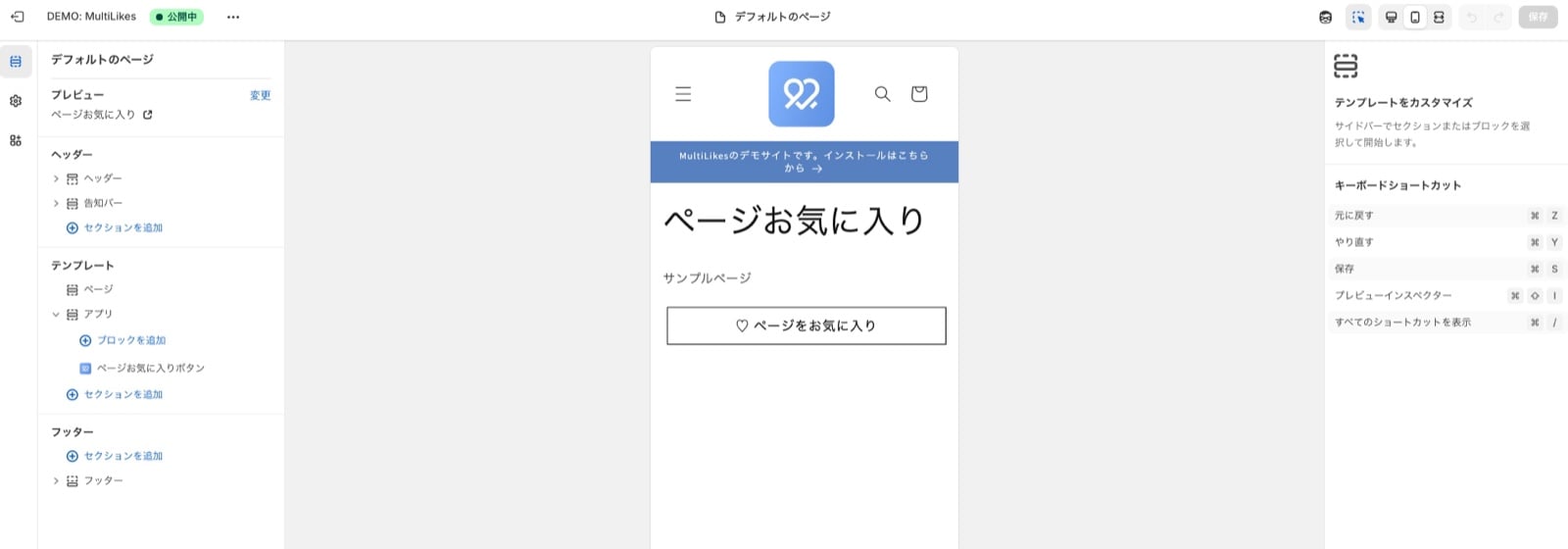 ### 3. Press Save and check your storefront
### 4. Confirm it appears correctly. Setup is complete.
### 3. Press Save and check your storefront
### 4. Confirm it appears correctly. Setup is complete.
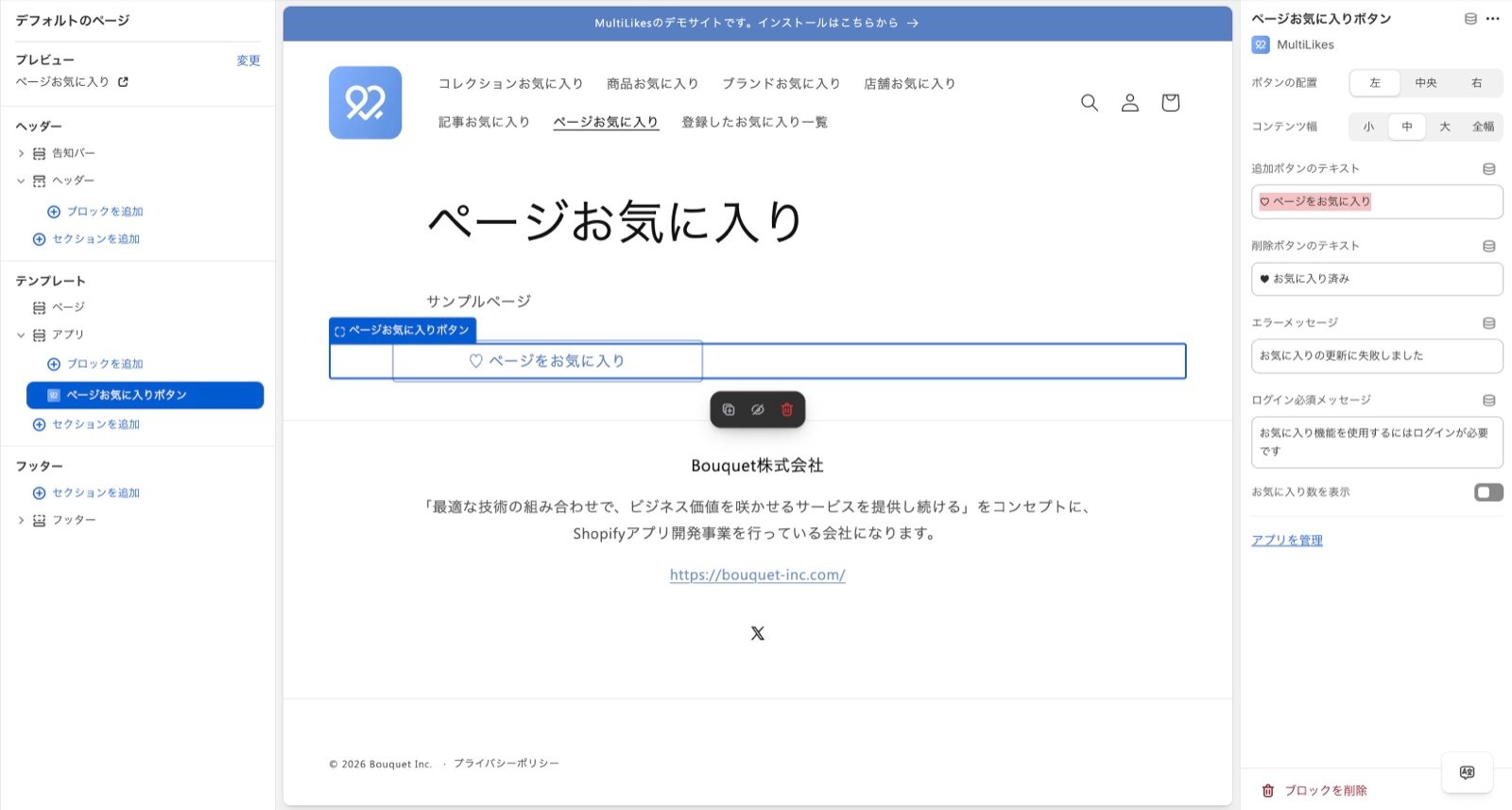 For page favorites you can also set:
* Button placement
* You can change where the button sits
* Content width
* You can set the content width of the section
* Small: 600px
* Medium: 800px
* Large: 1000px
* Full width: 100% (the parent's content width)
## Related topics
- [Setting up the favorites list page](/en/apps/multilikes/setup/favorites-list-page.md)
- [Setting up product favorites](/en/apps/multilikes/setup/product-favorites.md)
- [Setting up brand and store favorites](/en/apps/multilikes/setup/brand-store-favorites.md)
For page favorites you can also set:
* Button placement
* You can change where the button sits
* Content width
* You can set the content width of the section
* Small: 600px
* Medium: 800px
* Large: 1000px
* Full width: 100% (the parent's content width)
## Related topics
- [Setting up the favorites list page](/en/apps/multilikes/setup/favorites-list-page.md)
- [Setting up product favorites](/en/apps/multilikes/setup/product-favorites.md)
- [Setting up brand and store favorites](/en/apps/multilikes/setup/brand-store-favorites.md)