> ## Documentation Index
> Fetch the complete documentation index at: https://docs.bouquet-inc.com/llms.txt
> Use this file to discover all available pages before exploring further.
# From install to first use
> After installing, set your store description and choose which content goes into llms.txt.
Time needed: 5 minutes.
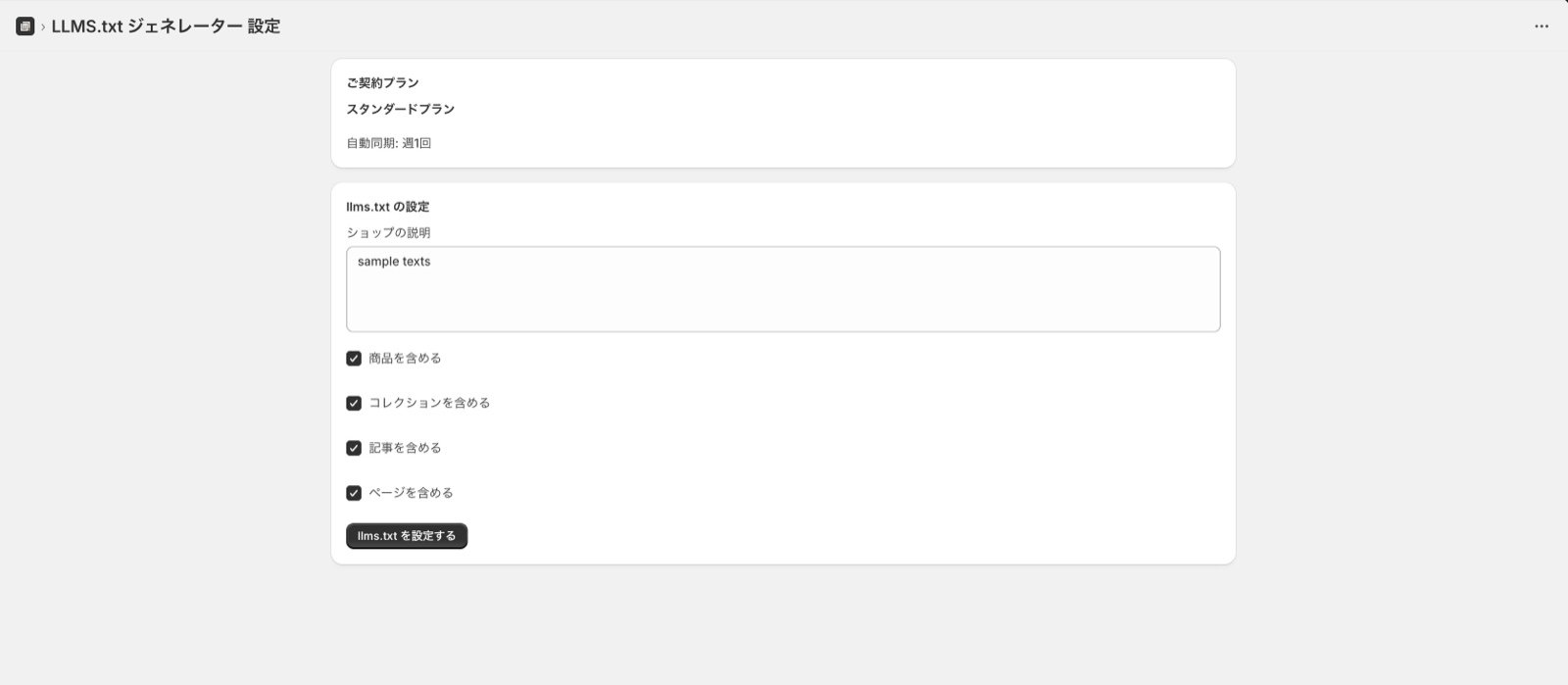 Installing the app takes you to this settings screen.
* Write the store description shown to people searching through AI
* Choose which content goes into llms.txt
Press the button to generate llms.txt and you are done.
## How to check it worked
1. Open your storefront home page
1. For example, [https://example.shop](https://example.shop)
2. Add /llms.txt to the URL and open it
1. For example, [https://example.shop/llms.txt](https://example.shop/llms.txt)
If the file loads, you are set.
## Related topics
- [From install to first use](/en/apps/user-tag-plus/setup/install.md)
- [How much difference does installing the app make?](/en/apps/llms-txt-generator/faq/effectiveness.md)
- [Show a dedicated banner to product testers](/en/apps/user-tag-plus/use-cases/monitor-banner.md)
Installing the app takes you to this settings screen.
* Write the store description shown to people searching through AI
* Choose which content goes into llms.txt
Press the button to generate llms.txt and you are done.
## How to check it worked
1. Open your storefront home page
1. For example, [https://example.shop](https://example.shop)
2. Add /llms.txt to the URL and open it
1. For example, [https://example.shop/llms.txt](https://example.shop/llms.txt)
If the file loads, you are set.
## Related topics
- [From install to first use](/en/apps/user-tag-plus/setup/install.md)
- [How much difference does installing the app make?](/en/apps/llms-txt-generator/faq/effectiveness.md)
- [Show a dedicated banner to product testers](/en/apps/user-tag-plus/use-cases/monitor-banner.md)